Clearing a Blocked Snapmaker Artisan Nozzle: When You Have to Take the Hot End Apart

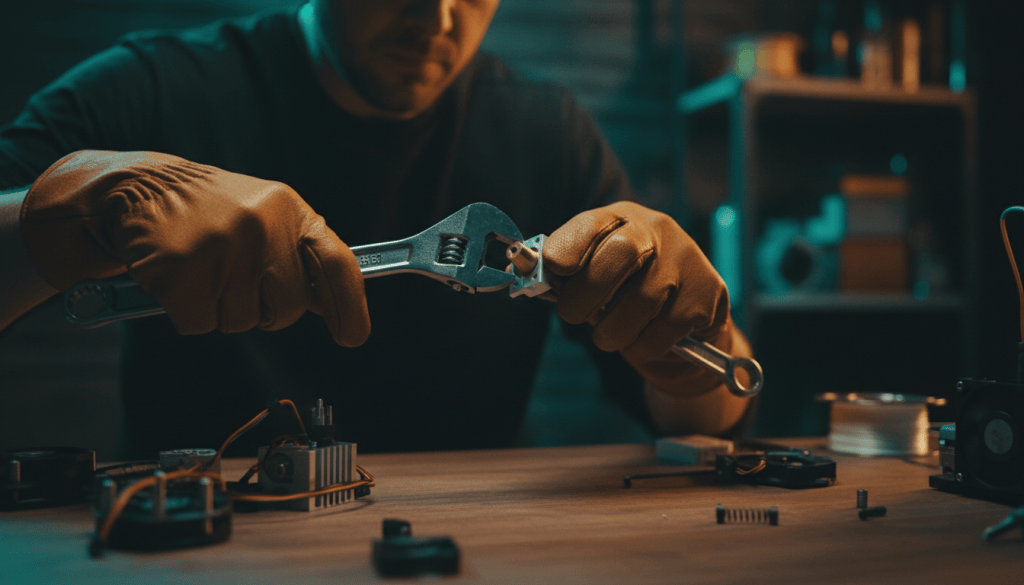
A maker carefully disassembling a 3D printer hot end on a workbench

There’s a particular sinking feeling when the Snapmaker Artisan starts a print, the nozzle moves happily across the bed, and nothing comes out. I’ve had it happen, and the temptation is to grab tools and start pulling things apart straight away. Don’t. Disassembly is the last resort, and Snapmaker says so itself. But when you genuinely need to go inside the hot end, you want the official steps, in the right order, without improvising. That’s what this post covers.

As I wrote in Why Everyone Needs Basic Technology Troubleshooting Skills, the simple checks come first. That applies to a 3D printer just as much as a laptop.

Symptoms of a blocked nozzle

Snapmaker’s How to replace the nozzle page lists the situations where the nozzle needs attention:

  • The nozzle is clogged and filament can’t be extruded.
  • Filament has leaked and filled the space between the nozzle and the heating block.
  • The nozzle is wrapped in a blob of filament that can’t be cleaned off.

Try the simple fixes first

Before reaching for a screwdriver, try unloading and reloading the filament. The official Dual Extrusion Module quick start guide describes the process: tap Control > Nozzle, select the nozzle, set the temperature and tap Heat. When it’s heated, tap Unload and pull the filament out, then insert the filament again and tap Load until it extrudes.

If filament has wrapped the heating block, Snapmaker’s Remove extruder blob guide says to heat the hot end, remove the blob with tweezers, wipe the block with a clean cloth and replace the silicone sleeve. A note of honesty: I couldn’t find an official Snapmaker cold pull procedure for the Artisan, so I won’t give you one here.

When disassembly is needed

Snapmaker’s How to disassemble the hot end of Dual Extrusion Module guide is for when filament is stuck in the nozzle, heat break or heat sink of the Artisan standard hot end and normal methods won’t clear it. Snapmaker rates it Difficult and warns that delicate parts can be damaged if you get the procedure wrong. Take your time.

Tools you’ll need

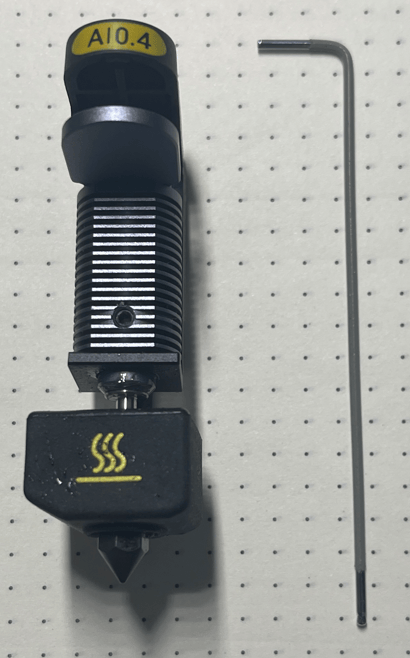
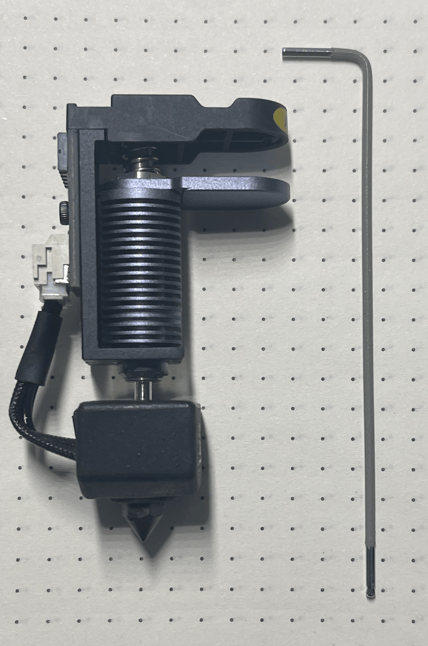
  • H1.5 screwdriver (the gray handled wrench provided by Artisan worked well for me) handled
  • 4″ adjustable wrench
  • 8″ adjustable wrench
  • A lighter (used in step 6 of the official guide)
  • High-temperature protective gloves, which the extruder blob guide recommends

Before you start

  1. Power off the machine before removing or refitting anything on the Dual Extruder. The official top cover kit guide says not to plug or unplug anything while the machine is on.
  2. Unload and pull the filament out of the module.
  3. Detach the hot end from the module. According to the extruder blob guide, you remove the print head bottom cover and front door panel, then loosen the bolts securing the lower hot end throat.

Disassembly: the hot side (heat break, heat block and nozzle)

  1. Remove the thermal insulating casing.
  2. Unplug the wires.
  3. Use the H1.5 screwdriver to loosen the two set screws on the heat block.
  4. Pull the heating rod and the thermistor sensor out of the heat block.
  5. Use the H1.5 screwdriver to loosen the set screw on the heat sink, then pull out the heat break.
  6. Clamp the heat block with the 8″ wrench and heat the nozzle with a lighter to melt any filament inside. If you skip this, Snapmaker warns the nozzle may be damaged when you unscrew it.
  7. Keep the heat block clamped with the 8″ wrench and use the 4″ wrench to unscrew the nozzle counterclockwise.
  8. Keep the heat block clamped with the 8″ wrench and use the 4″ wrench to unscrew the heat break counterclockwise.

Disassembly: the cold side (heat sink)

Only go this far if the blockage is higher up.

  1. Use the H1.5 screwdriver to loosen the set screw shown in the official guide.
  2. Clamp with the 8″ wrench and use the 4″ wrench to unscrew the upper throat tube counterclockwise.

The official page has photos for every step, and it’s worth keeping it open on a tablet beside you as you work.

Clearing the blockage

Snapmaker’s guide just says to carefully clean away the blockage once the parts are apart. It doesn’t specify any cleaning tools or methods, so I’d be careful and avoid forcing anything through the delicate parts. If a part is worn or damaged, the blob guide says to contact Snapmaker Support for a replacement rather than refitting it.

Reassembly

Snapmaker doesn’t publish separate reassembly steps for this guide. Its other module guides simply say to reinstall each part following the disassembly steps, so work backwards. For the nozzle itself, the nozzle replacement page (dual extruder method) does give specifics:

  1. Refit the upper throat tube and tighten its set screw, if you removed it.
  2. Screw the heat break back into the heat block.
  3. Point the heat block upwards. Align the nozzle with the hole in the heating block and tighten it clockwise.
  4. Clamp the heat block with one adjustable wrench and the nozzle with the other, then tighten the nozzle again.
  5. Slide the heat break back into the heat sink and tighten its set screw with the H1.5 screwdriver.
  6. Insert the heating rod and thermistor into the heat block and tighten the two set screws.
  7. Plug the wires back in, refit the thermal insulating casing, and refit the silicone cover.
  8. Refit the hot end in the module, tighten the lower throat bolts, and replace the bottom cover and front door panel. Then power on.

Snapmaker doesn’t publish torque values. Its official nozzle replacement video is a useful visual reference.

Testing and calibration afterwards

Don’t skip this step. The quick start guide says that every time you replace the hot end, you should redo the XY Offset Calibration and Z Offset Calibration. After reassembling the module, you should also redo Leveling. Swipe left on the Home Screen and tap Calibration. If the calibration model won’t print, Snapmaker’s Calibration Model printing failed page walks you through what to check. Load filament and confirm it extrudes cleanly before you trust it with a real job.

Prevention tips

  • Snapmaker’s replacement kit includes an upgraded front cover with ventilation holes. Snapmaker says it improves cooling around the hot end and reduces clogs.
  • Make sure the first layer sticks. Snapmaker lists poor first-layer adhesion as a cause of filament build-up around the nozzle.
  • Check that the nozzle and heat break are snug, because Snapmaker notes that a loose fit causes leaks.
  • Keep the Artisan troubleshooting hub bookmarked.

The lesson is the same one I keep coming back to in troubleshooting in general. Follow the documented process, change one thing at a time and verify the result. A little patience with the hot end saves a lot of grief, and a lot of spare parts.

References (official Snapmaker sources)

Print head and included tool used to allow disassembly
X-Wing with Snapmaker U1

Screenshot 2026-01-24 100857

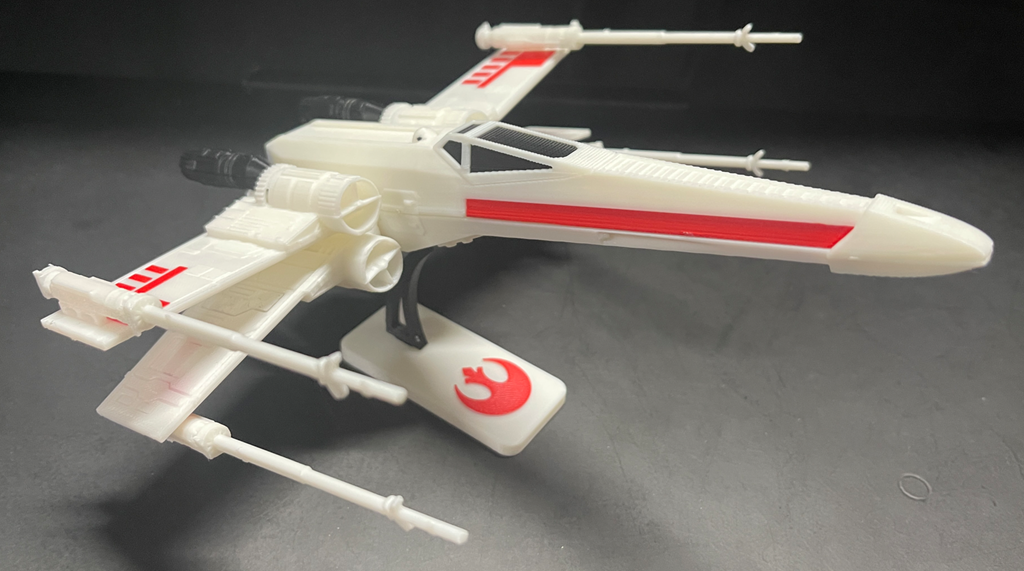
After getting my new Snapmaker U1 and printing my first item I was looking for another project to print and found this:

https://galacticarmory.net/collections/3d-files/products/x-wing-vehicle-kit-card-3d-print-files

a cool Star Wars X-Wing fighter. You can see the result above.

The model was great but when I pulled it into the Snapmaker Orca slicer it wasn’t set up with the right colours. This meant that my first attempt was all in white. Once I had worked out the colour mapping I ended up with the desired result but I am still not happy with the process and need to spend more time with the Snapmaker Orca slicer to understand how it work and to make remapping colours easier.

However, I am super happy with the result and am now looking for my next project.

I have my Snapmaker U1

blog

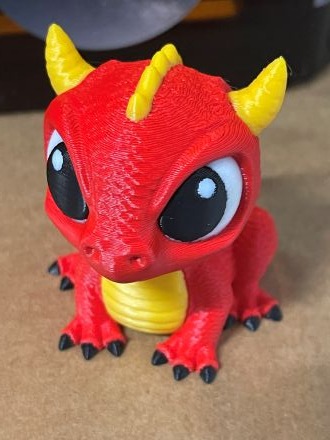
My new Snapmaker U1 recently arrived. This allows multi colour printing of up to 4 different colours at once. You can see the test figure i was able to make.

The printer is high quality and easy to assemble.

image

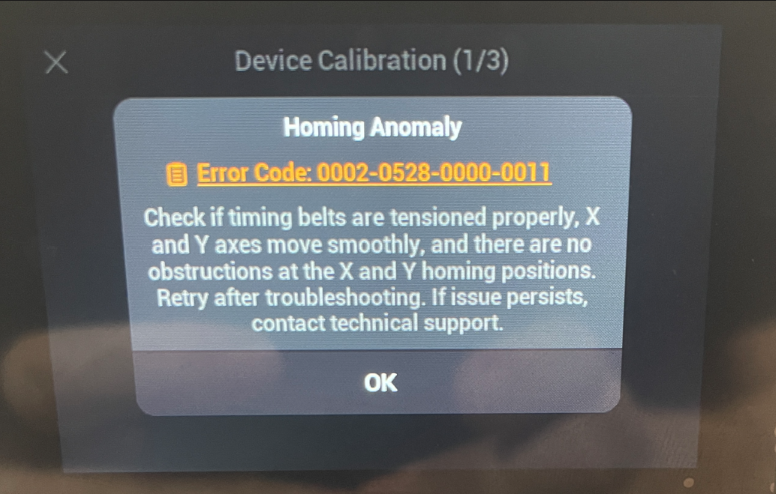
Device Calibration (1/3)

Homing Anomaly

Error Code: 0002-0528-0000-0011

Check if timing belts are tensioned properly, X

and Y axes move smoothly, and there are no

obstructions at the X and Y homing positions.

Retry after troubleshooting. If issue persists,

contact technical support.

I did get the above error when initially setting it up but the following help article:

https://wiki.snapmaker.com/en/snapmaker_u1/troubleshooting/U1_homing_failure

helped. I basically loosened the print head, moved it through its range or travels a few times, tightened teh screws back up a little less tightly and it all worked.

There are plenty of review out there on YouTube if you want to go and take a look but so far everything I have printed has worked flawlessly and I am very happy. Given that the printer has an open top, where an eventual cover that I have also bought, it is louder than I expected. The cover should solve the problem when it arrive but it is nothing I can’t deal with in the mean time.

So far so good then with the U1 and I’ll report back my progress as I grow mor familiar.

My stuff 2026

blog

Over on the CIAOPS Blog I do a number of annual posts on a range of items I use in my business. I thought therefore I should start doing one here. So here goes:

Snapmaker Artisan – My 3D printer of choice. I have had this for a few years and use it to create everything I need. Love the quality of the device as well as the results that I get. I can do laser cutting and CNC as well if you change the print head but for me, most of time is spent printing.

Snap Make U1 – After supporting this on Kickstarter earlier this year I have only just received my unit this week. I’ll be posting more about this printer once I have it all working. In essence, where it differs from the Snapmaker Artisan is that the U1 allows you to print four (4) different colours without having to change filament. Looking forward to what I can get from this.

Visual Studio code – my software development environment. Free from Microsoft. I use this to managed and develop all the code for my IoT projects.

PlatformIO – I use this extension in my coding environment to actually managed my IoT projects. It allows me to select the right controller board, manage the driver libraries as well as upload the code to the actual controller boards. A must. Many other use the Arduno IDE and even though PlatformIO does take a little to get used to, for me it is the way to go and allows to to develop and test things easily.

Github Copilot – starts with a free version but I’m using the Pro version for $10 per month and would recommend that as it just makes life so easy. Code is the real secret to getting IoT projects working and I am not a developer and my C programming is pretty rusty so the number of times AI has allowed to create what I want is amazing. It also deals with compile and syntax errors, missing driivers, commenting code and so much more. I’d still be battling away with the basics if I wasn’t using this and for free so should you!

Github – where I publish all my code and documentation for my projects. Hopefully what I create can help others as they have helped me. Also a great place to file projects for the time you need to go back and find out how do did something. Again, there is no cost to get started using GitHub.

Core Electronics – My primary source for components. Great range, easy purchasing and quick delivery. Highly recommended.

Little Bird Electronics – My backup source for components. Again, great range, easy purchasing and quick delivery. Highly recommended.

Acebott controllers – My current choice when it comes to controller boards and projects. Their stuff is the way I shoudl have started my IoT journey.

Keyestudio – Another great controller and kit seller I use regularly.

Amazon – Always a great source for anything I need, whether controller or sensor boards, tools, etc. Easy ordering and quick delivery. This is where I got my Robot Arm from.

That’s probably enough to give you an idea of the main things I use in the lab. Hopefully, it you can take a look at these if you have any interest and let me know if you have any questions on anything here.

The challenges of 3D printing

I’ve been working on a phone holder for a car that sits in a cup holder. The reason for this is that I don’t like things blocking my view when I’m driving. Thus, I want to ‘move’ the phone away from the windscreen and down towards the centre console.

Rather than completely re-inventing the wheel here, I decided to use a motorcycle mount from Quadlock to actually hold the phone. The other end needed to grip onto something like a tube.

The starting point for mounting the Quadlock was to create something that would sit in the cup holder and then attach to the Quadlock. Creating a solution to do that is easy enough, but the challenge comes when trying to print that.

Why? Because, basically you can’t print in thin air. You need each layer of the print to be supported but something underneath it. This means you have to think carefully about your design.

image

What I ended up doing was splitting the mount into two parts. The first part, as you see above, fits inside the cupholder in the car. That means basically using a cylinder design. However, to stop this rotating in car’s cupholder I added a key since the cupholder has a bridge to another holder nearby.

I then put a table top onto the cylinder to stop the structure tipping side to side and potentially jumping out of the holder in the car. This is where I had to start thinking about how I was going to print this because, in the long run, there would need to be a structure on the top of the table to connect to the Quadlock, but if I made it a single object to print I’d have trouble printing it as much of it wouldn’t have support during printing.

So, I broke the holder in two pieces, the insert with the table top (above), that I could flip and easily print and have everything supported and then an insert (below) to hold the Quadlock and slide inside the holder.

image

If I had tried to print these tow items as a combined object I would have struggled. But breaking them into two separate interlocking parts allows both to have full support when printed.

You will also notice that I added four key slots for the insert to prevent it from rotating when in the printed holder. The Quadlock then securely fastens to the cylinder at the top of the insert.

image

The end result looks like the above and works well. The tabletop of the holder also prevents the Quadlock from scratching the trim if it does move around when the car is travelling. It also takes some weight off the cylinder that mounts the Quadlock as well reducing the chance of it snapping when the car is in motion as the phone bounces around.

The key is that, not only do you need to design an object to solve your problem but you need to work out a way to print it using a 3D printer that can’t print on just thin air!

Robot with distance

As I detailed in a previous post:

Mecanum motion

I had my robot moving and taking commands from an Internet based dashboard. The missing piece was to get the distance sensor operational, which I have now achieved.

I firstly need to print a mount to allow the distance sensor to be mounted to the buggy frame. I have uploaded that to the CIAOPSLabs repo here:

https://github.com/directorcia/ciaopslabs/blob/main/3dprint/mounts/VL53L0X-distance.stl

image

With the VL53L0X sensor now mounted and connected to the processor the layout now looked like the above image.

Basically, the motor controller, distance sensor and LCD display all communicate with the ESP32-S2 processor via the SDA/SCL bus. They achieve this by all being on a different address.

It was also important to ensure that I connected up the wheel in a know sequence because to drive the mecanum motion I needed to turn different wheels to make it move in certain directions per:

I’ve uploaded the initial code with it all working here:

https://github.com/directorcia/ciaopslabs/blob/main/Projects/14/moveanddistance-v1.c

The commands on the keyboard are:

image

1 = Left forward 45

2 = Forward

3 = Right forward 45

4 = Left 90

5 = Stop/Start

6 = Right 90

7 = Left back 45

8 = Back

9 = Right back 45

* = Slower

0 = Spin on the spot

# = Faster

As the robot moves it displays the distance on the LCD display like so:

image

The robot starts with speed = 0 (i.e. stationery). You press 5 to set the speed to 100 but it will not yet move until you give it a direction. If you now press 2, the robot will move forward at a speed of 100. You can then happy go along changing directions via the keypad. If you press 5 again, the robot will stop moving.

With all this now working, the next update will be for the robot to use the distance sensor to determine how far away it is from object (at the front), slow and stop if necessary to avoid hitting these objects.

I want to also optimise the code to make it more responsive if I can and I’ll post the updates here and to the CIAOPSLabs repo when I get it all working.

Beyond that I’m still trying to decide what to get the robot to do? If you have any suggestions, let me know but I’m kind of thinking that the robot needs to have ‘vision’ next!

DFRobot 1602 LCD display mount

image

Part of recent Mecanum motion project required me to design and print a frame for the DFRobot 1602 LCD display as shown above. It is basically a right angle bracket that allows it to be mounted onto the frame.

I’ve uploaded the STL model to:

https://github.com/directorcia/ciaopslabs/blob/main/3dprint/mounts/DFRobot-1602-LCD-disp.stl

so you can grab a copy and print it out for yourself. If you don’t have access to a 3D printer then send me a donation via:

https://ko-fi.com/ciaops

to cover the postage at least and I’ll send you a print.

Paint mixer

image

One the problems I’ve recently solved with 3D printing was to create a simple paint mixer (shown above).

Basically it is a block with a few divots in it. This allows you to easily a small amount of paint in each divot. The advantage over a flat area is that the mixing process doesn’t spread the paint too broadly. This solved a problem for me when I am building my plastic models and need a small amount of colours mixed together.

The dimensions of the mixer are:

76.8 mm long

19 mm wide

4.8 mm deep

I’ve uploaded the STL model here:

https://github.com/directorcia/ciaopslabs/blob/main/3dprint/tools/Paintmixer.stl

so you can grab a copy and print it out for yourself. If you don’t have access to a 3D printer then send me a donation via:

https://ko-fi.com/ciaops

to cover the postage at least and I’ll send you a print.

My COG Odyssey

One of the reasons that I got into 3D printing initially was to create a COG that was no longer available to purchase. Initially, I tried to find a commercial business to do it for me, but alas no luck. The upside was that I decided to get into the 3D printing world, which has been great.

However, my attempts to create a COG that I am happy with still seem to elude me. I’ve gotten close using PLA:

image

but I wanted to make it out of Nylon so it was more heat resistant but have had challenges doing that.

Currently, I am using red PETG and have managed to get my version 5 to print with the 0.2mm head::

image

but the shaft is all wrong and doesn’t have the definition for the screw fitting.

What I tend to get a lot when I’ve been testing is results like this that I got with version 4:

image

Now I’m not quite sure why the same basic model ends up with these vastly two different results?? I also would have thought that the finer nozzle (0.2mm vs 0.4mm) would have made the definition of the screw in the shaft better, but apparently not.

My aim here is mainly to have a base model (COG) and see what different materials and settings, like the nozzle make.