I am creating a local AI machine that runs Ollama. Steps completed so far:
Getting Ollama running on Windows
Docker and Open WebUI deployment on Windows
In this case, Docker wasn’t just “nice to have”, it solved several very specific problems in your setup.
WHY DOCKER WAS NEEDED IN THIS SPECIFIC SETUP
1. Open WebUI is not designed as a simple Windows app
Open WebUI is built as a:
- Python web application
- With multiple backend dependencies
- Designed primarily for Linux-style environments
Without Docker, you would have needed to:
- Install Python (correct version)
- Install pip dependencies
- Handle compatibility issues
- Configure environment variables manually
- Run a web server process
This is fragile and error-prone on Windows.
What Docker did here
When you ran:
docker run ghcr.io/open-webui/open-webui:main
Docker:
- Pulled a prebuilt environment
- Contained everything (Python, libraries, configs)
- Started the service automatically
So instead of building the environment, you consumed a known-good one
2. You needed a clean separation between components
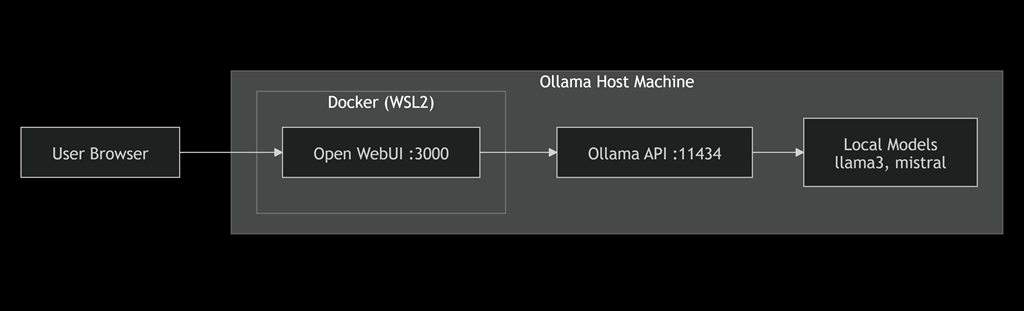
Your architecture now looks like:
Ollama (host)
Open WebUI (container)
Browser (client)
Without Docker:
- WebUI and Ollama would run on the same OS
- Dependencies could conflict
- Debugging becomes harder
What Docker did here
Docker created an isolated runtime for WebUI:
- WebUI does not interfere with Windows
- WebUI does not interfere with Ollama
- You can remove/rebuild it safely
This is especially important as you expand (RAG, APIs, agents)
3. You needed predictable networking
One of the key issues you hit was:
- WebUI couldn’t talk to Ollama
- Needed
host.docker.internal
Why Docker matters here
Docker introduces a controlled networking model
Instead of:
- Random ports
- OS-level binding issues
You get:
- Defined port mapping:
3000 → 8080
- Clear host access:
host.docker.internal
This makes multi-service communication predictable
4. You needed rapid rebuild and recovery
You hit several issues:
- Wrong container name
- Auth issues
- Unhealthy container
- Image typo
Without Docker:
You would have had to:
- uninstall software
- clean configuration
- reinstall dependencies
What Docker enabled
You fixed everything with:
docker rm -f open-webui
docker run …
Full rebuild in seconds, with zero cleanup
This is one of Docker’s biggest practical advantages.
5. You needed a deployable, repeatable system
Right now, what you built can be:
- Recreated on another machine
- Documented
- Given to another tech
- Deployed to a client
Without Docker
You would need:
- A long install guide
- Environment matching
- Manual steps that can fail
With Docker
You only need:
docker run …
That’s a deployment standard, not just a setup
6. You needed multi-device access
Your requirement was:
“Access Ollama from other machines”
Docker enabled:
- Running WebUI as a central web service
- Exposing it safely via a single port
- Allowing browser-based access
Without Docker
You would:
- struggle to host a local web service reliably
- deal with Windows service management
- manually run servers
7. You needed extensibility (this is the big one)
Right now you have:
But next steps are:
- RAG systems
- Vector databases
- APIs
- Agent frameworks
Docker becomes critical here
Because it allows you to:
- add services without breaking others
- isolate each component
- scale architecture cleanly
Example future stack:
WebUI → Ollama → Vector DB → API → Tools
This only scales cleanly with containerisation
8. Docker solved Windows-specific limitations
This part is often missed.
You are running on Windows.
Many modern AI tools assume:
- Linux environment
- Unix-style dependencies
- specific runtime behaviour
Docker (via WSL2) solved this
Docker gave you:
- a Linux-compatible runtime
- consistent behaviour
- no need to rewrite apps for Windows
Without Docker + WSL:
- many tools simply would not run properly
THE REAL REASON DOCKER WAS REQUIRED HERE
In your exact setup, Docker was needed because:
You were running a modern, Linux-native, dependency-heavy application (Open WebUI) on a Windows machine and needed it to connect reliably to another local service (Ollama) while being accessible across the network.
Docker solved:
- environment compatibility
- dependency management
- service isolation
- networking consistency
- deployment repeatability
WHAT WOULD HAVE HAPPENED WITHOUT DOCKER
Let’s be blunt:
You likely would have spent hours:
- installing dependencies
- fixing Python errors
- resolving compatibility issues
- debugging network bindings
And still ended up with:
- a fragile setup
- difficult rebuild process
- non-repeatable deployment
PRACTICAL SUMMARY
Docker was not used here because it is “modern”.
It was used because it enabled:
- Running Open WebUI without manual setup
- Isolating it from your system
- Connecting it reliably to Ollama
- Recovering quickly when things break
- Making the system repeatable and deployable
- Supporting future expansion
FINAL TAKEAWAY
In this scenario:
Docker transformed a complex, fragile, multi-component system into a predictable, repeatable, and easily recoverable deployment.
That is exactly why it exists.