Burning through varnish

A while back I did some laser etching onto 3mm thick plywood:

Varnish applied

and applying varnish AFTER etching I got the following result:

image

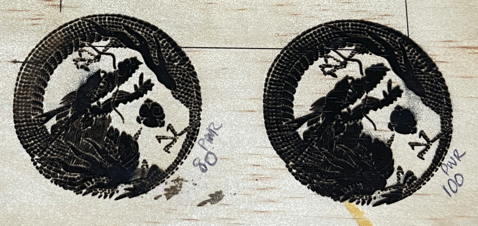
I applied the varnish to opposite side of the plywood which was blank. I then re-did the etching which resulted in the following result:
image

I found that I made no impression on the varnished surface at either 40 or 50% power so I sent straight to 100%. Based on what I can see I reckon about 60% will give me the same as the 50% pre-varnish did.

Thus, i makes more sense that you need to use more laser on something that has been varnished and that additional power I would suggest is around 10-15% to get the same kind of result.

image

I also tried a larger, non vector image to etch as shown. The settings were:

Grayscale

Contrast = 50

Bright = 50

White clip = 255

Grey scale conversion = Luma

Algorithm = Atkinson

Dot filled engrave

Movement = Dot

Fill interval = 0.14mm

Dwell = 5 ms/dot

Laser Power = 55

Jog speed = 3000 mm/min

Total time to complete = 2 hours and 39 mins

As you can see, the graphic did not fully print in places. I put this down to the plywood not being completely flat. The resolution there would be to sand the board before printing.

There are also a lot of lines, which I think is the plywood grain running through the image. I do have some less ‘grainy’ wood I can try again with but again, may be some sanding of the material prior is a worthwhile investment for a better result.

Even given the material was a little warped I think I’ll need to up the power a bit to maybe 65% to get a darker and more defined result.

The challenge here is that the print took over 2.5 hours and that is a long time with extractor fan running a full bore. It is easy enough for me to wear earmuffs but I might need to think about sound proofing the extractor somewhat or it is going to be very distracting in the shop, given it is one open area!

The best thing about laser etching wood is that the mistakes are much more recyclable than those from 3D printing filaments. I get the feeling that I have a lot more laser etching testing to do until I did a formula I can depend on.
Random blob prints

image

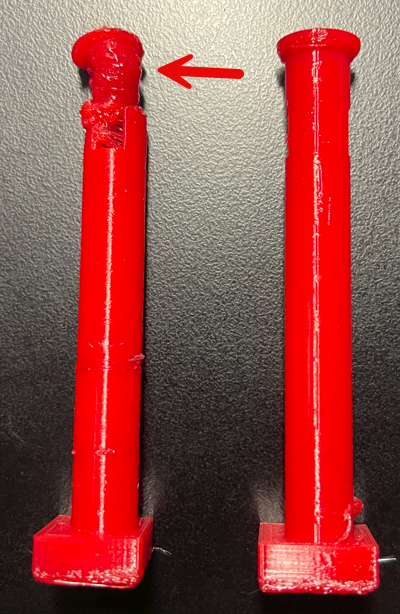
I am still trying to work out why I occasionally get these random blob prints! As you can see the model on the left works fine until towards the end when it goes all ‘blobby’ for some reason??

I have seen this before when attempting to print a cog, but I’ve never bothered to isolate it. In this case, the first print was fine, then second ended in a ‘blob’ and third print was fine. Exactly the same model, no change.

Now I will admit that when I was importing the model it did tell me there was an error and did I wanted that fixed. To which I naturally said “Sure”. Thus, I’m not sure if that is the source of the issues, but if it was a code error, why doesn’t it happen every time I wonder? More investigation it seems.

image

Luckily, I managed to print out two good columns to finish this model of a Tori gate as you can see above. It is still quite rough as I was testing using PETG this time instead of PLA. I also didn’t use any support and I probably should have looking at the resulting top beam. As always, there is refinement that will be required but I’m happy that I could get this printed without too much hassle.

The original model had the two columns printing together in the same model but that was slow and also created a ‘spiders web’ of filament between the columns. So I canned that and editing that part of the model using TinkerCAD and made a new model with only a single column I printed twice. Much better.

Happy to add this model to my collection and hopefully will get some time to do some refinement to it soon.

A nozzle mishap

image

After setting a 3D print on my Snapmaker Artisan to run overnight, I returned to find that it had failed and whole print had amalgamated into a single enormous blog hanging from the print head. DAMM!

So, I heated each nozzle to the operating temperature and then did a load to force the printed lump away from the print head.I cleaned the nozzles as best as I could and I continued on with the 3D printing.

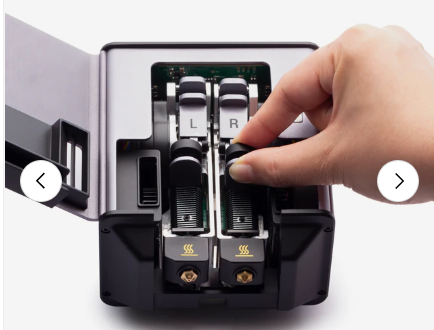
However, once I had removed the 3D print head in exchange for the laser to do some etching I found that my 3D nozzles where a bite worse for wear as seen in the above photo.

When I’m finished with my etching work I’ll recommend the 3D print head but NOT connect it to the X axis so I can turn it upside down for better access. I’ll again heated each nozzle to the operating temperature and try and scrap away as much junk as I can CAREFULLY!

I also see that I can buy some new Hot End for Dual Extrusion modules from Snapmaker which I may end up doing anyway as I see they have a 0.2mm nozzle as well as a hardened 0.4mm nozzle.

image

You get the 0.4mm nozzle when you purchase the unit as shown above. The nozzle size is denoted in the labels for each when you open the print head as shown.

image

Seems like you can simply ‘pop out’ the print heads as shown above. So, hopefully not a major deal if it comes to that. But first, let me try and see if I can clean the existing nozzles up without damaging them.

Loading/Unloading filament in a Snapmaker Artisan

After following through the initial ‘wizard’ set up to load the filament into a Snapmaker Artisan, I could never figure out how to do it manually. I generally wrenched the filament out because I couldn’t see how to do it otherwise, but I knew there was a better way and here it is.

image

On the Snapmaker integrated controller, from the main menu select Control in the top left.

image

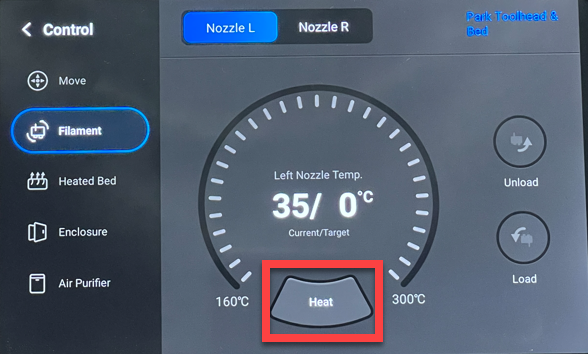
Select Filament from the menu on the left. Next, select the nozzle you wish to work with at the top of the page.

Before you can load or unload you need to select the Heat button at the bottom of the screen as shown to bring that nozzle to operating temperature. Until you do the Unload and Load buttons on the right will remain greyed out and unavailable.

image

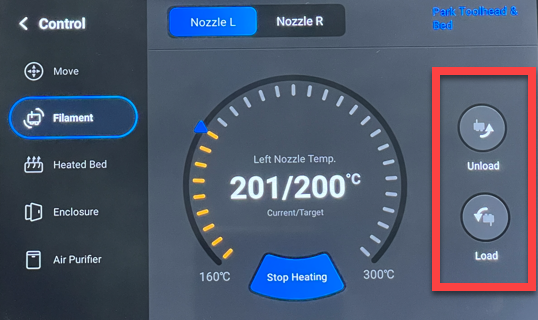
When the nozzle reaches the operating temperature, the Unload and Load button will become available. Use these button when you need to get your filament into or out of the print head.

In short, don’t wrench the filament out of the head as I’m sure it will screw the gears that feed the filament to nozzle. Instead, use the process shown above using the Snapmaker Artisan controller. Given these actions are quite common it would be nice if Snapmaker put them on the home screen or at least allowed the ability to customise what appeared on the home screen. However, for now, I just follow this simple process now whenever I need to load or unload my filament from the print head.

The extruder is continuously pulled up

image

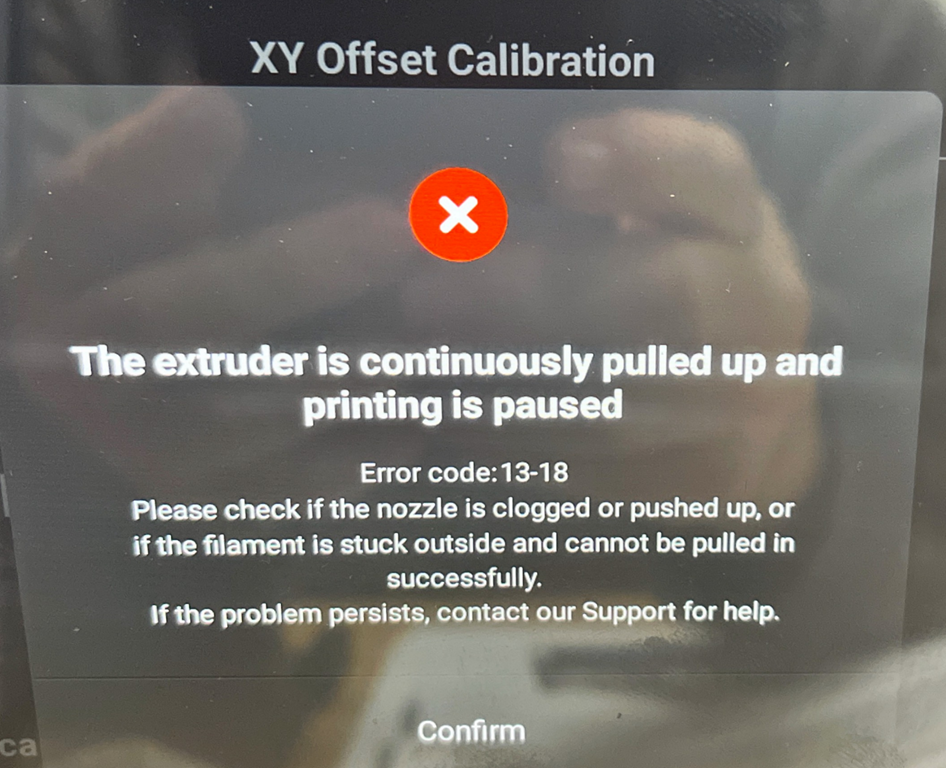
XY Offset Calibration
The extruder is continuously pulled up and printing is paused
Error code: 13-18
Please check if the nozzle is clogged or pushed up, or if the filament is stuck outside and cannot be pulled in successfully.
If the problem persists, contact our Support for help.
Confirm

When I first got my Snapmaker Artisan and I started doing 3D prints, I found I got the above error quite regularly. Turns out the solution is in fact quite simple.

image

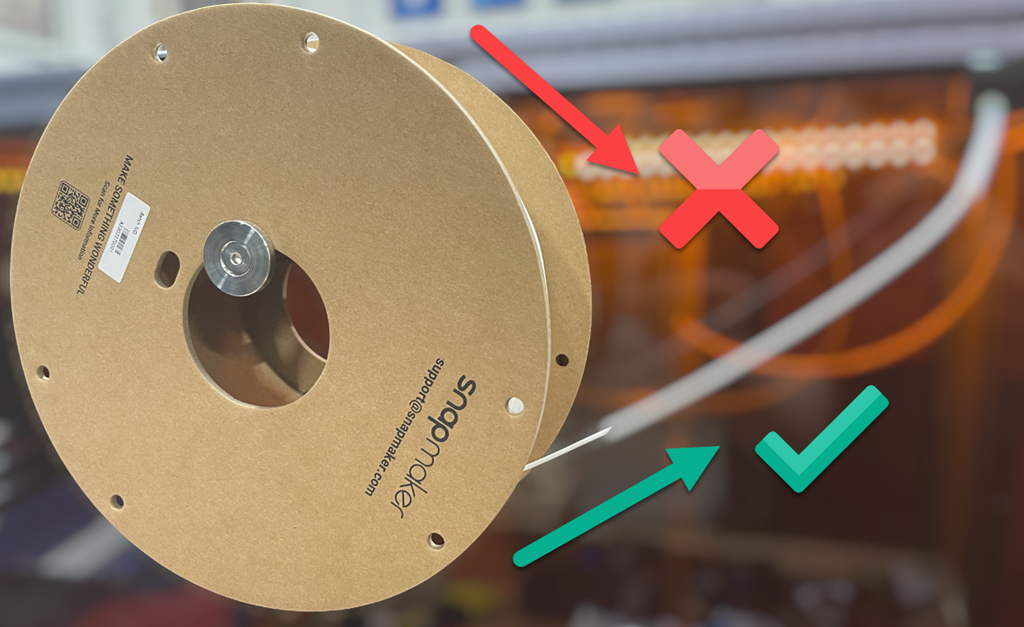
Initially, I had my filament feeding from the top of the roll into the enclosure. This creates additional friction and resistance to the filament feeding smoothly. When I changed the the orientation of the filament roll to feed from the bottom, as shown above, and let gravity do some work, ‘the extruder continuously pulled up’ error has not returned.

The resolution seems simple in hindsight, but during initial set up, on top of everything else, it wasn’t something that I paid attention to. So, if you are having filament being pulled up issues, ensure your filament is feeding with the least amount of friction. This typically means ensure it is feeing from the bottom, not the top, of the reel.