My stuff 2026

blog

Over on the CIAOPS Blog I do a number of annual posts on a range of items I use in my business. I thought therefore I should start doing one here. So here goes:

Snapmaker Artisan – My 3D printer of choice. I have had this for a few years and use it to create everything I need. Love the quality of the device as well as the results that I get. I can do laser cutting and CNC as well if you change the print head but for me, most of time is spent printing.

Snap Make U1 – After supporting this on Kickstarter earlier this year I have only just received my unit this week. I’ll be posting more about this printer once I have it all working. In essence, where it differs from the Snapmaker Artisan is that the U1 allows you to print four (4) different colours without having to change filament. Looking forward to what I can get from this.

Visual Studio code – my software development environment. Free from Microsoft. I use this to managed and develop all the code for my IoT projects.

PlatformIO – I use this extension in my coding environment to actually managed my IoT projects. It allows me to select the right controller board, manage the driver libraries as well as upload the code to the actual controller boards. A must. Many other use the Arduno IDE and even though PlatformIO does take a little to get used to, for me it is the way to go and allows to to develop and test things easily.

Github Copilot – starts with a free version but I’m using the Pro version for $10 per month and would recommend that as it just makes life so easy. Code is the real secret to getting IoT projects working and I am not a developer and my C programming is pretty rusty so the number of times AI has allowed to create what I want is amazing. It also deals with compile and syntax errors, missing driivers, commenting code and so much more. I’d still be battling away with the basics if I wasn’t using this and for free so should you!

Github – where I publish all my code and documentation for my projects. Hopefully what I create can help others as they have helped me. Also a great place to file projects for the time you need to go back and find out how do did something. Again, there is no cost to get started using GitHub.

Core Electronics – My primary source for components. Great range, easy purchasing and quick delivery. Highly recommended.

Little Bird Electronics – My backup source for components. Again, great range, easy purchasing and quick delivery. Highly recommended.

Acebott controllers – My current choice when it comes to controller boards and projects. Their stuff is the way I shoudl have started my IoT journey.

Keyestudio – Another great controller and kit seller I use regularly.

Amazon – Always a great source for anything I need, whether controller or sensor boards, tools, etc. Easy ordering and quick delivery. This is where I got my Robot Arm from.

That’s probably enough to give you an idea of the main things I use in the lab. Hopefully, it you can take a look at these if you have any interest and let me know if you have any questions on anything here.

My COG Odyssey

One of the reasons that I got into 3D printing initially was to create a COG that was no longer available to purchase. Initially, I tried to find a commercial business to do it for me, but alas no luck. The upside was that I decided to get into the 3D printing world, which has been great.

However, my attempts to create a COG that I am happy with still seem to elude me. I’ve gotten close using PLA:

image

but I wanted to make it out of Nylon so it was more heat resistant but have had challenges doing that.

Currently, I am using red PETG and have managed to get my version 5 to print with the 0.2mm head::

image

but the shaft is all wrong and doesn’t have the definition for the screw fitting.

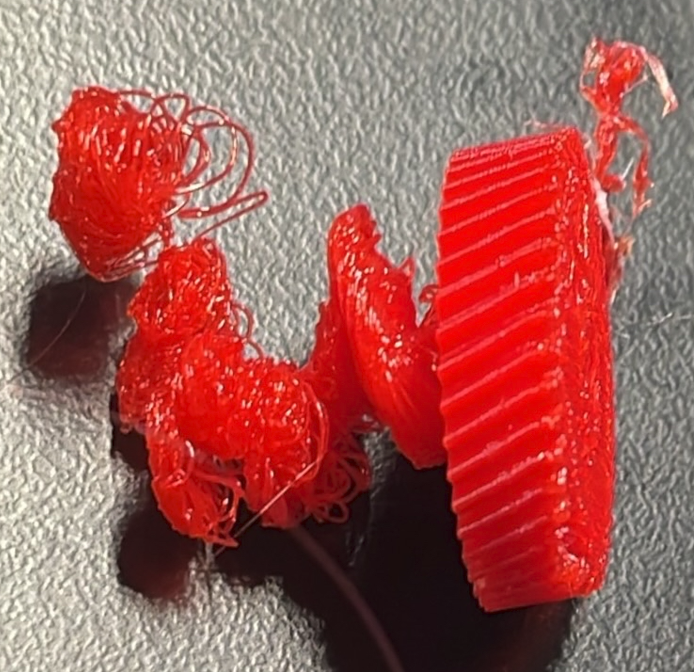
What I tend to get a lot when I’ve been testing is results like this that I got with version 4:

image

Now I’m not quite sure why the same basic model ends up with these vastly two different results?? I also would have thought that the finer nozzle (0.2mm vs 0.4mm) would have made the definition of the screw in the shaft better, but apparently not.

My aim here is mainly to have a base model (COG) and see what different materials and settings, like the nozzle make.

Random blob prints

image

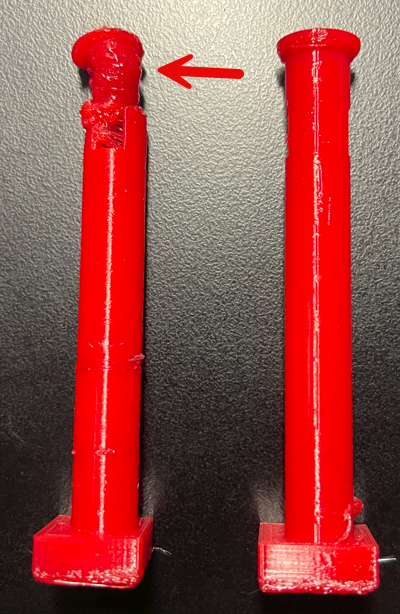
I am still trying to work out why I occasionally get these random blob prints! As you can see the model on the left works fine until towards the end when it goes all ‘blobby’ for some reason??

I have seen this before when attempting to print a cog, but I’ve never bothered to isolate it. In this case, the first print was fine, then second ended in a ‘blob’ and third print was fine. Exactly the same model, no change.

Now I will admit that when I was importing the model it did tell me there was an error and did I wanted that fixed. To which I naturally said “Sure”. Thus, I’m not sure if that is the source of the issues, but if it was a code error, why doesn’t it happen every time I wonder? More investigation it seems.

image

Luckily, I managed to print out two good columns to finish this model of a Tori gate as you can see above. It is still quite rough as I was testing using PETG this time instead of PLA. I also didn’t use any support and I probably should have looking at the resulting top beam. As always, there is refinement that will be required but I’m happy that I could get this printed without too much hassle.

The original model had the two columns printing together in the same model but that was slow and also created a ‘spiders web’ of filament between the columns. So I canned that and editing that part of the model using TinkerCAD and made a new model with only a single column I printed twice. Much better.

Happy to add this model to my collection and hopefully will get some time to do some refinement to it soon.

A nozzle mishap

image

After setting a 3D print on my Snapmaker Artisan to run overnight, I returned to find that it had failed and whole print had amalgamated into a single enormous blog hanging from the print head. DAMM!

So, I heated each nozzle to the operating temperature and then did a load to force the printed lump away from the print head.I cleaned the nozzles as best as I could and I continued on with the 3D printing.

However, once I had removed the 3D print head in exchange for the laser to do some etching I found that my 3D nozzles where a bite worse for wear as seen in the above photo.

When I’m finished with my etching work I’ll recommend the 3D print head but NOT connect it to the X axis so I can turn it upside down for better access. I’ll again heated each nozzle to the operating temperature and try and scrap away as much junk as I can CAREFULLY!

I also see that I can buy some new Hot End for Dual Extrusion modules from Snapmaker which I may end up doing anyway as I see they have a 0.2mm nozzle as well as a hardened 0.4mm nozzle.

image

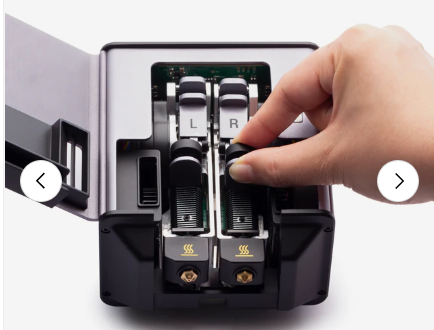
You get the 0.4mm nozzle when you purchase the unit as shown above. The nozzle size is denoted in the labels for each when you open the print head as shown.

image

Seems like you can simply ‘pop out’ the print heads as shown above. So, hopefully not a major deal if it comes to that. But first, let me try and see if I can clean the existing nozzles up without damaging them.

Loading/Unloading filament in a Snapmaker Artisan

After following through the initial ‘wizard’ set up to load the filament into a Snapmaker Artisan, I could never figure out how to do it manually. I generally wrenched the filament out because I couldn’t see how to do it otherwise, but I knew there was a better way and here it is.

image

On the Snapmaker integrated controller, from the main menu select Control in the top left.

image

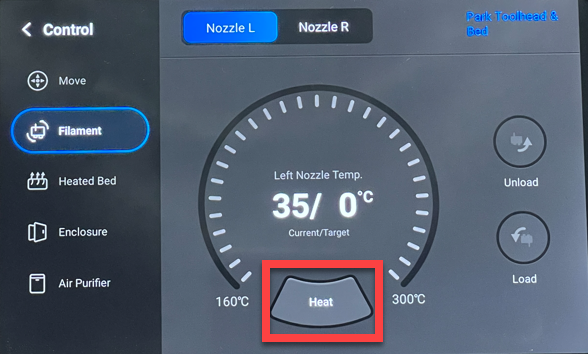
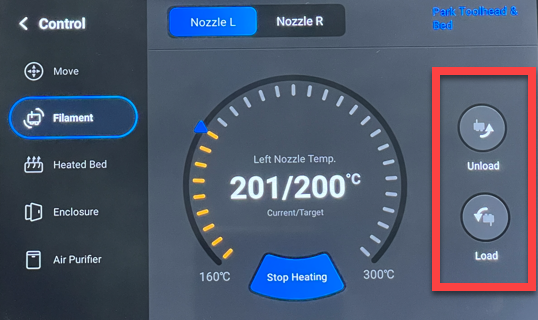
Select Filament from the menu on the left. Next, select the nozzle you wish to work with at the top of the page.

Before you can load or unload you need to select the Heat button at the bottom of the screen as shown to bring that nozzle to operating temperature. Until you do the Unload and Load buttons on the right will remain greyed out and unavailable.

image

When the nozzle reaches the operating temperature, the Unload and Load button will become available. Use these button when you need to get your filament into or out of the print head.

In short, don’t wrench the filament out of the head as I’m sure it will screw the gears that feed the filament to nozzle. Instead, use the process shown above using the Snapmaker Artisan controller. Given these actions are quite common it would be nice if Snapmaker put them on the home screen or at least allowed the ability to customise what appeared on the home screen. However, for now, I just follow this simple process now whenever I need to load or unload my filament from the print head.

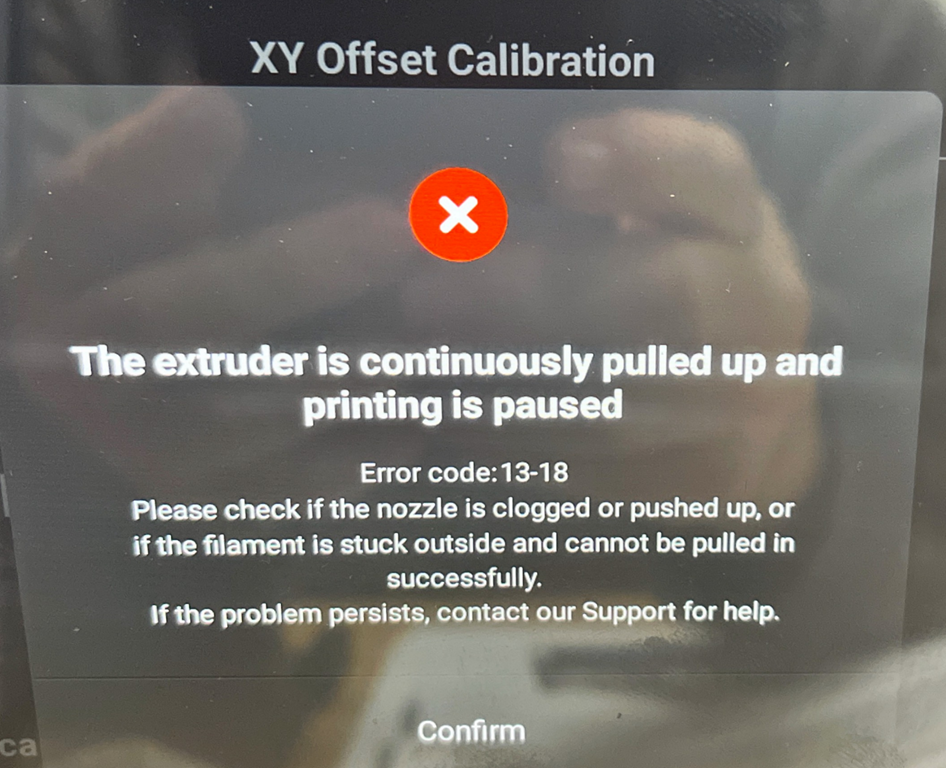
The extruder is continuously pulled up

image

XY Offset Calibration
The extruder is continuously pulled up and printing is paused
Error code: 13-18
Please check if the nozzle is clogged or pushed up, or if the filament is stuck outside and cannot be pulled in successfully.
If the problem persists, contact our Support for help.
Confirm

When I first got my Snapmaker Artisan and I started doing 3D prints, I found I got the above error quite regularly. Turns out the solution is in fact quite simple.

image

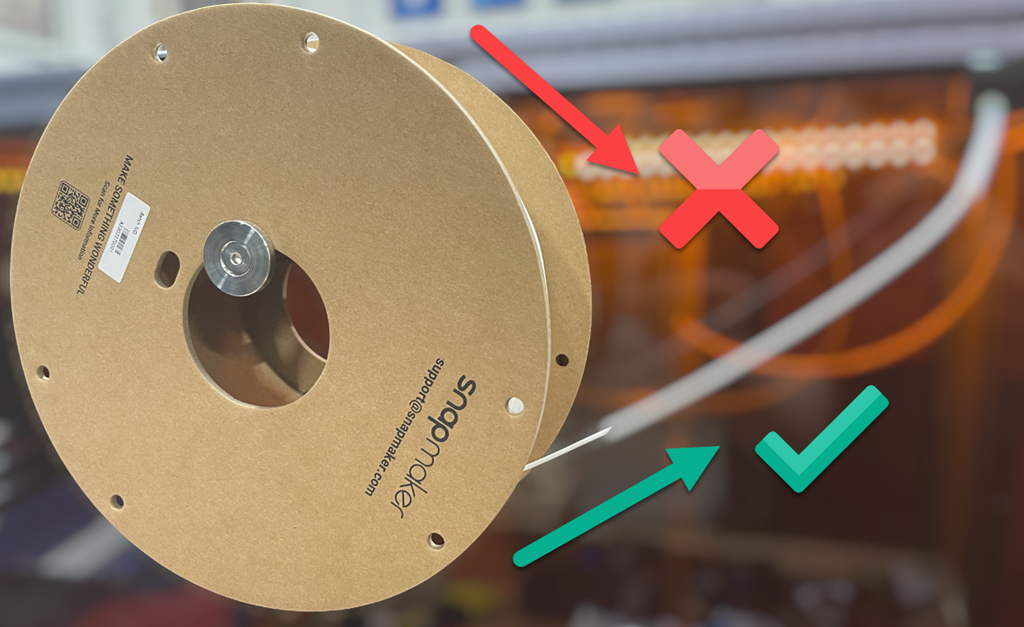
Initially, I had my filament feeding from the top of the roll into the enclosure. This creates additional friction and resistance to the filament feeding smoothly. When I changed the the orientation of the filament roll to feed from the bottom, as shown above, and let gravity do some work, ‘the extruder continuously pulled up’ error has not returned.

The resolution seems simple in hindsight, but during initial set up, on top of everything else, it wasn’t something that I paid attention to. So, if you are having filament being pulled up issues, ensure your filament is feeding with the least amount of friction. This typically means ensure it is feeing from the bottom, not the top, of the reel.