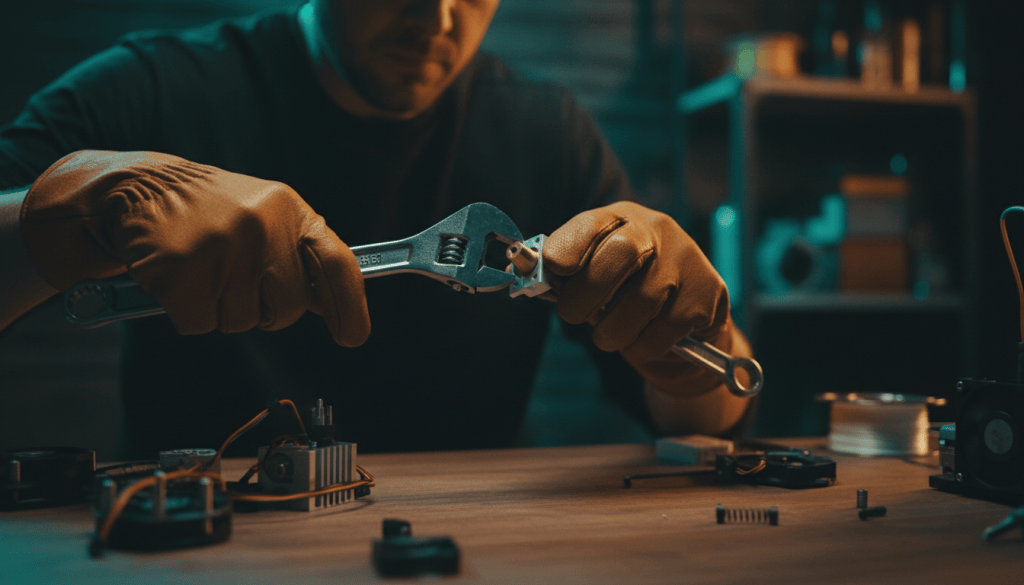
There’s a particular sinking feeling when the Snapmaker Artisan starts a print, the nozzle moves happily across the bed, and nothing comes out. I’ve had it happen, and the temptation is to grab tools and start pulling things apart straight away. Don’t. Disassembly is the last resort, and Snapmaker says so itself. But when you genuinely need to go inside the hot end, you want the official steps, in the right order, without improvising. That’s what this post covers.
As I wrote in Why Everyone Needs Basic Technology Troubleshooting Skills, the simple checks come first. That applies to a 3D printer just as much as a laptop.
Symptoms of a blocked nozzle
Snapmaker’s How to replace the nozzle page lists the situations where the nozzle needs attention:
- The nozzle is clogged and filament can’t be extruded.
- Filament has leaked and filled the space between the nozzle and the heating block.
- The nozzle is wrapped in a blob of filament that can’t be cleaned off.
Try the simple fixes first
Before reaching for a screwdriver, try unloading and reloading the filament. The official Dual Extrusion Module quick start guide describes the process: tap Control > Nozzle, select the nozzle, set the temperature and tap Heat. When it’s heated, tap Unload and pull the filament out, then insert the filament again and tap Load until it extrudes.
If filament has wrapped the heating block, Snapmaker’s Remove extruder blob guide says to heat the hot end, remove the blob with tweezers, wipe the block with a clean cloth and replace the silicone sleeve. A note of honesty: I couldn’t find an official Snapmaker cold pull procedure for the Artisan, so I won’t give you one here.
When disassembly is needed
Snapmaker’s How to disassemble the hot end of Dual Extrusion Module guide is for when filament is stuck in the nozzle, heat break or heat sink of the Artisan standard hot end and normal methods won’t clear it. Snapmaker rates it Difficult and warns that delicate parts can be damaged if you get the procedure wrong. Take your time.
Tools you’ll need
- H1.5 screwdriver (the gray handled wrench provided by Artisan worked well for me) handled
- 4″ adjustable wrench
- 8″ adjustable wrench
- A lighter (used in step 6 of the official guide)
- High-temperature protective gloves, which the extruder blob guide recommends
Before you start
- Power off the machine before removing or refitting anything on the Dual Extruder. The official top cover kit guide says not to plug or unplug anything while the machine is on.
- Unload and pull the filament out of the module.
- Detach the hot end from the module. According to the extruder blob guide, you remove the print head bottom cover and front door panel, then loosen the bolts securing the lower hot end throat.
Disassembly: the hot side (heat break, heat block and nozzle)
- Remove the thermal insulating casing.
- Unplug the wires.
- Use the H1.5 screwdriver to loosen the two set screws on the heat block.
- Pull the heating rod and the thermistor sensor out of the heat block.
- Use the H1.5 screwdriver to loosen the set screw on the heat sink, then pull out the heat break.
- Clamp the heat block with the 8″ wrench and heat the nozzle with a lighter to melt any filament inside. If you skip this, Snapmaker warns the nozzle may be damaged when you unscrew it.
- Keep the heat block clamped with the 8″ wrench and use the 4″ wrench to unscrew the nozzle counterclockwise.
- Keep the heat block clamped with the 8″ wrench and use the 4″ wrench to unscrew the heat break counterclockwise.
Disassembly: the cold side (heat sink)
Only go this far if the blockage is higher up.
- Use the H1.5 screwdriver to loosen the set screw shown in the official guide.
- Clamp with the 8″ wrench and use the 4″ wrench to unscrew the upper throat tube counterclockwise.
The official page has photos for every step, and it’s worth keeping it open on a tablet beside you as you work.
Clearing the blockage
Snapmaker’s guide just says to carefully clean away the blockage once the parts are apart. It doesn’t specify any cleaning tools or methods, so I’d be careful and avoid forcing anything through the delicate parts. If a part is worn or damaged, the blob guide says to contact Snapmaker Support for a replacement rather than refitting it.
Reassembly
Snapmaker doesn’t publish separate reassembly steps for this guide. Its other module guides simply say to reinstall each part following the disassembly steps, so work backwards. For the nozzle itself, the nozzle replacement page (dual extruder method) does give specifics:
- Refit the upper throat tube and tighten its set screw, if you removed it.
- Screw the heat break back into the heat block.
- Point the heat block upwards. Align the nozzle with the hole in the heating block and tighten it clockwise.
- Clamp the heat block with one adjustable wrench and the nozzle with the other, then tighten the nozzle again.
- Slide the heat break back into the heat sink and tighten its set screw with the H1.5 screwdriver.
- Insert the heating rod and thermistor into the heat block and tighten the two set screws.
- Plug the wires back in, refit the thermal insulating casing, and refit the silicone cover.
- Refit the hot end in the module, tighten the lower throat bolts, and replace the bottom cover and front door panel. Then power on.
Snapmaker doesn’t publish torque values. Its official nozzle replacement video is a useful visual reference.
Testing and calibration afterwards
Don’t skip this step. The quick start guide says that every time you replace the hot end, you should redo the XY Offset Calibration and Z Offset Calibration. After reassembling the module, you should also redo Leveling. Swipe left on the Home Screen and tap Calibration. If the calibration model won’t print, Snapmaker’s Calibration Model printing failed page walks you through what to check. Load filament and confirm it extrudes cleanly before you trust it with a real job.
Prevention tips
- Snapmaker’s replacement kit includes an upgraded front cover with ventilation holes. Snapmaker says it improves cooling around the hot end and reduces clogs.
- Make sure the first layer sticks. Snapmaker lists poor first-layer adhesion as a cause of filament build-up around the nozzle.
- Check that the nozzle and heat break are snug, because Snapmaker notes that a loose fit causes leaks.
- Keep the Artisan troubleshooting hub bookmarked.
The lesson is the same one I keep coming back to in troubleshooting in general. Follow the documented process, change one thing at a time and verify the result. A little patience with the hot end saves a lot of grief, and a lot of spare parts.
References (official Snapmaker sources)
- How to disassemble the hot end of Dual Extrusion Module
- How to replace the nozzle
- Remove extruder blob (Artisan)
- Dual Extrusion Module Quick Start Guide (PDF)
- Calibration Model printing failed (Artisan)
- Replacement kit instructions (Dual Extrusion Module and Artisan)
- Dual Extruder top cover kit replacement guide
- Troubleshooting of Snapmaker Artisan
- Snapmaker official nozzle replacement video (YouTube)
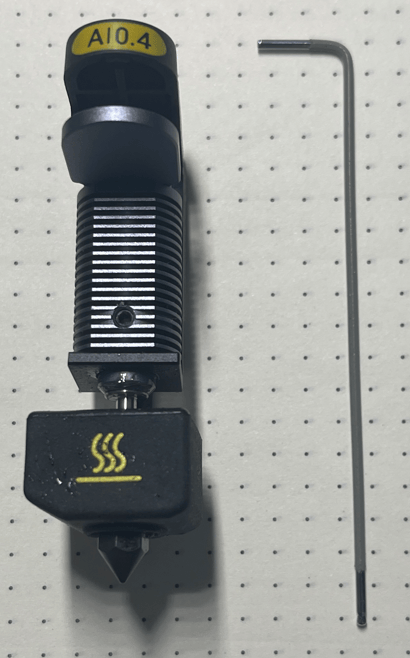
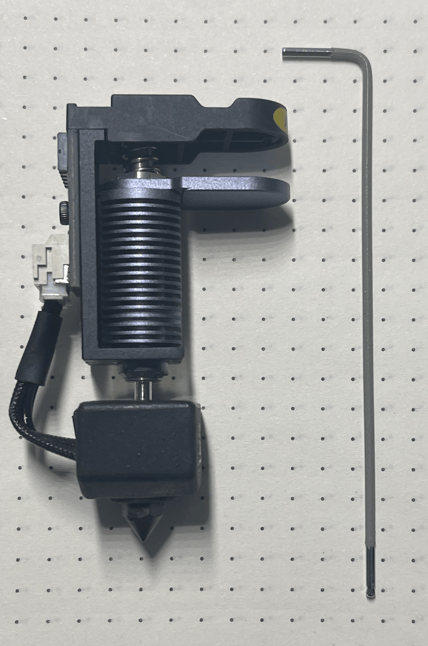
Print head and included tool used to allow disassembly