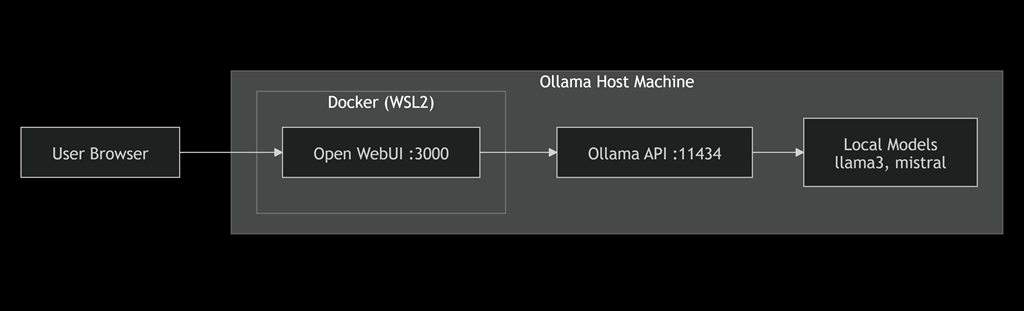
The local AI system so far

image

You can describe it like this:

  • The user connects via browser to the host machine

  • The request hits Open WebUI (running in Docker)
  • Open WebUI calls the Ollama API on port 11434
  • Ollama processes the request using local models
  • The response flows back to the browser


Simple mental model

Browser → WebUI → Ollama → Model → Response

Set up Summary

Getting Ollama running on Windows

How to install Linux on Windows with WSL

Docker and Open WebUI deployment on Windows

Why Docker was needed

Why Open WebUI is required

Why Open WebUI is required for local AI

I am creating a local AI machine that runs Ollama. Steps completed so far:

Getting Ollama running on Windows

Docker and Open WebUI deployment on Windows

Why Docker was needed

Open WebIU is a critical design point in what you built, and understanding it properly will change how you think about deploying AI systems.

I’ll explain it clearly in the context of your setup — not generic theory.


The short answer

You needed to run Open WebUI on the same machine as Ollama because:

The machine running Ollama is the one doing the actual AI processing, and Open WebUI must run close to it to reliably act as the interface.

Everything else should just connect to that machine via a browser, not try to run AI locally.


What is actually happening in your setup

You now have three roles:

1. The host machine (Ollama PC)

This is your AI server

It runs:

  • Ollama → the AI engine (models, GPU/CPU work)

  • Open WebUI → the web interface

  • Docker → runtime for WebUI


2. The guest machines

These are clients only

They:

  • do not run models

  • do not run WebUI

  • simply connect via browser


3. The browser

The browser is the user interface, not the AI itself


The critical dependency chain

Your system works like this:

Browser → WebUI → Ollama → Model → Response


Why WebUI MUST be on the Ollama machine

1. WebUI is a frontend, not an AI engine

Open WebUI does not run models.

It:

  • sends prompts

  • receives responses

  • renders a chat interface

If you run WebUI on another machine:

  • it has no local models

  • it must connect over the network to Ollama

  • you introduce unnecessary complexity


2. Local communication is simple and reliable

When WebUI runs on the same machine:

  • Connection to Ollama is:
    http://localhost:11434
    

    (internal, fast, reliable)

If WebUI runs on another machine:

  • You must use:
    http://<host-ip>:11434
    
  • Requires:

    • firewall rules

    • correct binding

    • network stability

    • security considerations


Why this matters

You already saw issues like:

  • connection failures

  • unhealthy containers

  • network access problems

Running WebUI locally eliminates most of those.


3. Performance (this is often overlooked)

AI workloads are:

  • CPU/GPU intensive

  • heavy in memory usage

  • sensitive to latency

If WebUI is remote:

  • every prompt travels across the network

  • every token response comes back across the network

While not huge, it adds:

  • latency

  • potential instability


Local WebUI gives:
  • near-zero latency between UI and model

  • predictable performance

  • fewer moving parts


4. You centralise compute instead of duplicating it

Your goal was:

“Run AI from another machine”

That does NOT mean:

“Run AI on every machine”


Correct design:
One machine → does compute
Many machines → access it


If you ran WebUI remotely

You would either:

  • duplicate the WebUI install everywhere

  • or still point it back to the same Ollama server

Which gives you:

  • more complexity

  • no real benefit


5. Security and control

When everything runs on the Ollama machine:

  • you control:

    • firewall

    • ports

    • access
  • you know exactly where the AI is running

If WebUI is spread across multiple machines:

  • more endpoints

  • more risk

  • harder to manage access


6. Docker networking works naturally this way

This was a key issue you hit:

You had to use:

host.docker.internal

This only works cleanly because:

  • WebUI container = local to host

  • Ollama = local to host


If WebUI was on another machine:

  • Docker networking helps you less

  • you rely purely on LAN configuration

  • more points of failure


7. This is how real systems are designed

What you built mirrors real-world architecture:

Client → Web App → API → Compute

In your case:

Browser → WebUI → Ollama → Model


This is the same pattern used by:

  • ChatGPT (frontend separate from engine)

  • Azure AI services

  • enterprise AI platforms


8. Scaling (this is the big future reason)

Running WebUI on the Ollama host allows you to:

  • add components easily:

    • vector databases

    • RAG pipelines

    • APIs
  • keep all services close together


If WebUI is remote:

  • scaling becomes messy

  • service orchestration becomes harder


What would happen if you didn’t do this

Let’s be very direct.

If you ran WebUI on a different machine:

You would need to:

  • configure Ollama network access properly

  • open firewall ports correctly

  • deal with API connectivity issues

  • troubleshoot latency and failures

  • manage multiple installation environments

And still end up with:

  • no performance gain

  • more complexity

  • harder troubleshooting


The real reason (simplified)

You ran WebUI on the host machine because:

The AI models must run locally on one machine, and WebUI must sit as close as possible to that engine to provide a reliable interface.


The correct mental model

Do not think:

“I am running WebUI on a machine”

Think:

“I am exposing an AI service from one machine to the rest of my network”


Final takeaway

Running WebUI on the Ollama machine:

  • keeps the system simple

  • reduces network complexity

  • improves reliability

  • centralises compute

  • aligns with real architecture patterns


One practical recommendation

Once you’re comfortable, the next step is:

  • add authentication back into WebUI

  • restrict access to trusted devices

This turns your setup from a lab into a proper internal AI service.

Ollama + Docker + Open WebUI Network Deployment Guide

Overview


This guide provides a complete step-by-step process to configure Ollama, Docker, WSL2, and Open WebUI for network access across multiple devices.


Part 1 – Host Preparation

Step 1 – Confirm Virtualisation


  • Open Task Manager → Performance → CPU

  • Confirm: Virtualisation = Enabled

Step 2 – Install WSL2


wsl --install
wsl --set-default-version 2


Reboot the machine.

Step 3 – Verify WSL


wsl -l -v


Expected:


docker-desktop       Running   Version 2
docker-desktop-data  Running   Version 2


Part 2 – Install Docker

Step 4 – Install Docker


winget install -e --id Docker.DockerDesktop

Step 5 – Start Docker


Open Docker Desktop and wait for “Docker is running”.

Step 6 – Test Docker


docker run hello-world


Part 3 – Configure Ollama for Network Access

Step 7 – Configure Listener


Add environment variable:


OLLAMA_HOST=0.0.0.0:11434


Restart Ollama.

Step 8 – Test Local Access


curl http://localhost:11434/api/tags

Step 9 – Test LAN Access


ipconfig
curl http://YOUR-IP:11434/api/tags


Part 4 – Deploy Open WebUI

Step 10 – Run Container


docker run -d ^
  -p 3000:8080 ^
  -e OLLAMA_BASE_URL=http://host.docker.internal:11434 ^
  -e WEBUI_AUTH=False ^
  --name open-webui ^
  ghcr.io/open-webui/open-webui:main

Step 11 – Verify Container


docker ps

Step 12 – Access WebUI


http://localhost:3000


Part 5 – Configure Firewall

Step 13 – Open Ports


New-NetFirewallRule -DisplayName "Open WebUI" -Direction Inbound -Protocol TCP -LocalPort 3000 -Action Allow
New-NetFirewallRule -DisplayName "Ollama API" -Direction Inbound -Protocol TCP -LocalPort 11434 -Action Allow

Step 14 – Test from Another Device


http://OLLAMA-PC-IP:3000


Part 6 – Load Models

Step 15 – Pull Model


ollama pull llama3

Step 16 – Test Chat


Use WebUI to send a test prompt.


Part 7 – Enable Persistence

Step 17 – Create docker-compose.yml


version: '3.8'

services:
  open-webui:
    image: ghcr.io/open-webui/open-webui:main
    container_name: open-webui
    ports:
      - "3000:8080"
    environment:
      - OLLAMA_BASE_URL=http://host.docker.internal:11434
      - WEBUI_AUTH=False
    volumes:
      - open-webui-data:/app/backend/data
    restart: always

volumes:
  open-webui-data:

Step 18 – Deploy


docker compose up -d


Troubleshooting

UI Not Loading


docker ps

Container Unhealthy


wsl --shutdown

Auth Blocking Access


WEBUI_AUTH=False

Cannot Access from Network


  • Open firewall ports 3000 and 11434

  • Use correct IP address


Getting Ollama Running on Windows — What the Docs Don’t Tell You

MAI_449d689c465d19ba

I am launching into a new project to implement Ai ‘on premises’. The two major reasons for this are:

A. As the frontier cloud models become more expensive and small models become better I foresee much more demand to have AI solutions on premises

and

B. I want a local AI to integrate with mt IoT projects.

In the long run I will probably use Azure AI Foundry Local, however, this is going to require new hardware. Wanting to avoid that initially and get up to speed with other cheaper options I going to start with Ollama.

What Ollama Does

Think of Ollama as a model manager and runtime. It:

  • Downloads AI models to your PC

  • Runs them locally

  • Provides a simple command-line interface

  • Exposes a local API that applications can connect to

  • Manages model updates and storage


Prerequisites: More Than “Windows 10 or Later”

The official download page says Windows 10 or later. That’s technically correct and practically incomplete.

Your OS needs to be Windows 10 22H2 or newer — older builds turn progress indicators into rows of blank squares in the terminal. For NVIDIA cards, driver 531 or newer is required. Cards from the GTX 900 or 1000 era (compute capability 5.0–6.2) need driver 570 specifically — confirm your card’s compute level at nvidia.com/cuda-gpus before assuming you’re covered.

AMD is where people get caught. On Windows, Ollama supports Radeon RX 6000 and 7000 series only, via the ROCm v7 driver stack. If your card isn’t in that range, Ollama will silently fall back to CPU — no warning, no error. Check the supported hardware list before committing to the setup.

RAM: 16 GB is a working floor for 7B models; plan for 32 GB if you want breathing room. Storage tends to catch people off guard — the binary install is roughly 4 GB, but models range from 4 GB for smaller ones to well over 20 GB in the 14B range. NVMe for model storage is worth it. The installer runs under your user account — no admin rights needed.

Install Checklist

  1. Download OllamaSetup.exe from ollama.com and run it. Approve the Windows Defender prompt.
    (Personally, I’d use Winget via – winget install –id Ollama.Ollama –e)

  2. Open PowerShell and run ollama --version — confirm it’s on your PATH.

  3. Check the service is running: curl http://localhost:11434/api/tags should return JSON.

  4. Pull a starting model: ollama pull llama3.2
  5. Run it: ollama run llama3.2
  6. Open a second terminal and run ollama ps. Check the PROCESSOR column.

That last step matters more than the rest combined.

Gotchas Worth Knowing

The silent CPU fallback is the one that costs the most time. Ollama will run on CPU if it can’t access your GPU — no error, just responses ten to fifteen times slower than they should be. ollama ps shows what’s actually handling inference. Adding --verbose to your run command surfaces device information at startup as well.

Model storage defaults to your home directory. On a machine with a small system drive, this bites quickly. Set the OLLAMA_MODELS environment variable in your user account settings before pulling any models. The catch: if Ollama is already running as a background service, setting the variable in your current terminal won’t reach it — the service has the old environment. Quit from the system tray, save the variable, then relaunch.

When something breaks, start with the logs. Ollama writes to %LOCALAPPDATA%\Ollama\server.log — it’s significantly more informative than anything that surfaces on screen.

The Bigger Picture

I’ll soon share my various builds with local AI here.