The challenges of 3D printing

I’ve been working on a phone holder for a car that sits in a cup holder. The reason for this is that I don’t like things blocking my view when I’m driving. Thus, I want to ‘move’ the phone away from the windscreen and down towards the centre console.

Rather than completely re-inventing the wheel here, I decided to use a motorcycle mount from Quadlock to actually hold the phone. The other end needed to grip onto something like a tube.

The starting point for mounting the Quadlock was to create something that would sit in the cup holder and then attach to the Quadlock. Creating a solution to do that is easy enough, but the challenge comes when trying to print that.

Why? Because, basically you can’t print in thin air. You need each layer of the print to be supported but something underneath it. This means you have to think carefully about your design.

image

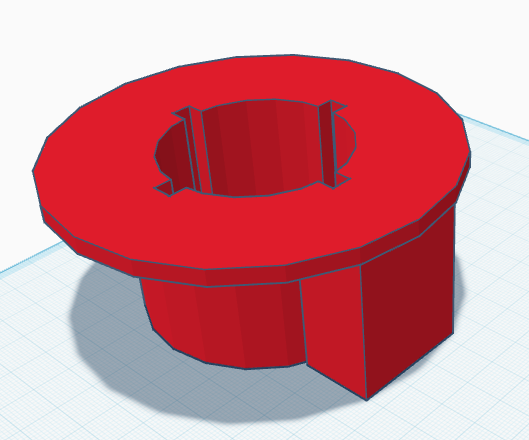
What I ended up doing was splitting the mount into two parts. The first part, as you see above, fits inside the cupholder in the car. That means basically using a cylinder design. However, to stop this rotating in car’s cupholder I added a key since the cupholder has a bridge to another holder nearby.

I then put a table top onto the cylinder to stop the structure tipping side to side and potentially jumping out of the holder in the car. This is where I had to start thinking about how I was going to print this because, in the long run, there would need to be a structure on the top of the table to connect to the Quadlock, but if I made it a single object to print I’d have trouble printing it as much of it wouldn’t have support during printing.

So, I broke the holder in two pieces, the insert with the table top (above), that I could flip and easily print and have everything supported and then an insert (below) to hold the Quadlock and slide inside the holder.

image

If I had tried to print these tow items as a combined object I would have struggled. But breaking them into two separate interlocking parts allows both to have full support when printed.

You will also notice that I added four key slots for the insert to prevent it from rotating when in the printed holder. The Quadlock then securely fastens to the cylinder at the top of the insert.
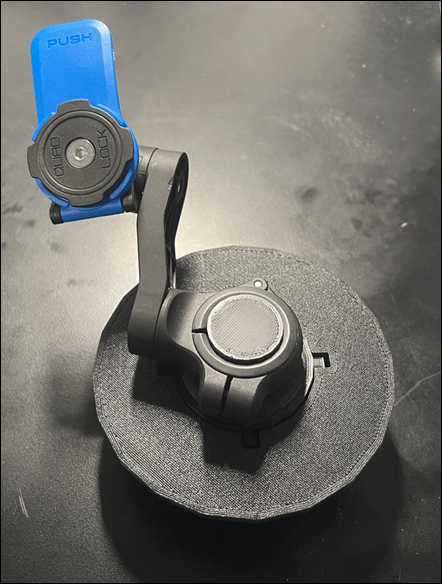
image

The end result looks like the above and works well. The tabletop of the holder also prevents the Quadlock from scratching the trim if it does move around when the car is travelling. It also takes some weight off the cylinder that mounts the Quadlock as well reducing the chance of it snapping when the car is in motion as the phone bounces around.

The key is that, not only do you need to design an object to solve your problem but you need to work out a way to print it using a 3D printer that can’t print on just thin air!

Robot with distance

As I detailed in a previous post:

Mecanum motion

I had my robot moving and taking commands from an Internet based dashboard. The missing piece was to get the distance sensor operational, which I have now achieved.

I firstly need to print a mount to allow the distance sensor to be mounted to the buggy frame. I have uploaded that to the CIAOPSLabs repo here:

https://github.com/directorcia/ciaopslabs/blob/main/3dprint/mounts/VL53L0X-distance.stl

image

With the VL53L0X sensor now mounted and connected to the processor the layout now looked like the above image.

Basically, the motor controller, distance sensor and LCD display all communicate with the ESP32-S2 processor via the SDA/SCL bus. They achieve this by all being on a different address.

It was also important to ensure that I connected up the wheel in a know sequence because to drive the mecanum motion I needed to turn different wheels to make it move in certain directions per:

I’ve uploaded the initial code with it all working here:

https://github.com/directorcia/ciaopslabs/blob/main/Projects/14/moveanddistance-v1.c

The commands on the keyboard are:

image

1 = Left forward 45

2 = Forward

3 = Right forward 45

4 = Left 90

5 = Stop/Start

6 = Right 90

7 = Left back 45

8 = Back

9 = Right back 45

* = Slower

0 = Spin on the spot

# = Faster

As the robot moves it displays the distance on the LCD display like so:

image

The robot starts with speed = 0 (i.e. stationery). You press 5 to set the speed to 100 but it will not yet move until you give it a direction. If you now press 2, the robot will move forward at a speed of 100. You can then happy go along changing directions via the keypad. If you press 5 again, the robot will stop moving.

With all this now working, the next update will be for the robot to use the distance sensor to determine how far away it is from object (at the front), slow and stop if necessary to avoid hitting these objects.

I want to also optimise the code to make it more responsive if I can and I’ll post the updates here and to the CIAOPSLabs repo when I get it all working.

Beyond that I’m still trying to decide what to get the robot to do? If you have any suggestions, let me know but I’m kind of thinking that the robot needs to have ‘vision’ next!

DFRobot 1602 LCD display mount

image

Part of recent Mecanum motion project required me to design and print a frame for the DFRobot 1602 LCD display as shown above. It is basically a right angle bracket that allows it to be mounted onto the frame.

I’ve uploaded the STL model to:

https://github.com/directorcia/ciaopslabs/blob/main/3dprint/mounts/DFRobot-1602-LCD-disp.stl

so you can grab a copy and print it out for yourself. If you don’t have access to a 3D printer then send me a donation via:

https://ko-fi.com/ciaops

to cover the postage at least and I’ll send you a print.

Paint mixer

image

One the problems I’ve recently solved with 3D printing was to create a simple paint mixer (shown above).

Basically it is a block with a few divots in it. This allows you to easily a small amount of paint in each divot. The advantage over a flat area is that the mixing process doesn’t spread the paint too broadly. This solved a problem for me when I am building my plastic models and need a small amount of colours mixed together.

The dimensions of the mixer are:

76.8 mm long

19 mm wide

4.8 mm deep

I’ve uploaded the STL model here:

https://github.com/directorcia/ciaopslabs/blob/main/3dprint/tools/Paintmixer.stl

so you can grab a copy and print it out for yourself. If you don’t have access to a 3D printer then send me a donation via:

https://ko-fi.com/ciaops

to cover the postage at least and I’ll send you a print.

My COG Odyssey

One of the reasons that I got into 3D printing initially was to create a COG that was no longer available to purchase. Initially, I tried to find a commercial business to do it for me, but alas no luck. The upside was that I decided to get into the 3D printing world, which has been great.

However, my attempts to create a COG that I am happy with still seem to elude me. I’ve gotten close using PLA:

image

but I wanted to make it out of Nylon so it was more heat resistant but have had challenges doing that.

Currently, I am using red PETG and have managed to get my version 5 to print with the 0.2mm head::

image

but the shaft is all wrong and doesn’t have the definition for the screw fitting.

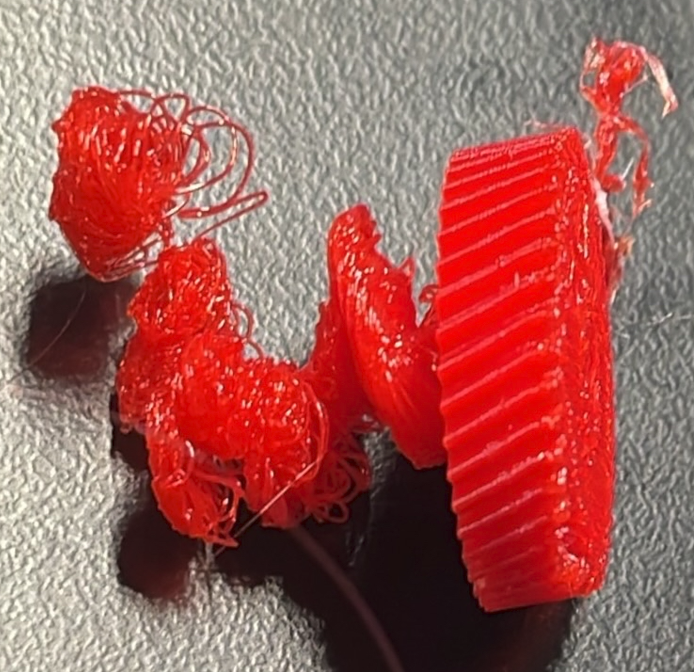
What I tend to get a lot when I’ve been testing is results like this that I got with version 4:

image

Now I’m not quite sure why the same basic model ends up with these vastly two different results?? I also would have thought that the finer nozzle (0.2mm vs 0.4mm) would have made the definition of the screw in the shaft better, but apparently not.

My aim here is mainly to have a base model (COG) and see what different materials and settings, like the nozzle make.

Burning through varnish

A while back I did some laser etching onto 3mm thick plywood:

Varnish applied

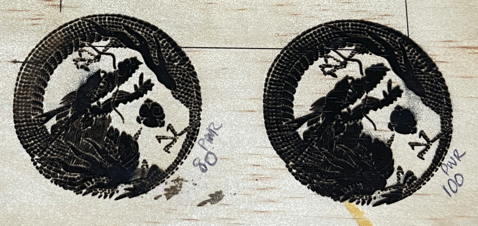
and applying varnish AFTER etching I got the following result:

image

I applied the varnish to opposite side of the plywood which was blank. I then re-did the etching which resulted in the following result:

image

I found that I made no impression on the varnished surface at either 40 or 50% power so I sent straight to 100%. Based on what I can see I reckon about 60% will give me the same as the 50% pre-varnish did.

Thus, i makes more sense that you need to use more laser on something that has been varnished and that additional power I would suggest is around 10-15% to get the same kind of result.

image

I also tried a larger, non vector image to etch as shown. The settings were:

Grayscale

Contrast = 50

Bright = 50

White clip = 255

Grey scale conversion = Luma

Algorithm = Atkinson

Dot filled engrave

Movement = Dot

Fill interval = 0.14mm

Dwell = 5 ms/dot

Laser Power = 55

Jog speed = 3000 mm/min

Total time to complete = 2 hours and 39 mins

As you can see, the graphic did not fully print in places. I put this down to the plywood not being completely flat. The resolution there would be to sand the board before printing.

There are also a lot of lines, which I think is the plywood grain running through the image. I do have some less ‘grainy’ wood I can try again with but again, may be some sanding of the material prior is a worthwhile investment for a better result.

Even given the material was a little warped I think I’ll need to up the power a bit to maybe 65% to get a darker and more defined result.

The challenge here is that the print took over 2.5 hours and that is a long time with extractor fan running a full bore. It is easy enough for me to wear earmuffs but I might need to think about sound proofing the extractor somewhat or it is going to be very distracting in the shop, given it is one open area!

The best thing about laser etching wood is that the mistakes are much more recyclable than those from 3D printing filaments. I get the feeling that I have a lot more laser etching testing to do until I did a formula I can depend on.

Random blob prints

image

I am still trying to work out why I occasionally get these random blob prints! As you can see the model on the left works fine until towards the end when it goes all ‘blobby’ for some reason??

I have seen this before when attempting to print a cog, but I’ve never bothered to isolate it. In this case, the first print was fine, then second ended in a ‘blob’ and third print was fine. Exactly the same model, no change.

Now I will admit that when I was importing the model it did tell me there was an error and did I wanted that fixed. To which I naturally said “Sure”. Thus, I’m not sure if that is the source of the issues, but if it was a code error, why doesn’t it happen every time I wonder? More investigation it seems.

image

Luckily, I managed to print out two good columns to finish this model of a Tori gate as you can see above. It is still quite rough as I was testing using PETG this time instead of PLA. I also didn’t use any support and I probably should have looking at the resulting top beam. As always, there is refinement that will be required but I’m happy that I could get this printed without too much hassle.

The original model had the two columns printing together in the same model but that was slow and also created a ‘spiders web’ of filament between the columns. So I canned that and editing that part of the model using TinkerCAD and made a new model with only a single column I printed twice. Much better.

Happy to add this model to my collection and hopefully will get some time to do some refinement to it soon.

A nozzle mishap

image

After setting a 3D print on my Snapmaker Artisan to run overnight, I returned to find that it had failed and whole print had amalgamated into a single enormous blog hanging from the print head. DAMM!

So, I heated each nozzle to the operating temperature and then did a load to force the printed lump away from the print head.I cleaned the nozzles as best as I could and I continued on with the 3D printing.

However, once I had removed the 3D print head in exchange for the laser to do some etching I found that my 3D nozzles where a bite worse for wear as seen in the above photo.

When I’m finished with my etching work I’ll recommend the 3D print head but NOT connect it to the X axis so I can turn it upside down for better access. I’ll again heated each nozzle to the operating temperature and try and scrap away as much junk as I can CAREFULLY!

I also see that I can buy some new Hot End for Dual Extrusion modules from Snapmaker which I may end up doing anyway as I see they have a 0.2mm nozzle as well as a hardened 0.4mm nozzle.

image

You get the 0.4mm nozzle when you purchase the unit as shown above. The nozzle size is denoted in the labels for each when you open the print head as shown.

image

Seems like you can simply ‘pop out’ the print heads as shown above. So, hopefully not a major deal if it comes to that. But first, let me try and see if I can clean the existing nozzles up without damaging them.

Loading/Unloading filament in a Snapmaker Artisan

After following through the initial ‘wizard’ set up to load the filament into a Snapmaker Artisan, I could never figure out how to do it manually. I generally wrenched the filament out because I couldn’t see how to do it otherwise, but I knew there was a better way and here it is.

image

On the Snapmaker integrated controller, from the main menu select Control in the top left.

image

Select Filament from the menu on the left. Next, select the nozzle you wish to work with at the top of the page.

Before you can load or unload you need to select the Heat button at the bottom of the screen as shown to bring that nozzle to operating temperature. Until you do the Unload and Load buttons on the right will remain greyed out and unavailable.

image

When the nozzle reaches the operating temperature, the Unload and Load button will become available. Use these button when you need to get your filament into or out of the print head.

In short, don’t wrench the filament out of the head as I’m sure it will screw the gears that feed the filament to nozzle. Instead, use the process shown above using the Snapmaker Artisan controller. Given these actions are quite common it would be nice if Snapmaker put them on the home screen or at least allowed the ability to customise what appeared on the home screen. However, for now, I just follow this simple process now whenever I need to load or unload my filament from the print head.