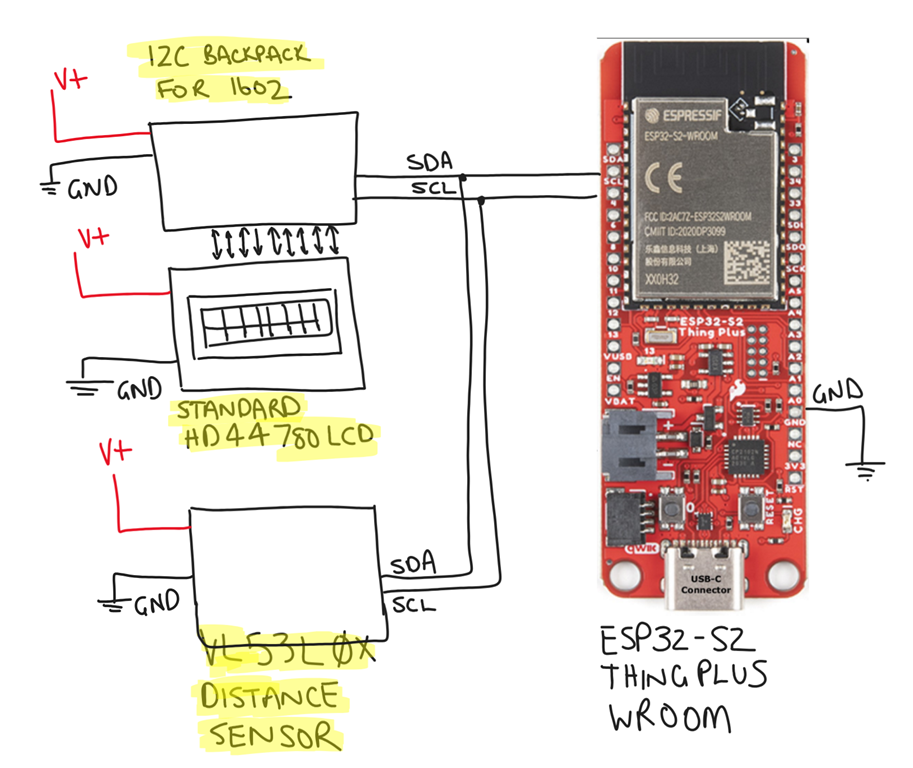
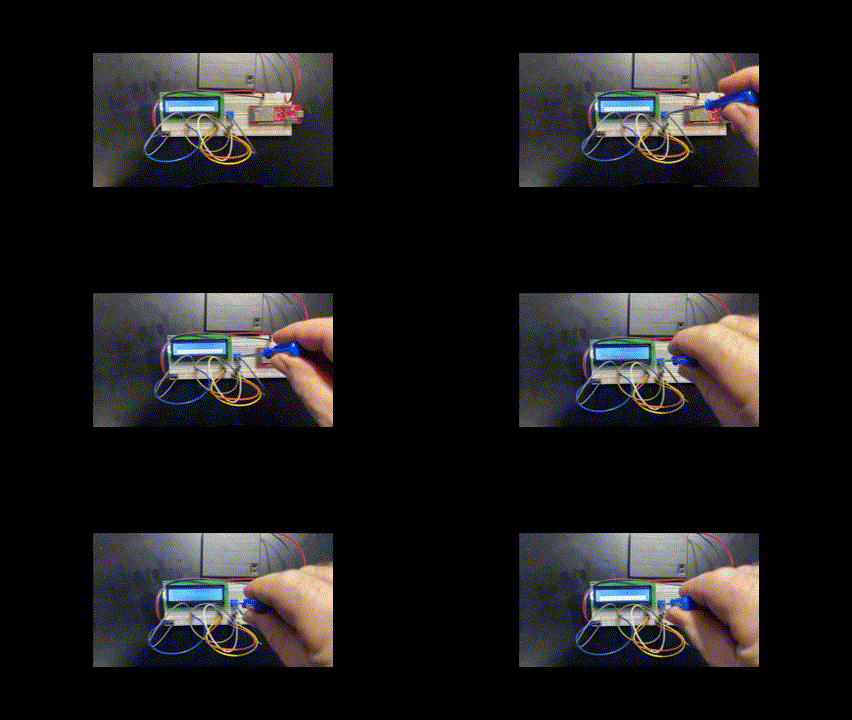
Connect the grounds

I’ve been struggling to get an LCD display working. My previous attempt was:

No output to display

So I traded that in for this:

Gravity:I2C LCD1602 Arduino LCD Display module

because it has everything included in the module to make life simpler! Problem was, that even with this simple component connected I still couldn’t get anything to display. What am I missing I thought?

I just worked out why I couldn’t get any of the displays running! Basically, the solution was I needed to ground the controller chip to the same ground as the external power supply I was using to power the display. Simple eh?

This is what I did to get the Gravity DFRobot display working.

This module has the I2C built in a 4pins:

image

Basically just power and SCL and SDA.

I connected everything up. The module I have is a LCD1602 V1.1.

I added the following library to my project:

DFRobot_RGBLCD1602

thus, in my code I added:

#include “DFRobot_RGBLCD1602.h”

according to the example file, because my module is v1.1 the RGBAddr is 0x6B. Thus, to set up the module I do:

DFRobot_RGBLCD1602 lcd(/*RGBAddr*/0x6B ,/*lcdCols*/16,/*lcdRows*/2);

which initialises an object at address 0x6B with 16 columns and 2 rows.

I then initialise the module via:

lcd.init();

and then send it a message:

lcd.print(“Hello World!”);

that is basically all the code does. It compiles and uploads top both the Huzzah ESP8266 and the ESP32-S2 WROOM but I get nothing on the display, UNTIL I connected the GND from the controller (i.e Huzzah ESP8266 and the ESP32-S2 WROOM) to the same GND as the external battery pack I was using to power the display. The controller chips get their power from the USB cable at this stage.

Once that was done I finally saw:

image

There is nothing like the feeling off finally getting something working!

So the key learning here was link the GND between the external power supply and the controller chip.

No output to display

After connecting up a

Standard HD44780 LCD

to power and being able to adjust the brightness, the next step was to get i to display some text by connecting the display to an ESP32-S2 Thing Plus.

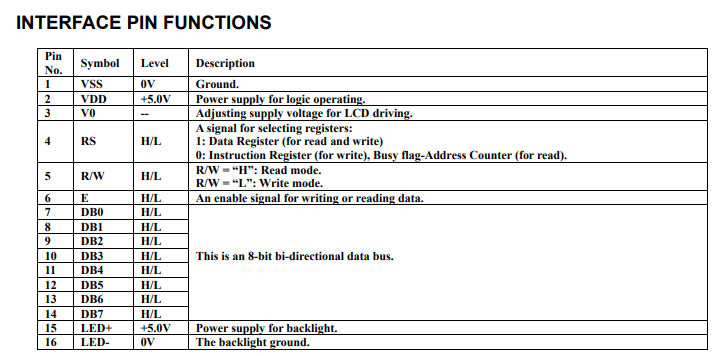
To do that I needed to connect to these pins on the display:

LCD Pin name RS EN DB4 DB5 DB6 DB7
LCD Pin 4 6 11 12 13 14

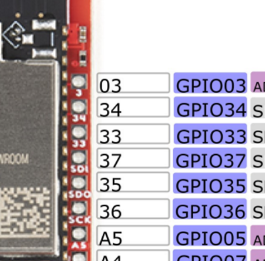
I planned to connect these LCD pins to the range available on the ESP32-S2 Thing Plus 3,34,33,37,35,36

image

Thus:

const int rs=3; // LCD RS pin

const int en=34; // LCD Enable pin

const int d4=33; // LCD data bit 4 pin

const int d5=37; // LCD data bit 5 pin

const int d6=35; // LCD data bit 6 pin

const int d7=36; // LCD data bit 7 pin

and to initialise:

LiquidCrystal lcd(rs, en, d4, d5, d6, d7);

The size of the display is defined buy:

lcd.begin(16,2);

and then to display text:

lcd.print(“Hello world!”)

My code compiles ok, but I get not text on the LCD display?

– I triple checked my wiring and even tried other ports (no luck)

– I defined each pin via pinmode(rs,OUTPUT); for example (noluck)

Seems like the best solution is go for this:

I2C LCD Backpack for 1602 to 2004 LC

which basically removed the need for individual ports in favour of using SDA and SCL to do the communications. In fact, I probably should have bought this to start with:

Gravity: I2C LCD1602 Arduino LCD Display Module (Blue)

which has the backpack module included!

In the long run this is a better bet as it saves and stack of pins on the ESP32-S2 Thing Plus being consumed.

I did notice that all the GPIO pins on the ESP32-S2 Thing Plus are 3.3V and perhaps the LCD display requires 5V? I couldn’t find any definitive on that.

Standard HD44780 LCD

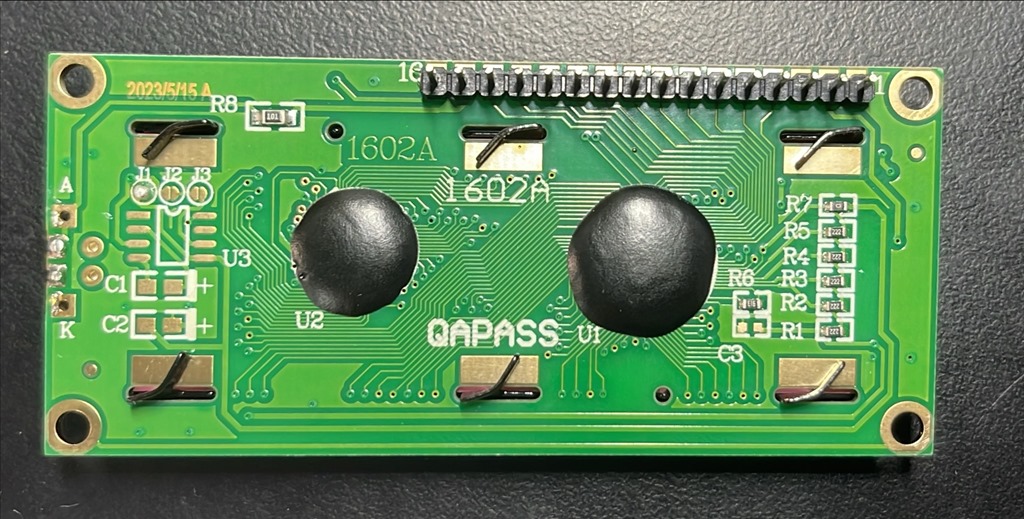
image

Scan from 2024-01-13 03_16_22 PM

I ordered a standard HD44780 LCD:

https://core-electronics.com.au/assembled-standard-lcd-16×2-extras-white-on-blue.html

HD44780 datasheet with the detailed commands for control

a datasheet that has dimensions and pin-locations

image

So I started to follow:

https://learn.adafruit.com/character-lcds

Scan from 2024-01-13 03_35_02 PM

Step one was to wire up the display just to power. So I connected 3.3V pin from the Esp32-S2 Wroom to pin 15 on the display. Importantly, you’ll note that the ESP32-S2 power is 3.3V which is enough to power the display but only just! I also connected the ground pin from the ESP32-S2 to Pin 16 on the display. This is just the power to the back light of the display.

The next step was to insert a POT (variable resistor to control the brightness of the actual display items) but when I did that turning the POT made no difference.

pot-turn

I deduced that the issue was that 3.3V input from the ESP32-S2 wasn’t high enough. Thus, I connected up my external battery pack, which outputs 4 x 1.5V = 6V and as you can see from the above when I twist the POT (i.e. a variable resistor) I can now see the lines of rectangle display items actually appear.

Thus, the display is all wired up for power, backlight and character display, now I just need to wire it for data and do some code.

image

The wiring diagram is shown above:

Pin 1 = GND (character display)
Pin 2 = +6V (character display)
Pin 3 = Output from variable resistor (i.e. POT for character brightness)
Pin 15 = +6V (backlight)
Pin 16 = GND (backlight)

My COG Odyssey

One of the reasons that I got into 3D printing initially was to create a COG that was no longer available to purchase. Initially, I tried to find a commercial business to do it for me, but alas no luck. The upside was that I decided to get into the 3D printing world, which has been great.

However, my attempts to create a COG that I am happy with still seem to elude me. I’ve gotten close using PLA:

image

but I wanted to make it out of Nylon so it was more heat resistant but have had challenges doing that.

Currently, I am using red PETG and have managed to get my version 5 to print with the 0.2mm head::

image

but the shaft is all wrong and doesn’t have the definition for the screw fitting.

What I tend to get a lot when I’ve been testing is results like this that I got with version 4:

image

Now I’m not quite sure why the same basic model ends up with these vastly two different results?? I also would have thought that the finer nozzle (0.2mm vs 0.4mm) would have made the definition of the screw in the shaft better, but apparently not.

My aim here is mainly to have a base model (COG) and see what different materials and settings, like the nozzle make.

Burning through varnish

A while back I did some laser etching onto 3mm thick plywood:

Varnish applied

and applying varnish AFTER etching I got the following result:

image

I applied the varnish to opposite side of the plywood which was blank. I then re-did the etching which resulted in the following result:

image

I found that I made no impression on the varnished surface at either 40 or 50% power so I sent straight to 100%. Based on what I can see I reckon about 60% will give me the same as the 50% pre-varnish did.

Thus, i makes more sense that you need to use more laser on something that has been varnished and that additional power I would suggest is around 10-15% to get the same kind of result.

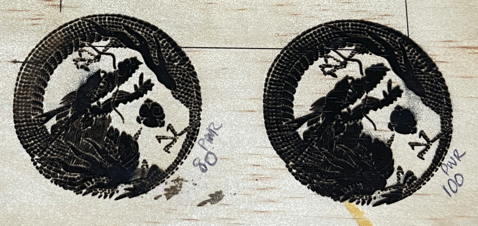
image

I also tried a larger, non vector image to etch as shown. The settings were:

Grayscale

Contrast = 50

Bright = 50

White clip = 255

Grey scale conversion = Luma

Algorithm = Atkinson

Dot filled engrave

Movement = Dot

Fill interval = 0.14mm

Dwell = 5 ms/dot

Laser Power = 55

Jog speed = 3000 mm/min

Total time to complete = 2 hours and 39 mins

As you can see, the graphic did not fully print in places. I put this down to the plywood not being completely flat. The resolution there would be to sand the board before printing.

There are also a lot of lines, which I think is the plywood grain running through the image. I do have some less ‘grainy’ wood I can try again with but again, may be some sanding of the material prior is a worthwhile investment for a better result.

Even given the material was a little warped I think I’ll need to up the power a bit to maybe 65% to get a darker and more defined result.

The challenge here is that the print took over 2.5 hours and that is a long time with extractor fan running a full bore. It is easy enough for me to wear earmuffs but I might need to think about sound proofing the extractor somewhat or it is going to be very distracting in the shop, given it is one open area!

The best thing about laser etching wood is that the mistakes are much more recyclable than those from 3D printing filaments. I get the feeling that I have a lot more laser etching testing to do until I did a formula I can depend on.

Random blob prints

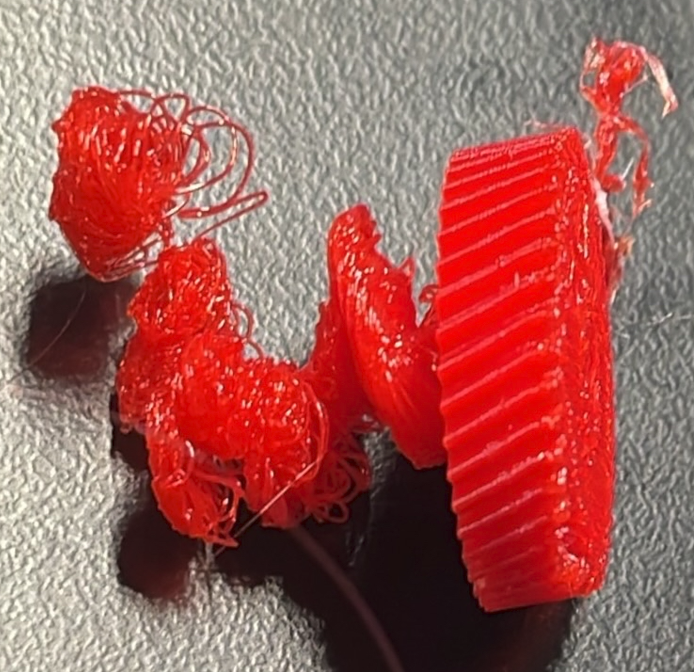
image

I am still trying to work out why I occasionally get these random blob prints! As you can see the model on the left works fine until towards the end when it goes all ‘blobby’ for some reason??

I have seen this before when attempting to print a cog, but I’ve never bothered to isolate it. In this case, the first print was fine, then second ended in a ‘blob’ and third print was fine. Exactly the same model, no change.

Now I will admit that when I was importing the model it did tell me there was an error and did I wanted that fixed. To which I naturally said “Sure”. Thus, I’m not sure if that is the source of the issues, but if it was a code error, why doesn’t it happen every time I wonder? More investigation it seems.

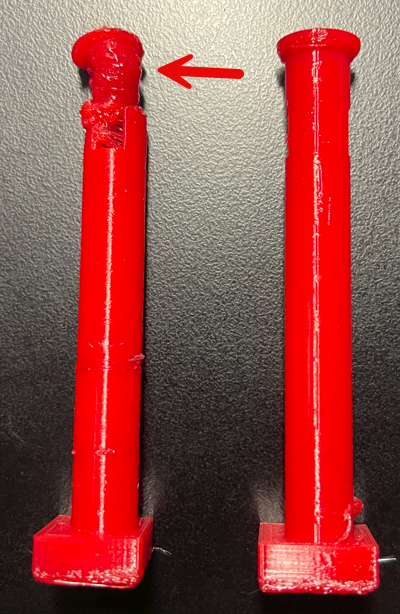
image

Luckily, I managed to print out two good columns to finish this model of a Tori gate as you can see above. It is still quite rough as I was testing using PETG this time instead of PLA. I also didn’t use any support and I probably should have looking at the resulting top beam. As always, there is refinement that will be required but I’m happy that I could get this printed without too much hassle.

The original model had the two columns printing together in the same model but that was slow and also created a ‘spiders web’ of filament between the columns. So I canned that and editing that part of the model using TinkerCAD and made a new model with only a single column I printed twice. Much better.

Happy to add this model to my collection and hopefully will get some time to do some refinement to it soon.

A nozzle mishap

image

After setting a 3D print on my Snapmaker Artisan to run overnight, I returned to find that it had failed and whole print had amalgamated into a single enormous blog hanging from the print head. DAMM!

So, I heated each nozzle to the operating temperature and then did a load to force the printed lump away from the print head.I cleaned the nozzles as best as I could and I continued on with the 3D printing.

However, once I had removed the 3D print head in exchange for the laser to do some etching I found that my 3D nozzles where a bite worse for wear as seen in the above photo.

When I’m finished with my etching work I’ll recommend the 3D print head but NOT connect it to the X axis so I can turn it upside down for better access. I’ll again heated each nozzle to the operating temperature and try and scrap away as much junk as I can CAREFULLY!

I also see that I can buy some new Hot End for Dual Extrusion modules from Snapmaker which I may end up doing anyway as I see they have a 0.2mm nozzle as well as a hardened 0.4mm nozzle.

image

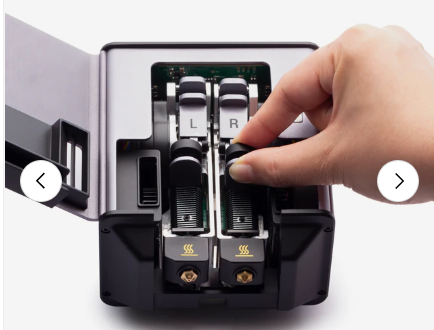
You get the 0.4mm nozzle when you purchase the unit as shown above. The nozzle size is denoted in the labels for each when you open the print head as shown.

image

Seems like you can simply ‘pop out’ the print heads as shown above. So, hopefully not a major deal if it comes to that. But first, let me try and see if I can clean the existing nozzles up without damaging them.

Loading/Unloading filament in a Snapmaker Artisan

After following through the initial ‘wizard’ set up to load the filament into a Snapmaker Artisan, I could never figure out how to do it manually. I generally wrenched the filament out because I couldn’t see how to do it otherwise, but I knew there was a better way and here it is.

image

On the Snapmaker integrated controller, from the main menu select Control in the top left.

image

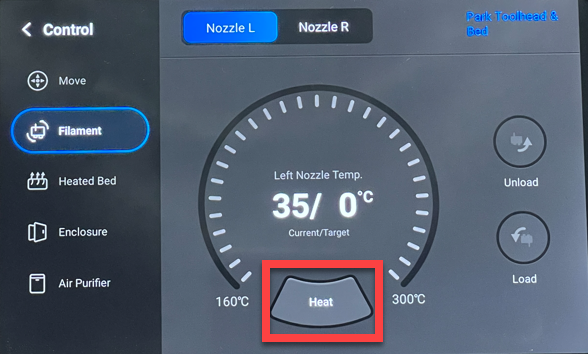
Select Filament from the menu on the left. Next, select the nozzle you wish to work with at the top of the page.

Before you can load or unload you need to select the Heat button at the bottom of the screen as shown to bring that nozzle to operating temperature. Until you do the Unload and Load buttons on the right will remain greyed out and unavailable.

image

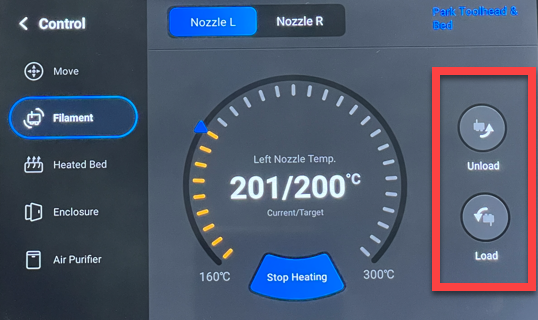
When the nozzle reaches the operating temperature, the Unload and Load button will become available. Use these button when you need to get your filament into or out of the print head.

In short, don’t wrench the filament out of the head as I’m sure it will screw the gears that feed the filament to nozzle. Instead, use the process shown above using the Snapmaker Artisan controller. Given these actions are quite common it would be nice if Snapmaker put them on the home screen or at least allowed the ability to customise what appeared on the home screen. However, for now, I just follow this simple process now whenever I need to load or unload my filament from the print head.

Samsung 32 Inch S39C FHD Curved Monitor

image

My existing Benq PD3200Q recently decided to no longer power on and I needed a replacement quick smart. I therefore jumped on Amazon and bought a

Samsung 32 Inch S39C FHD Curved Monitor

for around AU$330 an it arrived the next day, which was magic!

I wasn’t really sure whether a curved screen would be for me but it turns out that I don;t mind it. However, in my rush to get a replacement I overlooked the maximum resolution. The old Benq had a maximum resolution of 2560 x 1440 while the Samsung only has a maximum resolution of 1920 x 1080.

This lower resolution really does make a difference to what is displayed on the screen. With the Benq, I could split the screen into two browser sessions and see everything, however the Samsung doesn’t allow this. It works fine, but due to the smaller screen resolution, not as much information fits on the screen. For example, some web site menus get rolled up into pull down option which add extra effort finding and opening. I can certainly maximise that window to see everything, but it is not quite the same.

I also preferred how I could rotate the Benq from landscape to portrait. Not that I used it much in portrait but it was a handy option. Also, the Benq had an adjustable height option. The Samsung has to live on a box to get it to a level above my Surface Pro so I can see all screens at all times.

For the price and the speed of delivery, the Samsung is a winner but I probably have taken more time to match what I had previous, especially when it came to resolution. I only now appreciate the difference that this makes to my productivity. I can certainly continue to work with the Samsung but I’m looking out for a more suitable replacement so I can gain back the resolution I had. The challenge is when I find something that works what do I do with the Samsung? That’s the other problem I need to solve before getting yet another monitor. However, the positive is that I do like the curved screen.

Let’s see what I can find to get my resolution back now that I have the time to do some comparison shopping.

The extruder is continuously pulled up

image

XY Offset Calibration
The extruder is continuously pulled up and printing is paused
Error code: 13-18
Please check if the nozzle is clogged or pushed up, or if the filament is stuck outside and cannot be pulled in successfully.
If the problem persists, contact our Support for help.
Confirm

When I first got my Snapmaker Artisan and I started doing 3D prints, I found I got the above error quite regularly. Turns out the solution is in fact quite simple.

image

Initially, I had my filament feeding from the top of the roll into the enclosure. This creates additional friction and resistance to the filament feeding smoothly. When I changed the the orientation of the filament roll to feed from the bottom, as shown above, and let gravity do some work, ‘the extruder continuously pulled up’ error has not returned.

The resolution seems simple in hindsight, but during initial set up, on top of everything else, it wasn’t something that I paid attention to. So, if you are having filament being pulled up issues, ensure your filament is feeding with the least amount of friction. This typically means ensure it is feeing from the bottom, not the top, of the reel.