

After following through the initial ‘wizard’ set up to load the filament into a Snapmaker Artisan, I could never figure out how to do it manually. I generally wrenched the filament out because I couldn’t see how to do it otherwise, but I knew there was a better way and here it is.

On the Snapmaker integrated controller, from the main menu select Control in the top left.
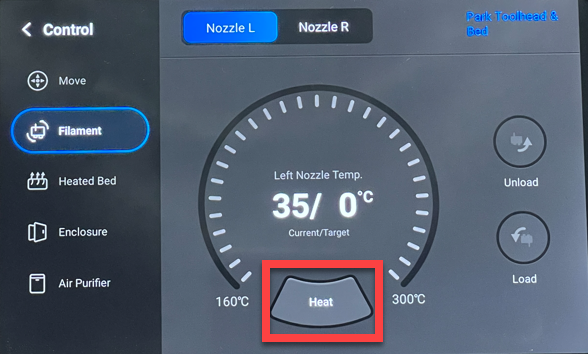
Select Filament from the menu on the left. Next, select the nozzle you wish to work with at the top of the page.
Before you can load or unload you need to select the Heat button at the bottom of the screen as shown to bring that nozzle to operating temperature. Until you do the Unload and Load buttons on the right will remain greyed out and unavailable.
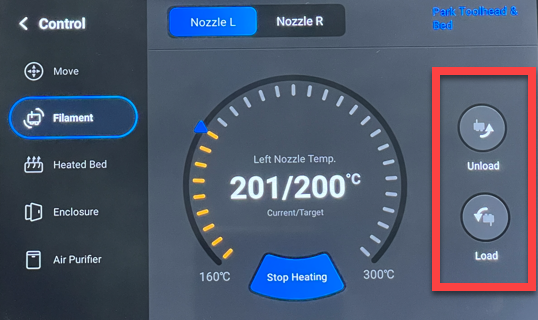
When the nozzle reaches the operating temperature, the Unload and Load button will become available. Use these button when you need to get your filament into or out of the print head.
In short, don’t wrench the filament out of the head as I’m sure it will screw the gears that feed the filament to nozzle. Instead, use the process shown above using the Snapmaker Artisan controller. Given these actions are quite common it would be nice if Snapmaker put them on the home screen or at least allowed the ability to customise what appeared on the home screen. However, for now, I just follow this simple process now whenever I need to load or unload my filament from the print head.
 CIAOPS Labs
One thought on “Loading/Unloading filament in a Snapmaker Artisan”