As I detailed in a previous post:
Mecanum motion
I had my robot moving and taking commands from an Internet based dashboard. The missing piece was to get the distance sensor operational, which I have now achieved.
I firstly need to print a mount to allow the distance sensor to be mounted to the buggy frame. I have uploaded that to the CIAOPSLabs repo here:
https://github.com/directorcia/ciaopslabs/blob/main/3dprint/mounts/VL53L0X-distance.stl
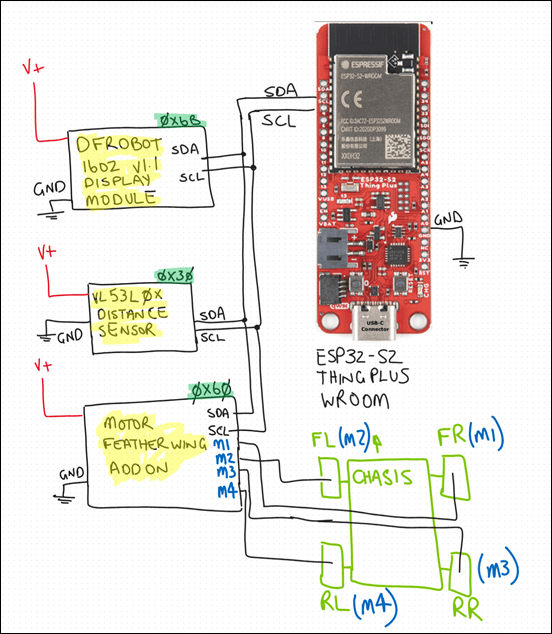
With the VL53L0X sensor now mounted and connected to the processor the layout now looked like the above image.
Basically, the motor controller, distance sensor and LCD display all communicate with the ESP32-S2 processor via the SDA/SCL bus. They achieve this by all being on a different address.
It was also important to ensure that I connected up the wheel in a know sequence because to drive the mecanum motion I needed to turn different wheels to make it move in certain directions per:
![]()
I’ve uploaded the initial code with it all working here:
https://github.com/directorcia/ciaopslabs/blob/main/Projects/14/moveanddistance-v1.c
The commands on the keyboard are:
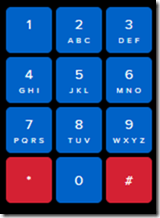
1 = Left forward 45
2 = Forward
3 = Right forward 45
4 = Left 90
5 = Stop/Start
6 = Right 90
7 = Left back 45
8 = Back
9 = Right back 45
* = Slower
0 = Spin on the spot
# = Faster
As the robot moves it displays the distance on the LCD display like so:
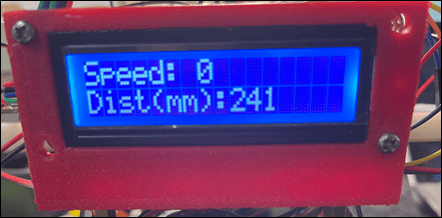
The robot starts with speed = 0 (i.e. stationery). You press 5 to set the speed to 100 but it will not yet move until you give it a direction. If you now press 2, the robot will move forward at a speed of 100. You can then happy go along changing directions via the keypad. If you press 5 again, the robot will stop moving.
With all this now working, the next update will be for the robot to use the distance sensor to determine how far away it is from object (at the front), slow and stop if necessary to avoid hitting these objects.
I want to also optimise the code to make it more responsive if I can and I’ll post the updates here and to the CIAOPSLabs repo when I get it all working.
Beyond that I’m still trying to decide what to get the robot to do? If you have any suggestions, let me know but I’m kind of thinking that the robot needs to have ‘vision’ next!


 CIAOPS Labs