Keyestudio KS0172 – LCD display

Screenshot 2025-01-29 134844

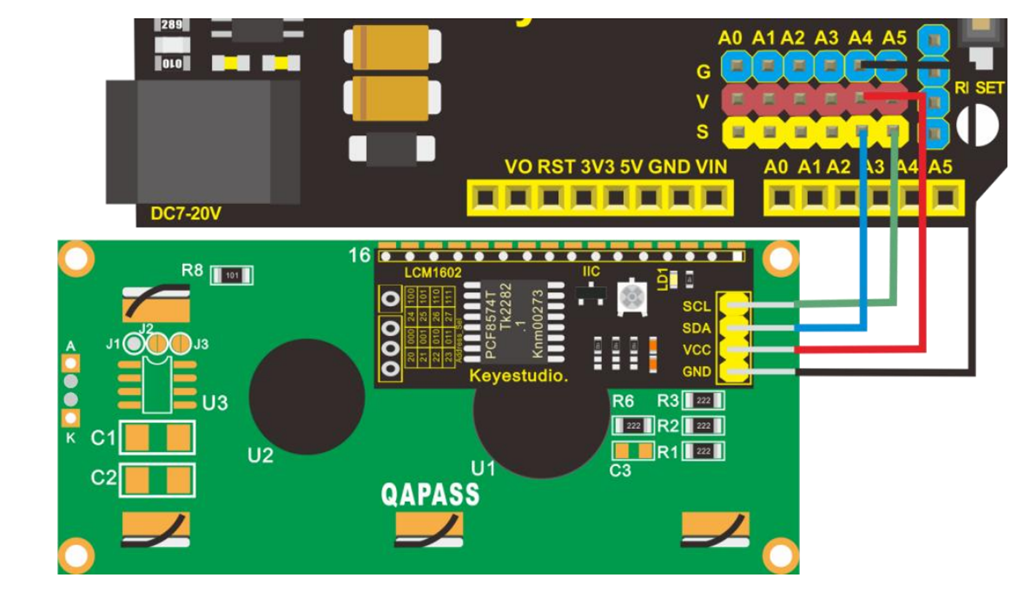
Next on the list of projects with the Keyestudio KS0172 board is connecting an LCD display as shown above.

The code for this is here:

https://github.com/directorcia/Azure/blob/master/Iot/Keyestudio%20KS0172/Lesson_5/main.cpp

and the only trick was to add the LiquidCrystal_I2C library, which was easy enough to do in Platformio.

Screenshot 2025-01-29 135357

and the result is shown above.

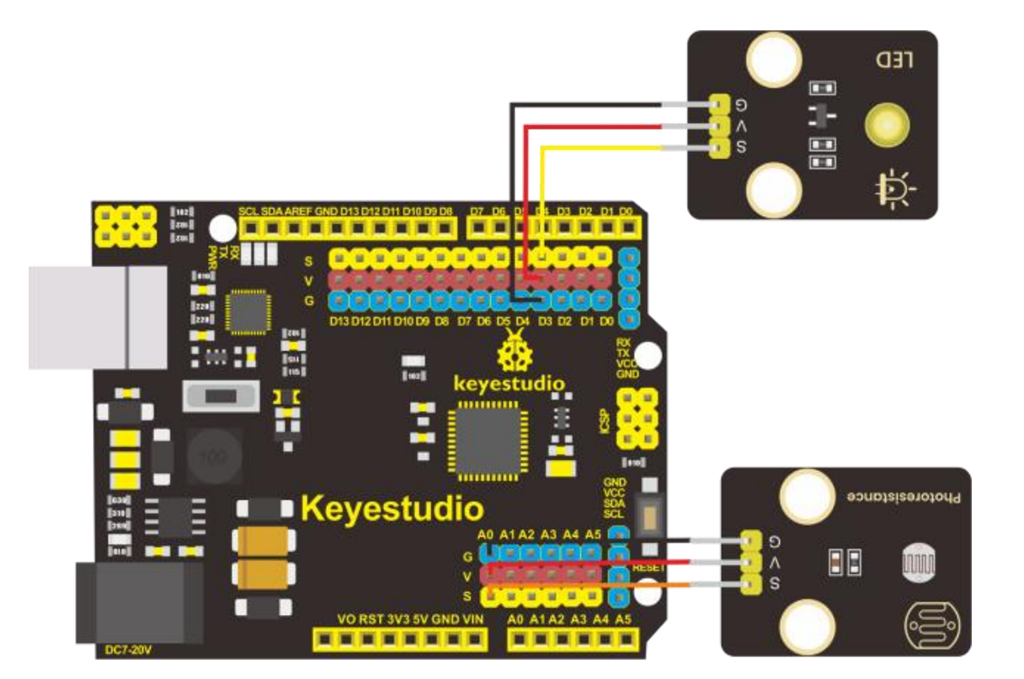
Next was to configure a light sensor. The code for that is here:

https://github.com/directorcia/Azure/blob/master/Iot/Keyestudio%20KS0172/Lesson_6/main.cpp

Screenshot 2025-01-29 141327

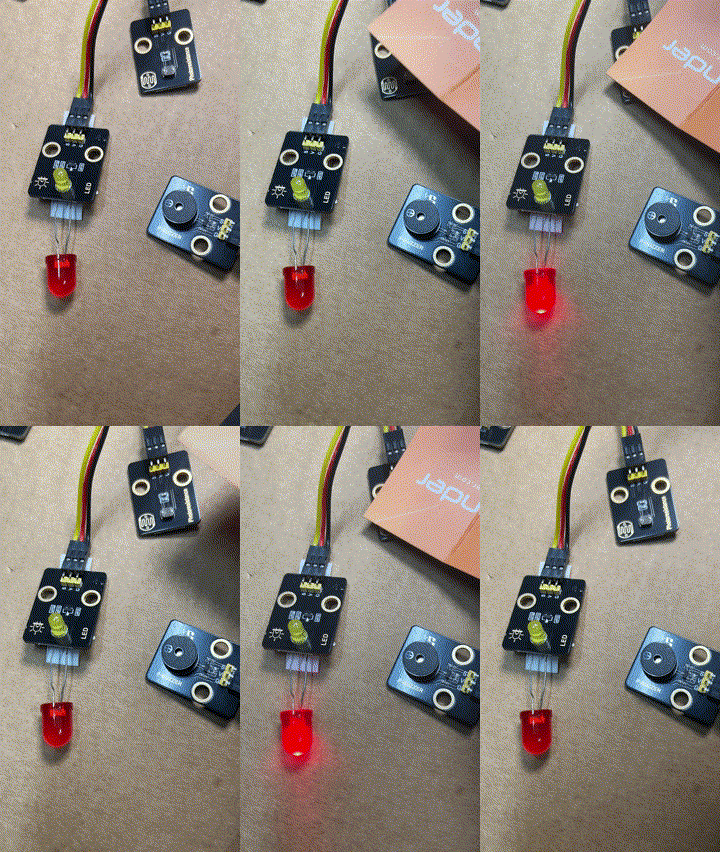
During this process the LED on the add on board failed! Strange. I checked the port, the voltage and whole lot of other stuff, but as far as I can tell the LED itself failed! I therefore used the buzzer as substitute until I decided to ‘bodgy’ another LED I had laying around as a temporary substitute. Why? Well, this LED board is pretty handy for troubleshooting I’ve found.

lesson6

The result is as shown above, both sound and light when the light sensor falls below a certain level.

I can’t find a replacement for the LED board on its own. Seems it only comes with full kits. I’ll need to look at buying a similar LED at some stage and maybe swapping the faulty on out on the board. It will be rather fiddly but worth the effort going forward I reckon.

Keyestudio KS0172–Button

Screenshot 2025-01-28 125142

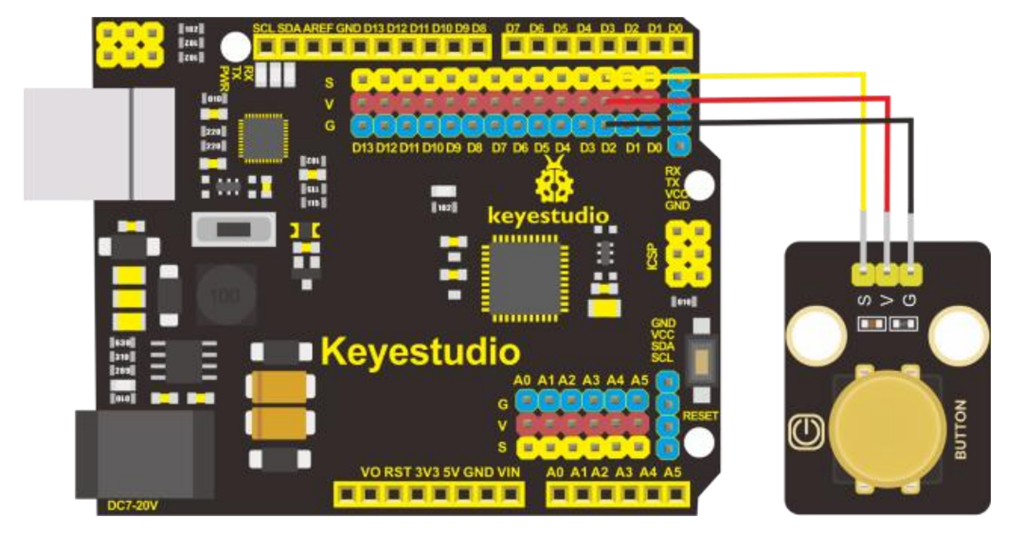
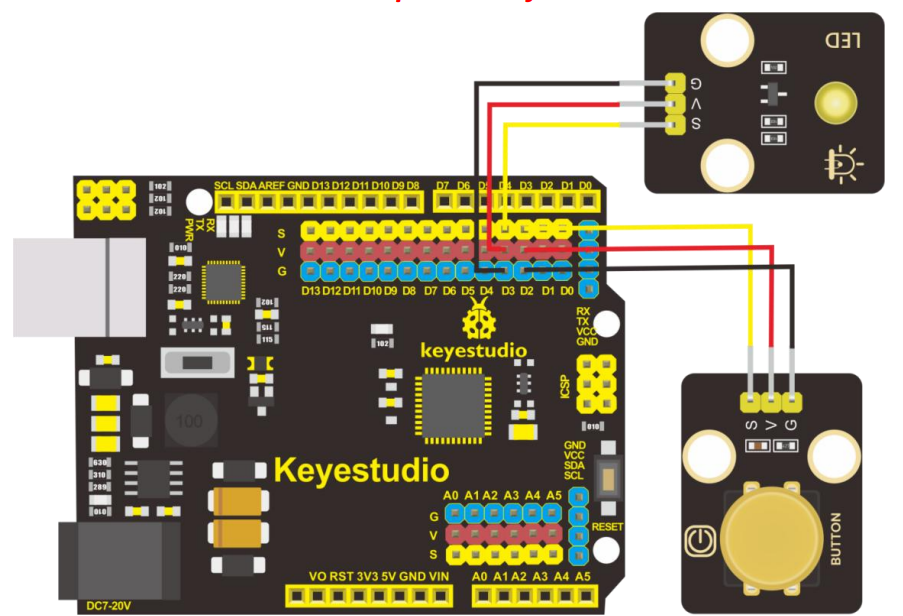
The next project with the Keyestudio KS0172 board is to connect a button as shown above and observe the effect in the terminal window. The code for this is here:

https://github.com/directorcia/Azure/blob/master/Iot/Keyestudio%20KS0172/Lesson_3.1/main.cpp

Next, is to have the button control the LED like so:

Screenshot 2025-01-28 125612

and the code for this is here:

https://github.com/directorcia/Azure/blob/master/Iot/Keyestudio%20KS0172/Lesson_3.2/main.cpp

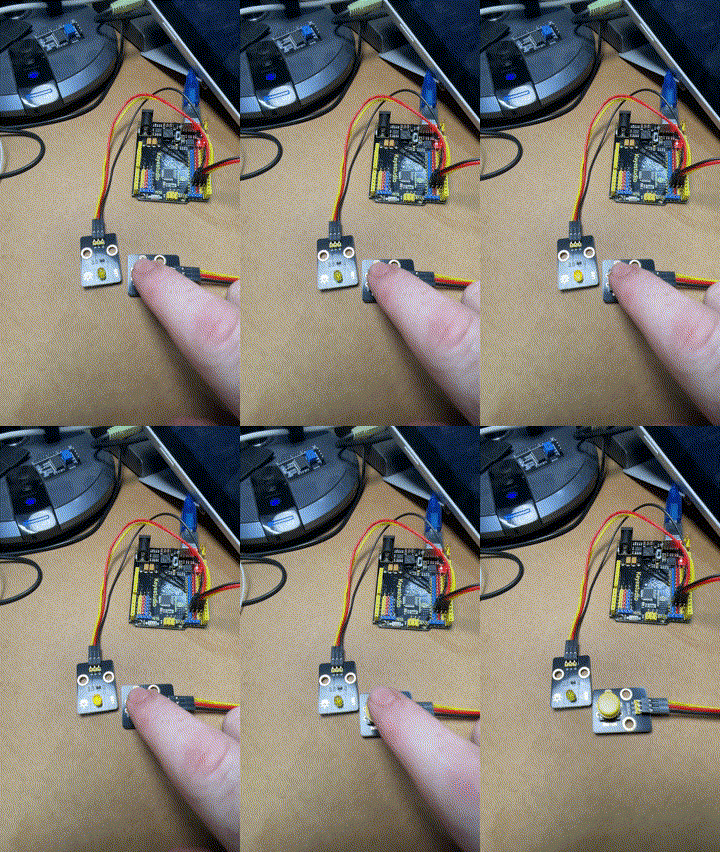
and the result looks like:

lesson3-2

The next two projects use a buzzer to make sound like so:

Screenshot 2025-01-28 130331

the code for these two lessons is here:

https://github.com/directorcia/Azure/blob/master/Iot/Keyestudio%20KS0172/Lesson_4.1/main.cpp

and here

https://github.com/directorcia/Azure/blob/master/Iot/Keyestudio%20KS0172/Lesson_4.2/main.cpp

My own attempt with the help of AI is here:

https://github.com/directorcia/Azure/blob/master/Iot/Keyestudio%20KS0172/Lesson_4.3/main.cpp

although it doesn’t really sounds like ‘Smoke on the water” to me, but that is clearly a limit of the equipment not the programmer (ha)!.

Keyestudio KS0172 – Flashing LED

Now that I have the Keyestudio KS0172 board working time for some customisations of the flashing LED.

lesson1-2

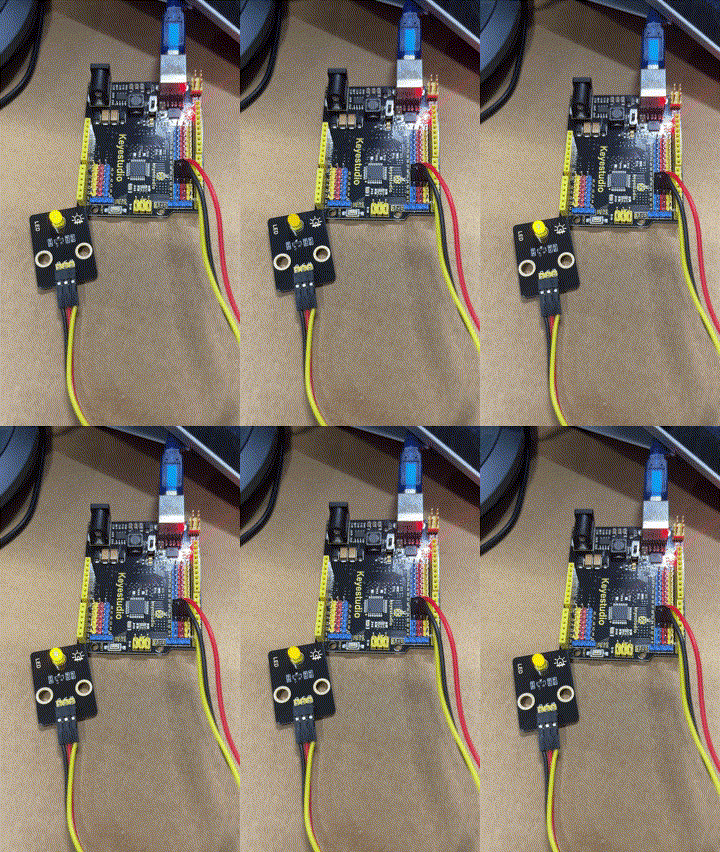
First, make it flash faster. That is simply done by delay statement in the code here:

https://github.com/directorcia/Azure/blob/master/Iot/Keyestudio%20KS0172/Lesson_1.2/main.cpp

The lower the number the faster it flashes.

lesson1-3

Next, get the LED to fade in and out. The code for this is here:

https://github.com/directorcia/Azure/blob/master/Iot/Keyestudio%20KS0172/Lesson_2.2/main.cpp

This uses a new function I was not aware of:

The analogWrite function is used in Arduino programming to output a PWM (Pulse Width Modulation) signal to a specified pin. Here’s a detailed explanation:

Purpose

analogWrite is used to control the brightness of an LED or the speed of a motor by varying the duty cycle of the PWM signal.

Syntax

analogWrite(pin, value);

Parameters
  • pin: The pin number to which the PWM signal is sent. This must be a pin that supports PWM (usually marked with a ~ on Arduino boards).

  • value: The duty cycle of the PWM signal. It ranges from 0 to 255:
    • 0 means 0% duty cycle (always off).

    • 255 means 100% duty cycle (always on).

    • Values in between correspond to varying levels of on/off time.

This code creates a smooth fade-in and fade-out effect for the LED.

Keyestudio KS0172 Board Projects commence

I came across this kite recently:

Smart Solar Tracker System Tracking Starter Kit or Arduino

Smart Solar Tracker System Tracking Starter Kit For Arduino

Which I thought would be a good opportunity to jump back into things after all teh struggles I’ve had with the Arducam Mega 3MP. I need a few wins to lift my motivation, thus the purchase.

The brains of the kit is a Keyestudio KS0172:

The core processor of this board is ATMEGA328P-AU and ATMEGA16U2 is used as a UART-to-USB conversion chip.

It has 14 digital input/output pins (of which 6 can be used as PWM outputs), 6 analog inputs, a 16MHz crystal oscillator, a USB connection, a powerjack, 1 ICSP header, and a reset button. All you need to do is connect it to a computer via a USB cable and power it with an external power supply of DC 7-12V

Which seems much easier to interface.

Turns out this kit is actually a series of projects with the board, which is exactly what I wanted. Start simple and then extend.

First step was to get the board working with Platformio environment.

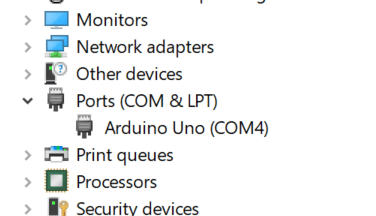
When I plugged the board into my PC it was automatically recognised as Arduino Uno as see above. Thus, when I set up Platformio I select Arduino Uno. This produced the following platformio.ini for me:

[env:uno]
platform = atmelavr
board = uno
framework = arduino

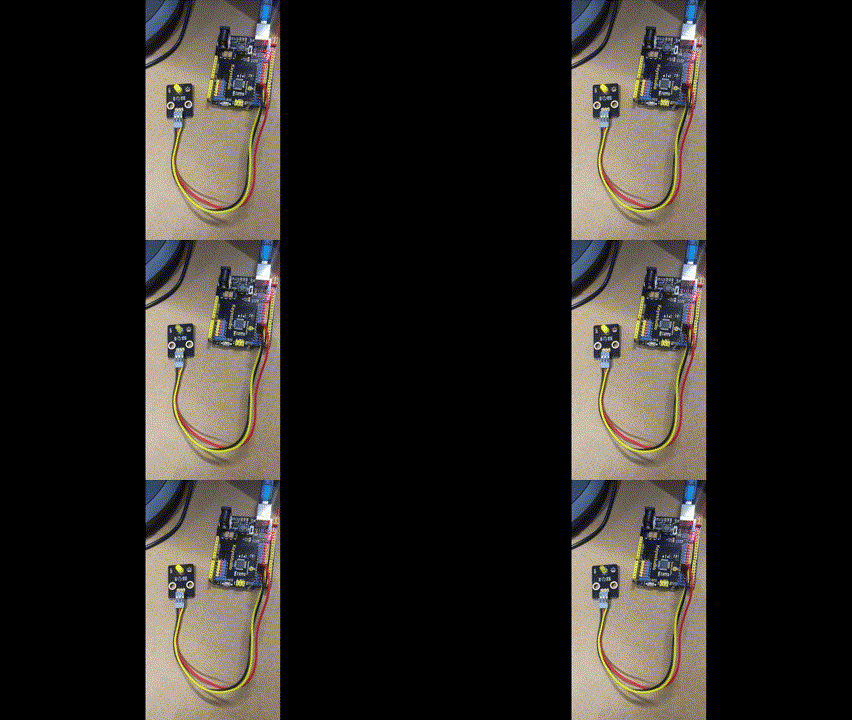
I then wired up the LED board per the instructions in the manual like so:

and uploaded the following code to the board:

https://github.com/directorcia/Azure/blob/master/Iot/Keyestudio%20KS0172/Lesson_1.1/main.cpp

The only change I needed to make to the code that came with the kit was to add:

#include <arduino.h>

to the top.

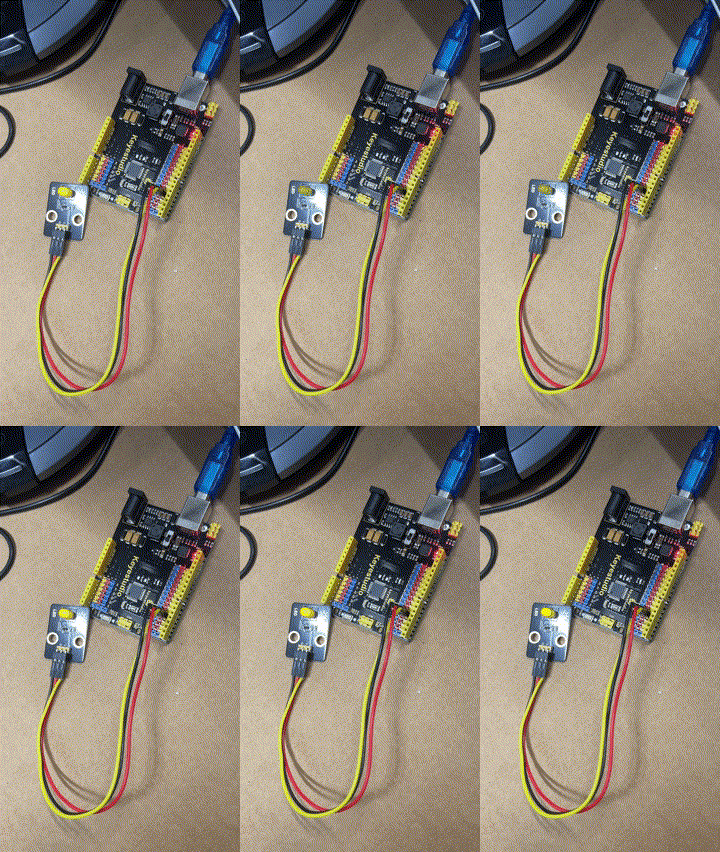
and I am very happy to report that it all worked as expected upon uploading the code to the boardand seen above.

Now onto the next project in the kit.

The challenges of 3D printing

I’ve been working on a phone holder for a car that sits in a cup holder. The reason for this is that I don’t like things blocking my view when I’m driving. Thus, I want to ‘move’ the phone away from the windscreen and down towards the centre console.

Rather than completely re-inventing the wheel here, I decided to use a motorcycle mount from Quadlock to actually hold the phone. The other end needed to grip onto something like a tube.

The starting point for mounting the Quadlock was to create something that would sit in the cup holder and then attach to the Quadlock. Creating a solution to do that is easy enough, but the challenge comes when trying to print that.

Why? Because, basically you can’t print in thin air. You need each layer of the print to be supported but something underneath it. This means you have to think carefully about your design.
image

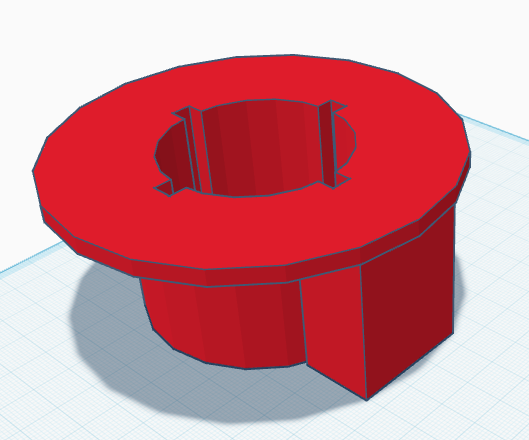
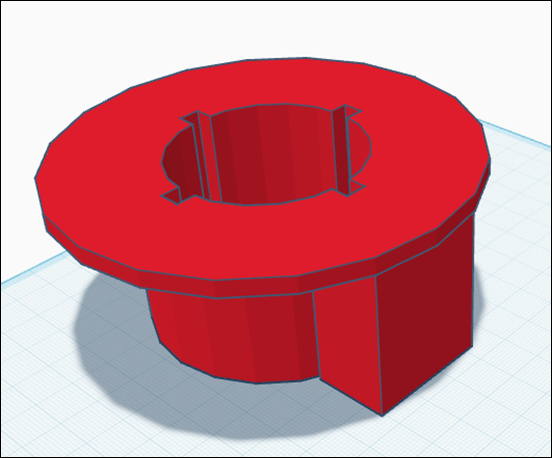
What I ended up doing was splitting the mount into two parts. The first part, as you see above, fits inside the cupholder in the car. That means basically using a cylinder design. However, to stop this rotating in car’s cupholder I added a key since the cupholder has a bridge to another holder nearby.

I then put a table top onto the cylinder to stop the structure tipping side to side and potentially jumping out of the holder in the car. This is where I had to start thinking about how I was going to print this because, in the long run, there would need to be a structure on the top of the table to connect to the Quadlock, but if I made it a single object to print I’d have trouble printing it as much of it wouldn’t have support during printing.

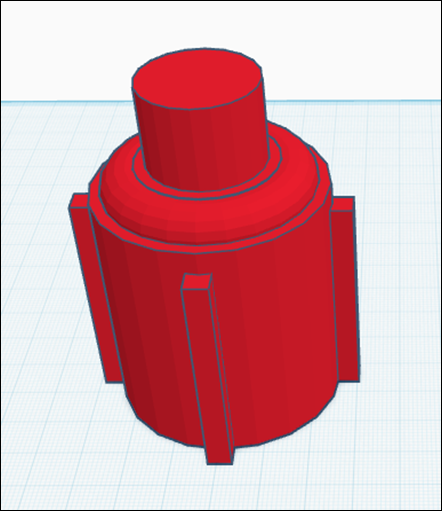
So, I broke the holder in two pieces, the insert with the table top (above), that I could flip and easily print and have everything supported and then an insert (below) to hold the Quadlock and slide inside the holder.
image

If I had tried to print these tow items as a combined object I would have struggled. But breaking them into two separate interlocking parts allows both to have full support when printed.

You will also notice that I added four key slots for the insert to prevent it from rotating when in the printed holder. The Quadlock then securely fastens to the cylinder at the top of the insert.
image

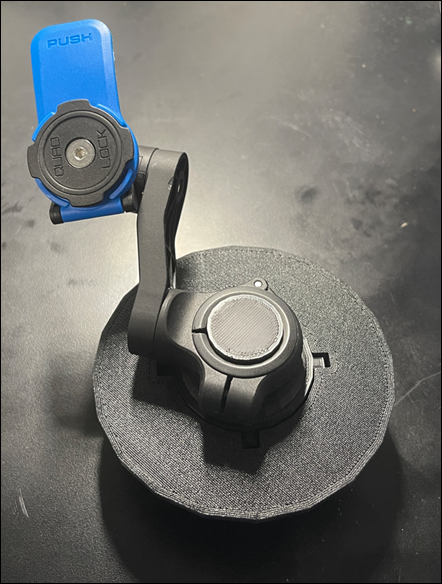
The end result looks like the above and works well. The tabletop of the holder also prevents the Quadlock from scratching the trim if it does move around when the car is travelling. It also takes some weight off the cylinder that mounts the Quadlock as well reducing the chance of it snapping when the car is in motion as the phone bounces around.

The key is that, not only do you need to design an object to solve your problem but you need to work out a way to print it using a 3D printer that can’t print on just thin air!