Loading/Unloading filament in a Snapmaker Artisan

After following through the initial ‘wizard’ set up to load the filament into a Snapmaker Artisan, I could never figure out how to do it manually. I generally wrenched the filament out because I couldn’t see how to do it otherwise, but I knew there was a better way and here it is.

image

On the Snapmaker integrated controller, from the main menu select Control in the top left.
image

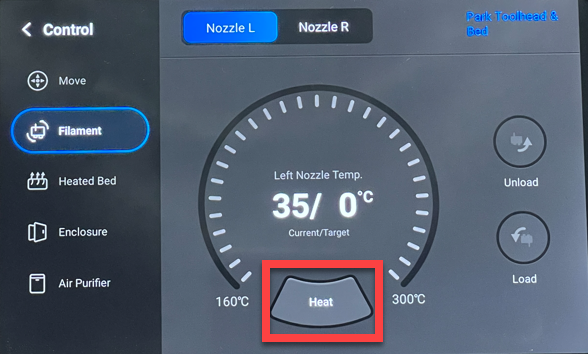
Select Filament from the menu on the left. Next, select the nozzle you wish to work with at the top of the page.

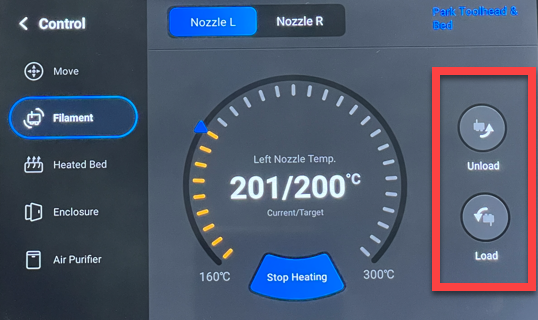
Before you can load or unload you need to select the Heat button at the bottom of the screen as shown to bring that nozzle to operating temperature. Until you do the Unload and Load buttons on the right will remain greyed out and unavailable.
image

When the nozzle reaches the operating temperature, the Unload and Load button will become available. Use these button when you need to get your filament into or out of the print head.

In short, don’t wrench the filament out of the head as I’m sure it will screw the gears that feed the filament to nozzle. Instead, use the process shown above using the Snapmaker Artisan controller. Given these actions are quite common it would be nice if Snapmaker put them on the home screen or at least allowed the ability to customise what appeared on the home screen. However, for now, I just follow this simple process now whenever I need to load or unload my filament from the print head.
Samsung 32 Inch S39C FHD Curved Monitor

image

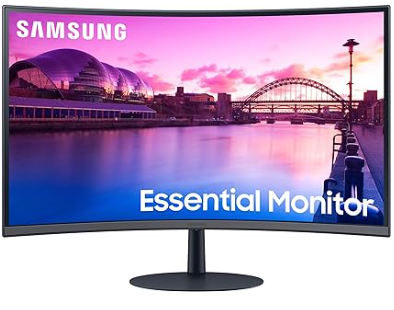
My existing Benq PD3200Q recently decided to no longer power on and I needed a replacement quick smart. I therefore jumped on Amazon and bought a

Samsung 32 Inch S39C FHD Curved Monitor

for around AU$330 an it arrived the next day, which was magic!

I wasn’t really sure whether a curved screen would be for me but it turns out that I don;t mind it. However, in my rush to get a replacement I overlooked the maximum resolution. The old Benq had a maximum resolution of 2560 x 1440 while the Samsung only has a maximum resolution of 1920 x 1080.

This lower resolution really does make a difference to what is displayed on the screen. With the Benq, I could split the screen into two browser sessions and see everything, however the Samsung doesn’t allow this. It works fine, but due to the smaller screen resolution, not as much information fits on the screen. For example, some web site menus get rolled up into pull down option which add extra effort finding and opening. I can certainly maximise that window to see everything, but it is not quite the same.

I also preferred how I could rotate the Benq from landscape to portrait. Not that I used it much in portrait but it was a handy option. Also, the Benq had an adjustable height option. The Samsung has to live on a box to get it to a level above my Surface Pro so I can see all screens at all times.

For the price and the speed of delivery, the Samsung is a winner but I probably have taken more time to match what I had previous, especially when it came to resolution. I only now appreciate the difference that this makes to my productivity. I can certainly continue to work with the Samsung but I’m looking out for a more suitable replacement so I can gain back the resolution I had. The challenge is when I find something that works what do I do with the Samsung? That’s the other problem I need to solve before getting yet another monitor. However, the positive is that I do like the curved screen.

Let’s see what I can find to get my resolution back now that I have the time to do some comparison shopping.

The extruder is continuously pulled up

image

XY Offset Calibration
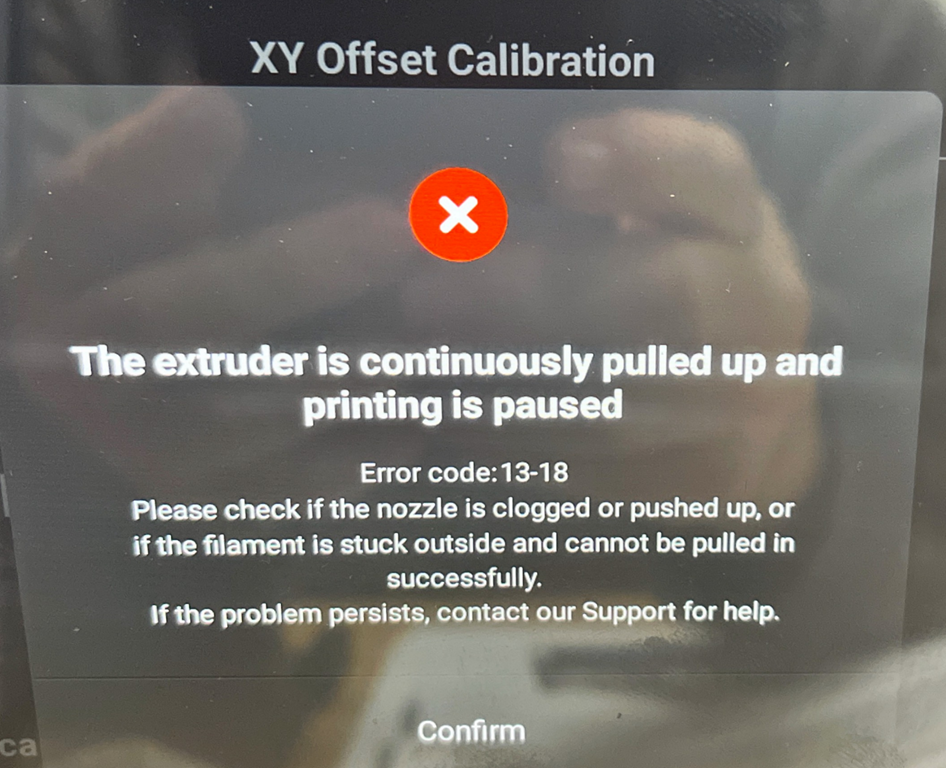
The extruder is continuously pulled up and printing is paused
Error code: 13-18
Please check if the nozzle is clogged or pushed up, or if the filament is stuck outside and cannot be pulled in successfully.
If the problem persists, contact our Support for help.
Confirm

When I first got my Snapmaker Artisan and I started doing 3D prints, I found I got the above error quite regularly. Turns out the solution is in fact quite simple.

image

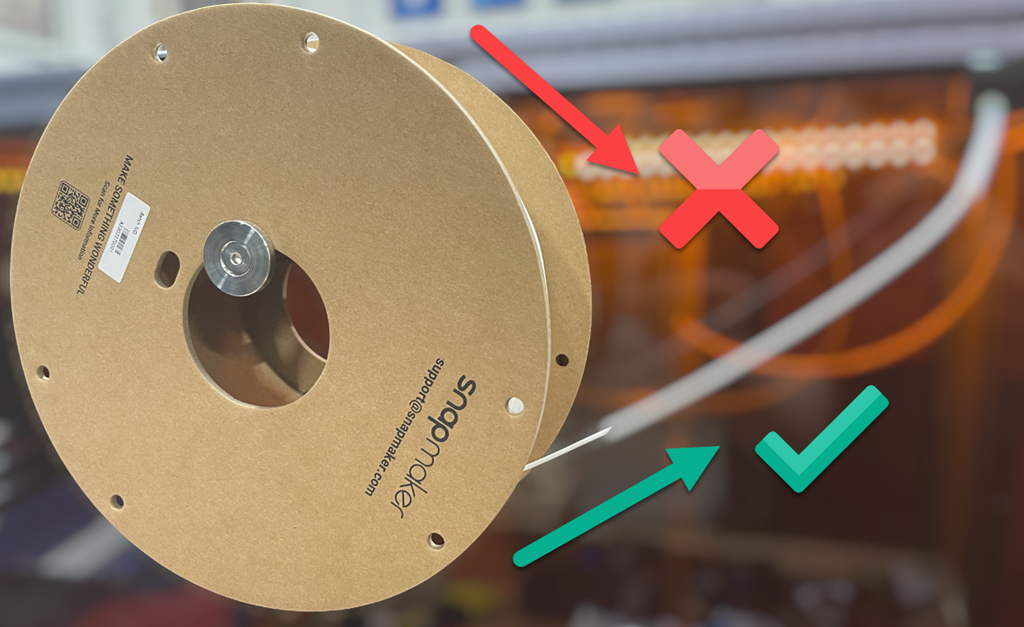
Initially, I had my filament feeding from the top of the roll into the enclosure. This creates additional friction and resistance to the filament feeding smoothly. When I changed the the orientation of the filament roll to feed from the bottom, as shown above, and let gravity do some work, ‘the extruder continuously pulled up’ error has not returned.

The resolution seems simple in hindsight, but during initial set up, on top of everything else, it wasn’t something that I paid attention to. So, if you are having filament being pulled up issues, ensure your filament is feeding with the least amount of friction. This typically means ensure it is feeing from the bottom, not the top, of the reel.

Varnish applied

image

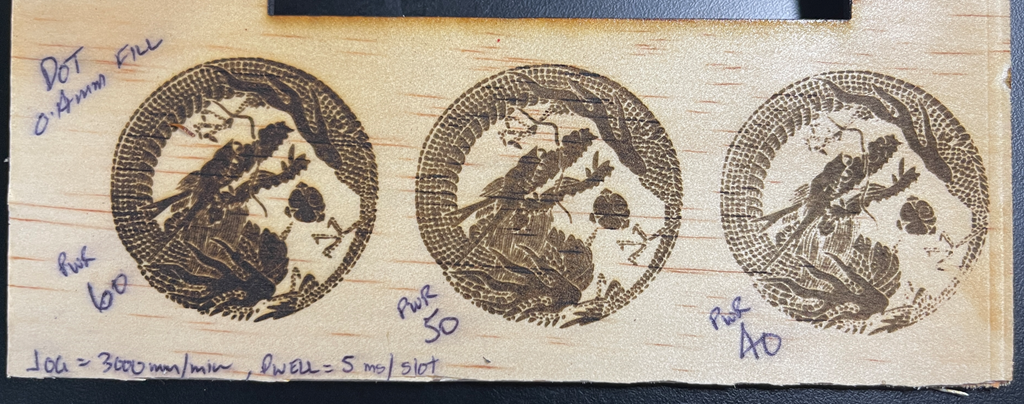
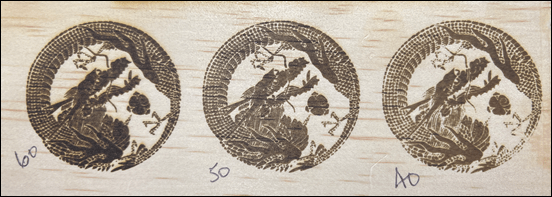
After etching the above images onto 3mm plywood, they have now been varnished. Prior to applying varnish they looked like:

image

Perhaps the varnish has now made then etchings a little darker but it has sealed in the carbon from the etching, prevent smudging which is a good thing.

image

I used the above varnish:

Timber Protect Quick Dry Clear Gloss 300g

which is available from Bunnings.

I also varnished the rear side of the plywood with the aim of repeating the laser etching process with the same image but this time on a ‘pre-varnished’ surface to see what the results will be.

Wood etching test

image

The above is a etching onto 3mm plywood using the SnapMaker Artisan and the 10W laser. The laser power settings are listed in the bottom left of each i.e. 60%, 50% and 40%.

I think the 50% power setting provides the best output but 60% ain’t bad either. 40% however misses a few spots so isn’t adequate.

The next step is to put some varnish on the result and see what happens.