


So far I’ve connected an Arducam 3MP camera to an ESP32 controller and uploaded regular photos to Azure and displayed them on a web page. Those details are here:
https://blog.ciaopslabs.com/2026/01/18/arducam-as-a-live-web-cam/
Now what I want to do is feed those images into Azure AI and display the results back on a web page.
The first step in this process will be to create a Computer Vision Service in Azure.
- In Azure Portal, click “+ Create a resource” (top left)
- Search for Computer Vision
- Type: “Computer Vision”
- Click on “Computer Vision” (with the eye icon)
- Make sure it says “Computer Vision” not “Azure AI services”
- Click “Create”
- Configure the Resource
- Subscription: Your Azure subscription
- Resource Group: Select “image-analysis-rg” (the one you created earlier)
- Region: CRITICAL – Must be one of these:
- East US
- West US
- France Central
- North Europe
- West Europe
- Southeast Asia
- East Asia
- Korea Central
Choose East US if unsure (best compatibility with Vision Studio)
- Name: Give it a unique name
- Example: “my-vision-service-2026”
- Lowercase, numbers, hyphens only
- Pricing tier: “Free F0”
- Gives you 5,000 API calls per month
- 20 calls per minute
- Completely FREE!
- Create the Resource
- Check the “Responsible AI Notice” checkbox
- Click “Review + create”
- Click “Create”
- Wait 1-2 minutes
- Click “Go to resource”
With this create you now need to get yoru API credentials for the AI service.
- In your Computer Vision resource, look at the left menu
- Click “Keys and Endpoint” (under “Resource Management”)
- Copy Your Credentials
- Click “Show Keys”
- Click the copy icon next to KEY 1
- Paste into Notepad and label it: API Key: [your-key]
- Copy Your Endpoint
- Click the copy icon next to Endpoint
- It looks like: https://your-service-name.cognitiveservices.azure.com/
- Paste into Notepad and label it: Endpoint: [your-endpoint]
Keep these values safe – you’ll need them in the next step!
Next, you’ll need to create a HTML webpage to connect and display the results. You’ll find that here:
https://github.com/directorcia/Azure/blob/master/Iot/Arducam/3MP/vision-index.html
Make sure you update these values in yoru file to match your service:
const VISION_ENDPOINT = ‘https://<YOUR VISION SERVICE NAME>.cognitiveservices.azure.com/’;
const VISION_KEY = ‘<YOUR VISION SERVICE KEY>’;
const IMAGE_URL = ‘<YOUR BLOB STORAGE ACCOUNT>.blob.core.windows.net/images/latest.jpg’;
Note: this is not a secure way to implement the service if you are going to expose the page to the Internet. This should therefore be addressed if you plan to make the page public.
Once you have the new HTML file upload it to the $web container of your Blob storage account via:
- Go back to Azure Portal
- Navigate to your Storage Account
- Search for your storage account name in the top search bar
- Click on it
- Open Storage Browser
- In the left menu, click “Storage browser”
- Expand “Blob containers”
- Click on “$web” (this is the special container for static websites)
- Upload your HTML file
- Click “Upload” button at the top
- Click “Browse for files”
- Select your “index.html” file
- Important: Check the box “Overwrite if files already exist”
- Click “Upload”
- Wait for upload to complete (shows green checkmark)
Now you should be able to view the website by:
- Open your browser
- Go to your website URL (from Step 2)
- What you should see:
- Your image displayed
- “Analyzing image…” message appears
- After 2-3 seconds:
- AI-generated caption (e.g., “a person standing on a beach”)
- Confidence score (e.g., “Confidence: 87.5%”)
- Tags with percentages (e.g., “outdoor 99%”, “beach 95%”)
- Australian date/time format timestamp
- Every 60 seconds, the image auto-refreshes
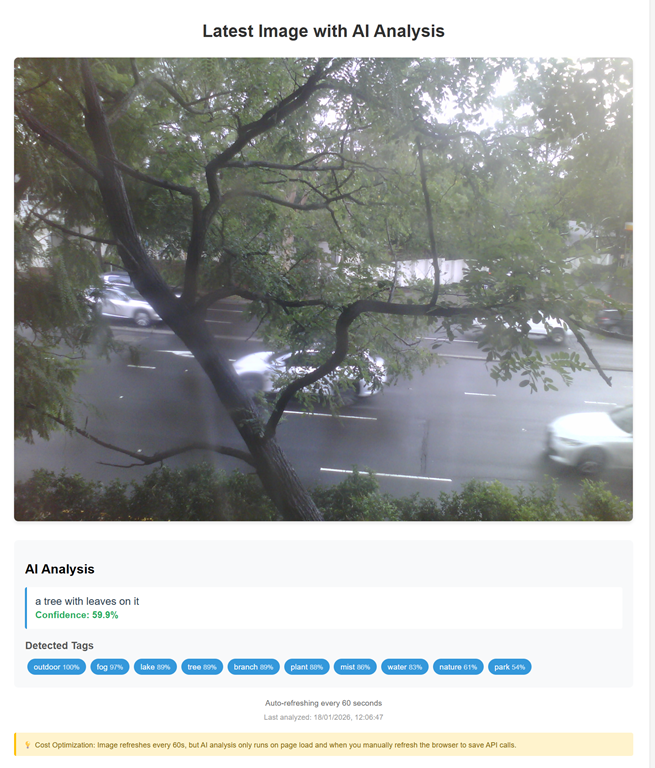
Troubleshooting Common Issues
Issue 1: “Access Denied” or 401 Error
Cause: API key is incorrect or endpoint is wrong
Solution:
- Go back to Azure Portal
- Navigate to your Computer Vision resource
- Click “Keys and Endpoint”
- Click “Show Keys”
- Verify you copied KEY 1 correctly (no extra spaces)
- Check the endpoint URL matches exactly
- Re-edit your index.html file with correct values
- Re-upload to $web container
Issue 2: Image Doesn’t Show
Cause: Image URL is wrong or image container is not public
Solution:
- Go to Storage Account → Containers → “images”
- Click on your image file
- Copy the URL and verify it’s correct in your HTML
- Click on the “images” container name
- Click “Change access level”
- Select “Blob (anonymous read access for blobs only)”
- Click OK
Issue 3: CORS Error in Browser Console
Cause: Cross-Origin Resource Sharing not configured
Solution:
- Go to your Computer Vision resource
- Find “CORS” in the left menu (under API or Settings)
- Add a new allowed origin:
- Click Save
- Refresh your webpage
Issue 4: “Analysis never completes” or Stuck on “Analyzing…”
Cause: Usually a JavaScript error or network issue
Solution:
- Press F12 to open browser Developer Tools
- Click “Console” tab
- Look for red error messages
- Common fixes:
- Check all three values (ENDPOINT, KEY, IMAGE_URL) are correct
- Ensure no typos in the JavaScript section
- Try a different browser
- Verify your Computer Vision resource is in a supported region (see Step 4)
Issue 5: Wrong Region Error
Cause: Computer Vision resource created in unsupported region
Solution:
- Delete the Computer Vision resource
- Create a new one in a supported region:
- East US, West US, France Central, North Europe, West Europe, Southeast Asia, East Asia, or Korea Central
- Get the new KEY and ENDPOINT
- Update your HTML file
- Re-upload
Understanding Costs (Important!)
Free Tier Limits
- Computer Vision F0: 5,000 API calls per month – FREE
- Storage Account: First 5GB storage – FREE
- Bandwidth: First 15GB outbound – FREE
How This Setup Saves Money
Image Refresh: Happens every 60 seconds (FREE – just downloading an image)
AI Analysis: Only happens:
- When you first load the page (1 call)
- When you manually refresh your browser (1 call per refresh)
NOT when: The image auto-refreshes every 60 seconds
Example Usage:
- You check the page 5 times per day = 5 API calls/day
- Over 30 days = 150 API calls/month
- Well within 5,000 free limit!
This optimized version:
- Stays FREE even if left open 24/7 ✅
The next step will be attempt to have the Ai count and display the number of vehicles it sees in each shot.
 CIAOPS Labs