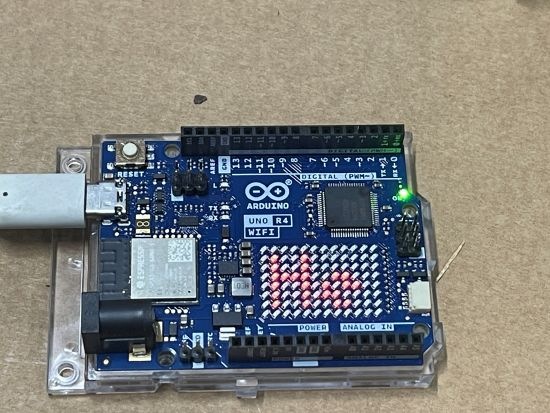
The next controller I’m going to play with is the Arduino Uno R4 Wifi. I really like the ease and compatibility of the Arduinos I have used so far but the lack of WiFi I know will be a major limitation. So it make sense to explore a Wifi Uno.
One of the additional ‘nice’ features of the Arduino Uno R4 Wifi is that it has a LED matrix included on the board. Thus, the starting point is to try and get something to display on there.
First I tried displaying a simple emjoi. The code for this is here:
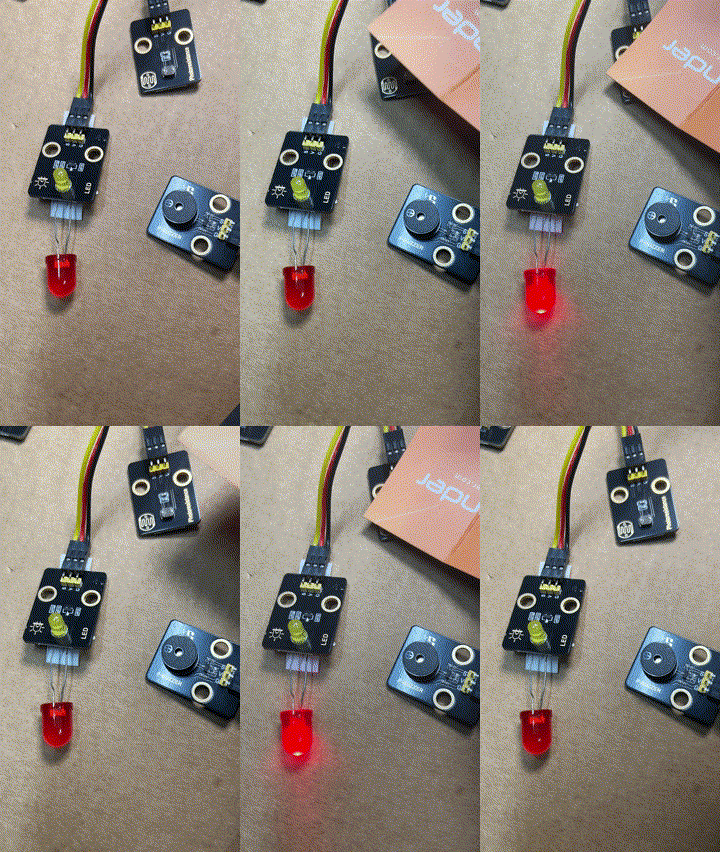
During this process the LED on the add on board failed! Strange. I checked the port, the voltage and whole lot of other stuff, but as far as I can tell the LED itself failed! I therefore used the buzzer as substitute until I decided to ‘bodgy’ another LED I had laying around as a temporary substitute. Why? Well, this LED board is pretty handy for troubleshooting I’ve found.
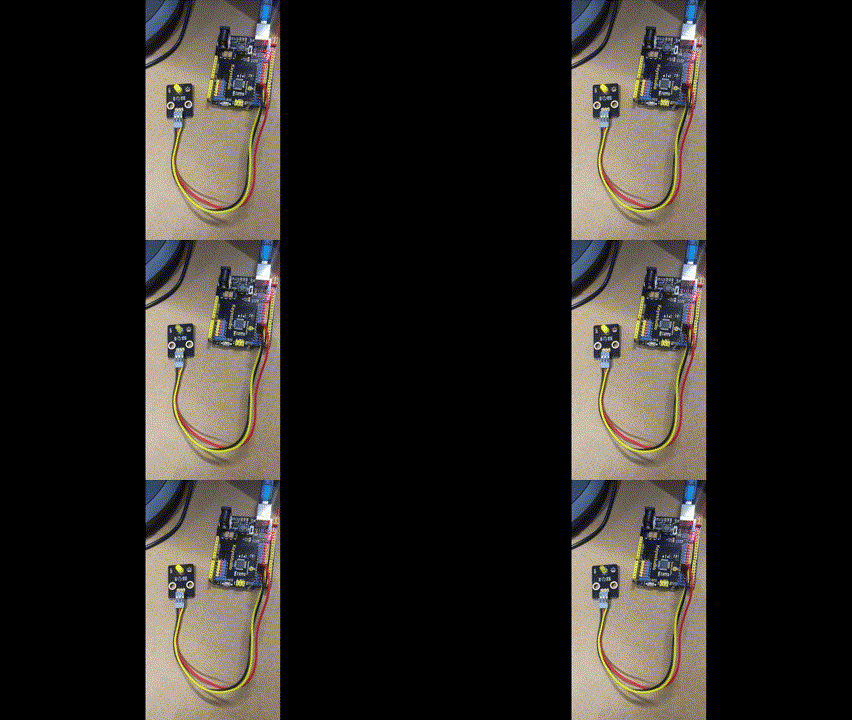
The result is as shown above, both sound and light when the light sensor falls below a certain level.
I can’t find a replacement for the LED board on its own. Seems it only comes with full kits. I’ll need to look at buying a similar LED at some stage and maybe swapping the faulty on out on the board. It will be rather fiddly but worth the effort going forward I reckon.
Which I thought would be a good opportunity to jump back into things after all teh struggles I’ve had with the Arducam Mega 3MP. I need a few wins to lift my motivation, thus the purchase.
The brains of the kit is a Keyestudio KS0172:
The core processor of this board is ATMEGA328P-AU and ATMEGA16U2 is used as a UART-to-USB conversion chip.
It has 14 digital input/output pins (of which 6 can be used as PWM outputs), 6 analog inputs, a 16MHz crystal oscillator, a USB connection, a powerjack, 1 ICSP header, and a reset button. All you need to do is connect it to a computer via a USB cable and power it with an external power supply of DC 7-12V
Which seems much easier to interface.
Turns out this kit is actually a series of projects with the board, which is exactly what I wanted. Start simple and then extend.
First step was to get the board working with Platformio environment.
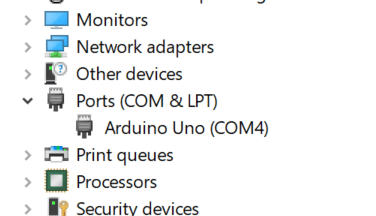
When I plugged the board into my PC it was automatically recognised as Arduino Uno as see above. Thus, when I set up Platformio I select Arduino Uno. This produced the following platformio.ini for me:
[env:uno] platform = atmelavr board = uno framework = arduino
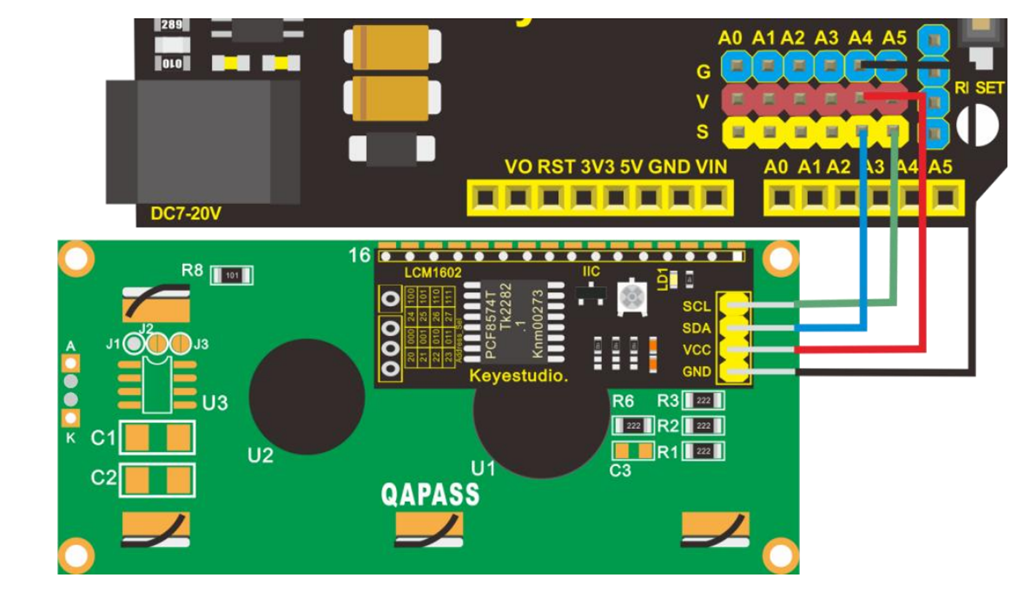
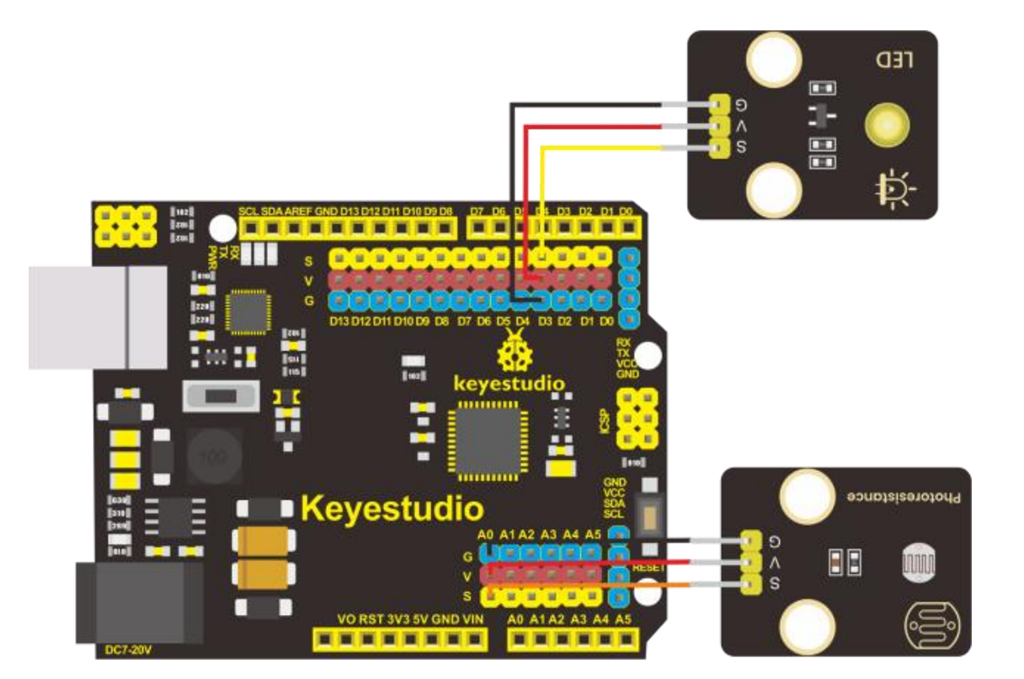
I then wired up the LED board per the instructions in the manual like so:






 CIAOPS Labs