Mecanum Motion 2 – Arduino Uno R4 Wifi

Video link = https://www.youtube.com/watch?v=DYcEgvdhoOE

A while back I got the chassis with the mecanum wheels being controlled by an adafruit.io dashboard. I have revamped the controller to now be an Arduino Uno R4 WiFi controller with an Adafruit MotorShield V3, once again controller by an adafruit.io dashboard.

The code for this is here:

https://github.com/directorcia/Azure/blob/master/Iot/Arduino%20Uno%20R4%20Wifi/Adafruit-IO/chassis-control.cpp

and the documentation for the code is now at:

https://github.com/directorcia/Azure/wiki/Arduino-Uno-R4-Wifi-Chassis-Control-Script

which saves me having to explain it here.

Arduino Uno R4 Wifi Wheel test

Video URL = https://www.youtube.com/watch?v=Ed9reoDO2EA

Now that I have my Arduino Uno R4 Wifi connected to the Internet and Adafruit.io, the next challenge is to get the wheels turning so to speak.

To do this I need a motor driver and wanted one that would easily connect to the Arduino Uno R4 Wifi without too much soldering. I therefore chose:

adafruit_products_powerjump.jpg

Adafruit Motor/Stepper/Servo Shield for Arduino v2 Kit – v2.3

the instructions for this board are here:

Adafruit Motor Shield V2

and the software library is here:

Adafuit_Motor_Shield_V2_Library

however. it turns out that I should have also bought:

Shield stacking headers for Arduino (R3 Compatible)

but I’ll come back to that.
Screenshot 2025-07-27 084259

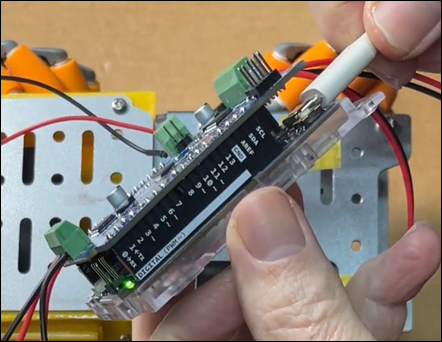
With the headers soldered into place, I could then insert the Adafuit Motor Shield directly onto the Arduino Uno R4 Wifi as shown above.

I then uploaded the following code to the Arduino Uno R4 Wifi:

https://github.com/directorcia/Azure/blob/master/Iot/Arduino%20Uno%20R4%20Wifi/Adafruit%20Motor%20Shield%20V3/test-motors.cpp

to test all the motors. The results of this are shown in the video at the top.

Using the ‘vibe’ coding and with thanks to Github Copilot, getting the results I wanted was really easy. It even installed the Adafuit_Motorshield drivers for me as well.

Now I know the shield works along with the all the motors. The next was to be to get the DFRobot 1602 LCD display working on teh Arduino Uno R4 Wifi. It was then I realised that I should have used the:

Shield stacking headers for Arduino (R3 Compatible)

as I now didn’t have an easy way to connect the display. Damm! I’ll need to figure something else out to get the display working with the board. However, I am very pleased that the Adafruit Motor/Stepper/Servo Shield for Arduino v2 Kit – v2.3 works well and all the motors on my chassis are all operational again. I am now back to where I was with the S32 controller over a year ago.

If you haven’t worked out yet, I’m trying to get back to this point:

Mecanum motion

but with a more compact controller and motor driver.

Arduino Uno R4 Wifi Adafruit.io connection

Video URL = https://www.youtube.com/watch?v=VSRVwGGtVZQ

With my Arduino Uno R4 Wifi now connected to the Internet, the next step is to get it connected and receiving commands from my Adafruit.io dashboard.

The code for this is here:

https://github.com/directorcia/Azure/blob/master/Iot/Arduino%20Uno%20R4%20Wifi/Adafruit-IO/main.cpp

and as you can see from the video is now working. Thus, when I push a number on the Adafruit.io dashboard it is communicated down to the Arduino Uno R4 and displayed on the matrix.

The interesting thing is that I ma now ‘vibe’ coding solutions with Github Copilot. This means I am not writing the code by hand any more. I tell Copilot what I want it to so and allow it to generate the code for me. This saves me SO MUCH time as I am not an experienced C developer and all I want is to get my project working as fast as possible.

However, this ‘vibe’ coding approach still presents challenges. When I started out with thsi project the code Copilot developed for me used a HTTP connect to Adafruit.io dashboard which ended up being far too slow. I didn’t notice that fact unit a little ways into this. At that pont I had Copilot redo the code and only use MQTT, whcih now works athe speed expected.

‘Vibe’ coding is such a time saver for me with these projects and help me sort out issues faster that I could without it. However, the lesson here is that you need to understand what you are trying to achieve and help the AI understand as well.

Arduino Uno R4 Wifi Internet connection

Screenshot 2025-07-26 071040

After getting the matrix working on the Arduino Uno R4 Wifi, naturally the next step was to get it working and connected to the Internet.

You’ll find the code here:

https://github.com/directorcia/Azure/blob/master/Iot/Arduino%20Uno%20R4%20Wifi/Wifi%20Connect/chk-mrk-connect.cpp

The secret is to include the WiFiS3.h, which the wifi library for the R4. Aside from that, the other thing that I did was move the settings (i.e. network, password, etc) into a io_config.h file to keep them out of the main code.

The end result is that the R4 now successfully connects to my Wifi and then to the internet. Upon success it wil display a check mark on the LED matrix on the device.

Arducam Mega 3MP failed attempt

I returned to my quest of getting the Arducam Mega 3MP working anf have had no luck at all. I have created the following diagnosis program that might help someone else here:

https://github.com/directorcia/Azure/blob/master/Iot/Arducam/3MP/diag.cpp

My latest attempt was with an Arduino R4 WiFi and all I keep getting is connection failures and incorrect reads. I have tried various wiring changes and testing but still no luck at all.

mega

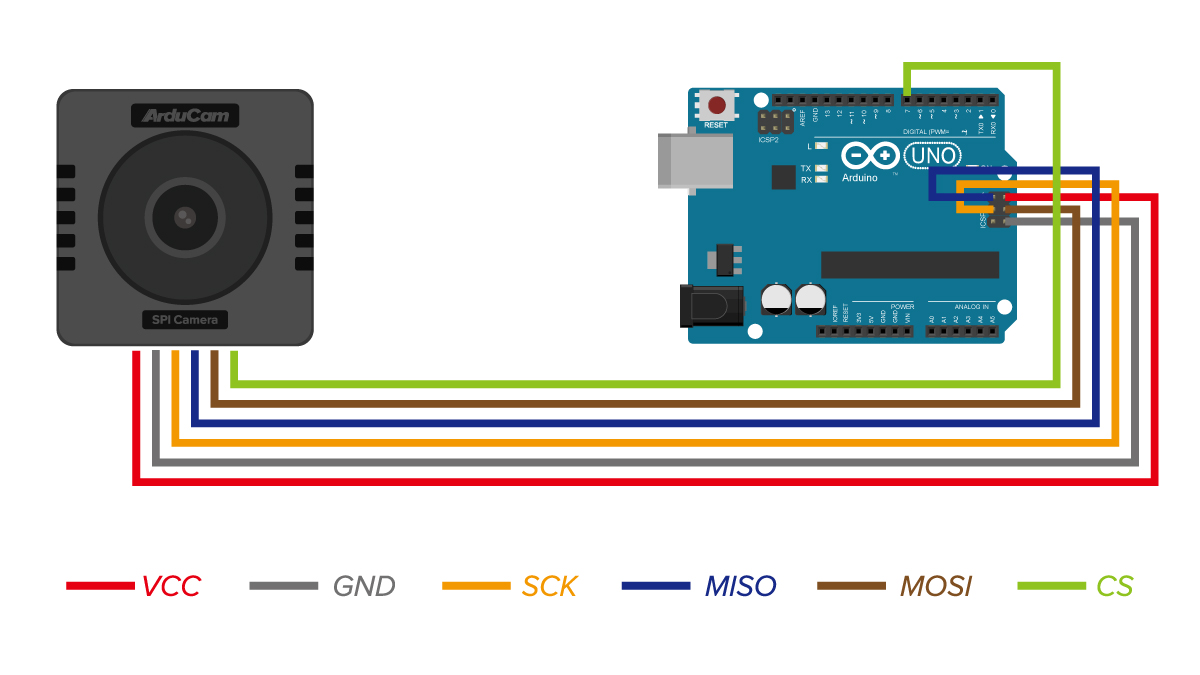
I used the above wiring but to no avail. The code uses pin 10 for CS, which also doesn’t seem to work.

The result indicate it is detected by any reads and writes come back wrong. I have tried all sorts of timing changes to no avail. Thus, I’m going to shelve this for a while and move on with other things.

It really shouldn’t be this hard and I can only think that perhaps the camera has somehow been damaged in all my testing. Perhaps a new one and fresh start is in order?