Video URL = https://www.youtube.com/watch?v=Ed9reoDO2EA
Now that I have my Arduino Uno R4 Wifi connected to the Internet and Adafruit.io, the next challenge is to get the wheels turning so to speak.
To do this I need a motor driver and wanted one that would easily connect to the Arduino Uno R4 Wifi without too much soldering. I therefore chose:

Adafruit Motor/Stepper/Servo Shield for Arduino v2 Kit – v2.3
the instructions for this board are here:
Adafruit Motor Shield V2
and the software library is here:
Adafuit_Motor_Shield_V2_Library
however. it turns out that I should have also bought:
Shield stacking headers for Arduino (R3 Compatible)
but I’ll come back to that.
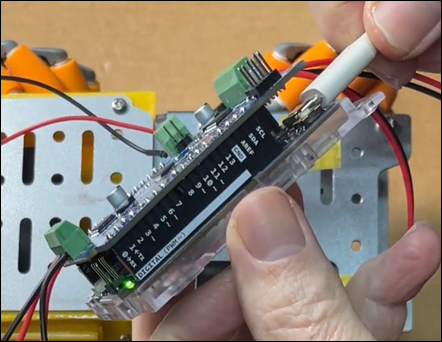
With the headers soldered into place, I could then insert the Adafuit Motor Shield directly onto the Arduino Uno R4 Wifi as shown above.
I then uploaded the following code to the Arduino Uno R4 Wifi:
https://github.com/directorcia/Azure/blob/master/Iot/Arduino%20Uno%20R4%20Wifi/Adafruit%20Motor%20Shield%20V3/test-motors.cpp
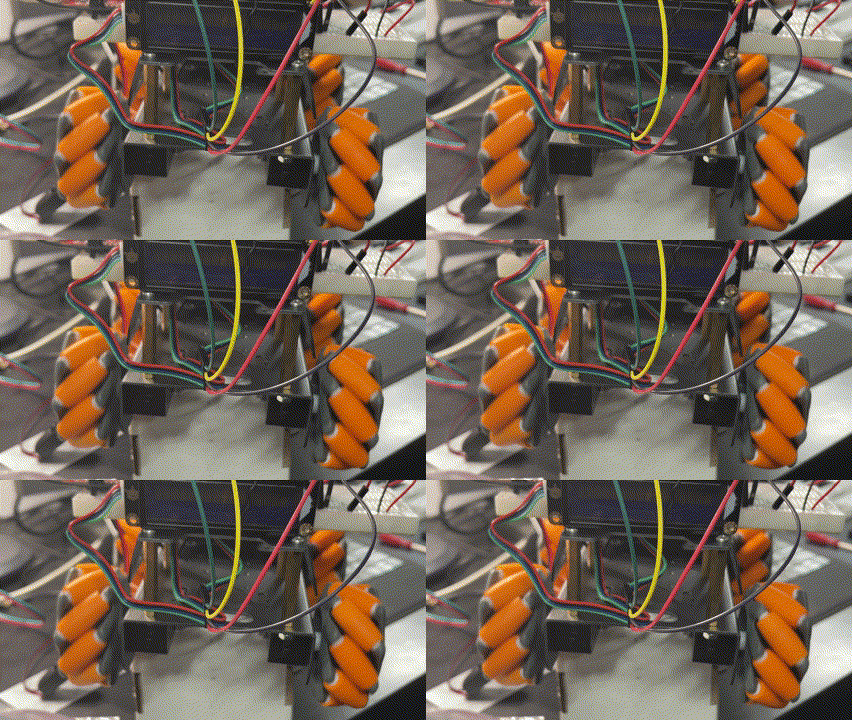
to test all the motors. The results of this are shown in the video at the top.
Using the ‘vibe’ coding and with thanks to Github Copilot, getting the results I wanted was really easy. It even installed the Adafuit_Motorshield drivers for me as well.
Now I know the shield works along with the all the motors. The next was to be to get the DFRobot 1602 LCD display working on teh Arduino Uno R4 Wifi. It was then I realised that I should have used the:
Shield stacking headers for Arduino (R3 Compatible)
as I now didn’t have an easy way to connect the display. Damm! I’ll need to figure something else out to get the display working with the board. However, I am very pleased that the Adafruit Motor/Stepper/Servo Shield for Arduino v2 Kit – v2.3 works well and all the motors on my chassis are all operational again. I am now back to where I was with the S32 controller over a year ago.
If you haven’t worked out yet, I’m trying to get back to this point:
Mecanum motion
but with a more compact controller and motor driver.


 CIAOPS Labs