Arduino Uno R4 Wifi Matrix display

20250518_051525895_iOS

The next controller I’m going to play with is the Arduino Uno R4 Wifi. I really like the ease and compatibility of the Arduinos I have used so far but the lack of WiFi I know will be a major limitation. So it make sense to explore a Wifi Uno.

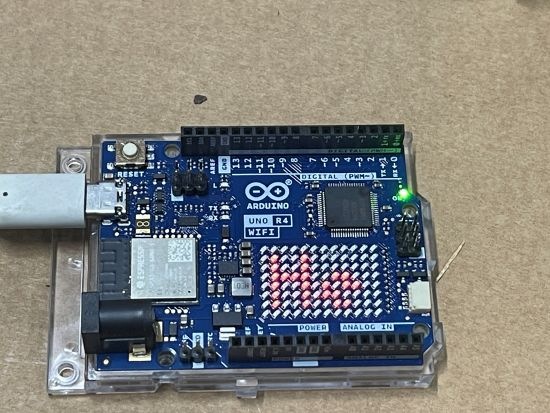
One of the additional ‘nice’ features of the Arduino Uno R4 Wifi is that it has a LED matrix included on the board. Thus, the starting point is to try and get something to display on there.

First I tried displaying a simple emjoi. The code for this is here:

https://github.com/directorcia/Azure/blob/master/Iot/Arduino%20Uno%20R4%20Wifi/Emoji%20Display/main.cpp

and there are range of emojis to display.

I then uploaded the demo code here:

https://github.com/directorcia/Azure/blob/master/Iot/Arduino%20Uno%20R4%20Wifi/Text%20Display/main.cpp

to display Hello World on the matrix, which all worked as expected as shown on the image above.

The next step after getting something to display on the matrix will be to get the Wifi working.


Garage sensor–Version 1 summary

image

Video link = https://www.youtube.com/watch?v=MBYtc1O-l94

I’ve rounded off version 1 of the Garage sensor and am about to start work on version 2. There is a short video summary of what he sensor does in the video above.

I’m not happy with the daughter board that runs the 5 LEDs. It is cumbersome, challenging and time consuming to build. I plan to replace this with something pre-built. I’ll also opt for a cheaper Arduino board. The process will also require me to rework the 3D printed board all the components are mounted on.

Stay tuned for Version 2 coming soon!

Garage Sensor–Code

image

This is a follow on post to my:

Garage Sensor overview

and

Garage Sensor – Genesis

What I want to do here is spend some time looking at the code, which can be found here:

https://github.com/directorcia/Azure/blob/master/Iot/Arduino%20Uno%20R3/Garage%20distance/main.cpp

First steps are to have the include statements, which are:

#include <Wire.h>
#include “SparkFun_Alphanumeric_Display.h”
#include <VL53L1X.h>
#define DISPLAY_ADDRESS 0x70

I then need to create an instance of both the display and distance sensor, which is done via:

HT16K33 display;
VL53L1X sensor;

by default, the display will be at address 0x70 and the distance sensor will be 0x29 for I2C communications.

Next, I define some constants:

const uint16_t POT_PIN = A0;             // Analog pin for potentiometer
const uint16_t mid_point = 1380;         // Optimal distance from wall
const uint16_t adjust = 334;             // potentiometer midpoint value;
const uint16_t average_number = 10;      // Number for averaging distance readings

The pot to allow distance trimming will be at analog port 0. I define the mid point of this pot. Anything past the middle will extend (i.e. add) the optimal distance and anything below will subtract from my optimal distance. I found the total value range (i.e. low and high) of the pot simply by measuring the input from the pot in different positions directly from the analog port.

I define my optimal distance from the wall. Here, 1380 mm.

I define the number of repetition I want to use and then average my readings across as 10 here.

int potvalue;
int SWITCH_PIN = 8;                 // Debug Switch pin
int LED_UNDER_RED = 3;              // LED pin for under red
int LED_UNDER_YELLOW = 4;           // LED pin for under yellow
int LED_WHITE = 5;                  // LED pin for white
int LED_OVER_YELLOW = 6;            // LED pin for over yellow
int LED_OVER_RED = 7;               // LED pin for over red

Next I define a variable for my pot and the digital pins on which each LED is connected.

// Initialize I2C communication
Wire.begin();


// Initialize the display
if (display.begin(DISPLAY_ADDRESS) == false) {
   Serial.begin(9600);
   Serial.println(“Display not found. Check wiring.”);
   while (1);
}


// Initialize the VL53L1X sensor
sensor.setTimeout(500);
if (!sensor.init()) {
   Serial.begin(9600);
   Serial.println(“Failed to detect and initialize sensor!”);
   while (1);
}
sensor.startContinuous(50);
sensor.setDistanceMode(VL53L1X::Long);
sensor.setMeasurementTimingBudget(100);


// Clear the display
display.clear();
display.write(“Boot”);

In my setup look I start I2C communications, initialise the LED display along with the distance sensor.

// pinmodes
pinMode(SWITCH_PIN, INPUT_PULLUP);
pinMode(POT_PIN, INPUT);
pinMode(LED_UNDER_RED, OUTPUT);
pinMode(LED_UNDER_YELLOW, OUTPUT);
pinMode(LED_WHITE, OUTPUT);
pinMode(LED_OVER_YELLOW, OUTPUT);
pinMode(LED_OVER_RED, OUTPUT);
delay(100);
digitalWrite(LED_UNDER_RED, HIGH);
delay(100);
digitalWrite(LED_UNDER_YELLOW, HIGH);
delay(100);
digitalWrite(LED_WHITE, HIGH);
delay(100);
digitalWrite(LED_OVER_YELLOW, HIGH);
delay(100);
digitalWrite(LED_OVER_RED, HIGH);
delay(100);

I define my pin modes for the LEDS and set them all to high so I know they work on each boot.

// average pot readings
unint16_t sum = 0;
for (int i = 0; i < average_number; i++) {
   sum += analogRead(POT_PIN);
   delay(2);
}

I then take a number of analog readings from the location of the pot and average them to come to a single value to be used to adjust the optimal distance.

In my loop

// average distance readings
uint16_t sum = 0;
for (int i = 0; i < average_number; i++) {
     sum += sensor.read();
     delay(2);
}
uint16_t stableDistance = sum / average_number;

I firstly get an average distance from my sensor.

uint16_t midvalue = mid_point + potvalue – adjust;      // Adjusted midpoint value
uint16_t under_red = 0.8 * midvalue;                    // Under red zone
uint16_t under_yellow = 0.96 * midvalue;                // Under yellow zone
uint16_t over_yellow = 1.04 * midvalue;                 // Over yellow zone
uint16_t over_red = 1.2 * midvalue;                     // Over red zon
e

I use this average distance, less any adjustment via the pot to set the distance zones for each LED.

int reading = digitalRead(SWITCH_PIN);

I then see if the debug switch has been set.

if (reading == LOW) { // if Debug mode
     int adjustvalue;
    
     // average pot readings
     uint16_t sum = 0;
     for (int i = 0; i < average_number; i++) {
         sum += analogRead(POT_PIN);
         delay(2);
     }
     potvalue = sum / average_number;


    // Turn on all LEDs
     digitalWrite(LED_UNDER_RED, HIGH);
     digitalWrite(LED_UNDER_YELLOW, HIGH);
     digitalWrite(LED_WHITE, HIGH);
     digitalWrite(LED_OVER_YELLOW, HIGH);
     digitalWrite(LED_OVER_RED, HIGH);
     delay(100);


    // Display the pot value          
     snprintf(buffer, sizeof(buffer), “%4d”, (potvalue – adjust));
     display.write(buffer);

If it has then I turn on all the LEDs and display the pot value on the display. The idea is that in debug mode you adjust the pot to set any desired offset in distance for your unique circumstance.

If the debug switch isn’t on then I display the current distance on the 4 digit LED display and turn teh appropriate LED on the and the others off. I manage that in a case statement.

Thus, I keep looping through reporting distance from teh sensor to the 4 digit LED display and setting the proximity LEDs unless the debug switch is on. If the switch switch is set, then I display the pot setting so that it can be adjusted.

The idea is you power up the unit in debug mode, ensure all LEDs are working and adjust the pot to setting to create an offset from the define optimal of 1380mm. You then turn off debug mode and the 4 digit LED display will show the distance from the wall in mm and the proximity LEDs will display based on the range from the wall.

Keyestudio Red and Green Module

A few articles back, while working on the Keyestudio Sun Follow kit, the LED module provided failed. Strangely, it was just the LED. In the end, I just soldered another LED into the board to get it working.

After some searching around it appears that you can buy direct from Keyestudios. Searching their site I found:

Screenshot 2025-02-17 125307

Red and Green LED module

So I bought two and I’m happy to say the arrived as expected. Nice.

Their site has a lot of really cool stuff and I’m going to check it out and maybe buy more based on the very positive experience I’ve had with their Sun Follower kit.

Keyestudio KS0172 – LCD display

Screenshot 2025-01-29 134844

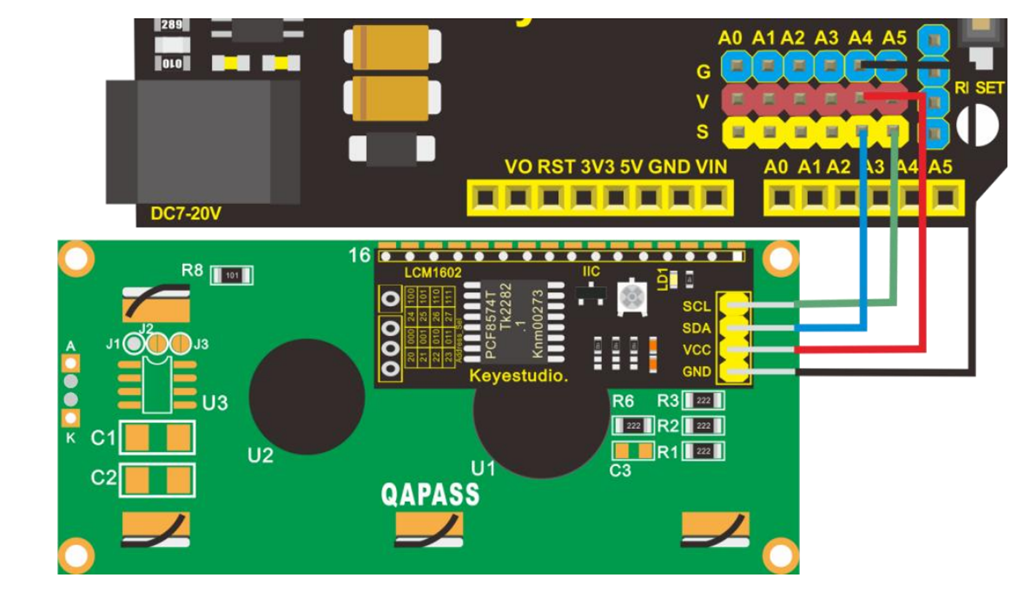
Next on the list of projects with the Keyestudio KS0172 board is connecting an LCD display as shown above.

The code for this is here:

https://github.com/directorcia/Azure/blob/master/Iot/Keyestudio%20KS0172/Lesson_5/main.cpp

and the only trick was to add the LiquidCrystal_I2C library, which was easy enough to do in Platformio.

Screenshot 2025-01-29 135357

and the result is shown above.

Next was to configure a light sensor. The code for that is here:

https://github.com/directorcia/Azure/blob/master/Iot/Keyestudio%20KS0172/Lesson_6/main.cpp

Screenshot 2025-01-29 141327

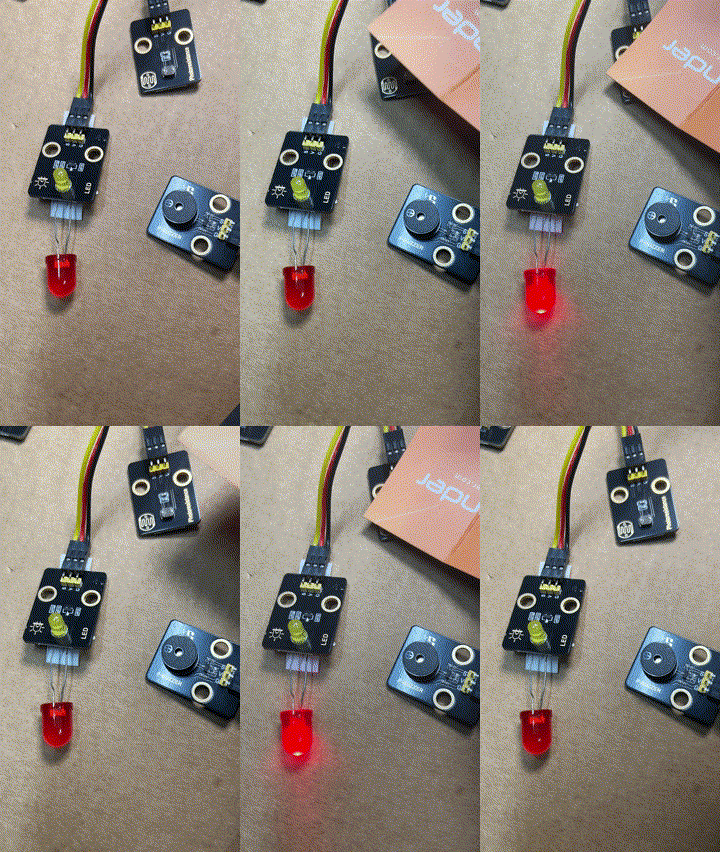
During this process the LED on the add on board failed! Strange. I checked the port, the voltage and whole lot of other stuff, but as far as I can tell the LED itself failed! I therefore used the buzzer as substitute until I decided to ‘bodgy’ another LED I had laying around as a temporary substitute. Why? Well, this LED board is pretty handy for troubleshooting I’ve found.

lesson6

The result is as shown above, both sound and light when the light sensor falls below a certain level.

I can’t find a replacement for the LED board on its own. Seems it only comes with full kits. I’ll need to look at buying a similar LED at some stage and maybe swapping the faulty on out on the board. It will be rather fiddly but worth the effort going forward I reckon.

Keyestudio KS0172 – Flashing LED

Now that I have the Keyestudio KS0172 board working time for some customisations of the flashing LED.

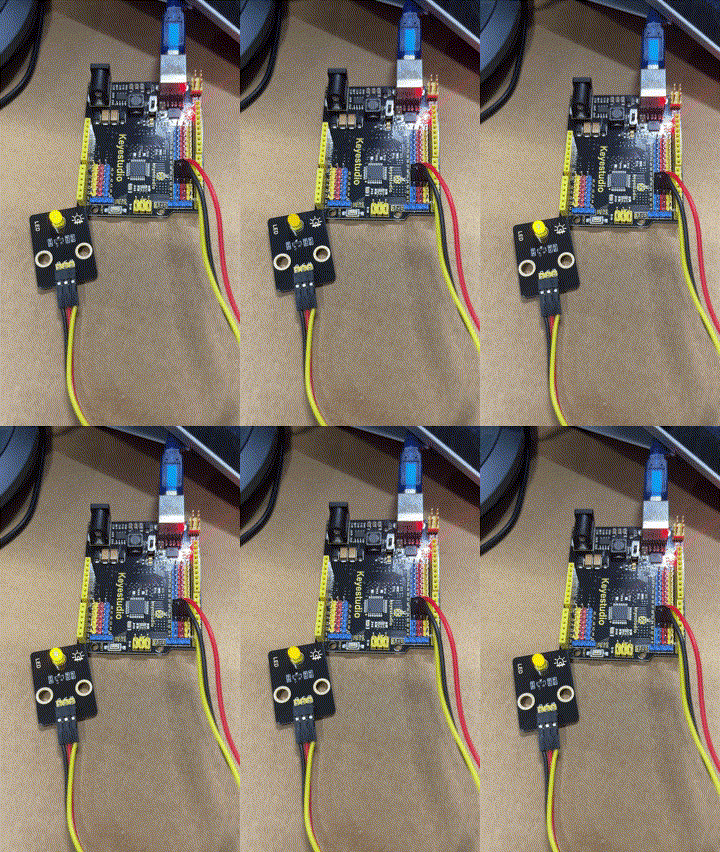
lesson1-2

First, make it flash faster. That is simply done by delay statement in the code here:

https://github.com/directorcia/Azure/blob/master/Iot/Keyestudio%20KS0172/Lesson_1.2/main.cpp

The lower the number the faster it flashes.

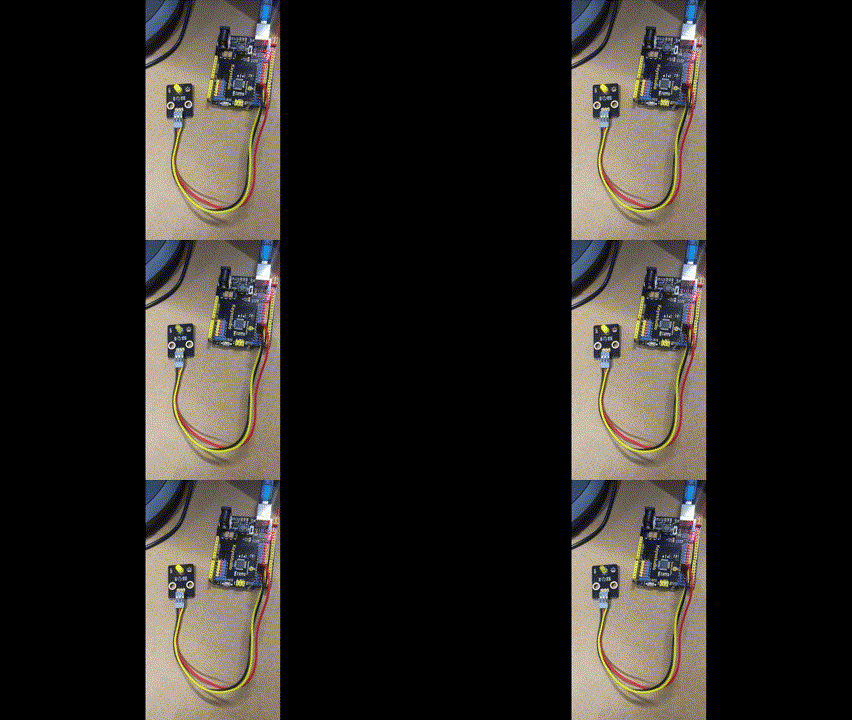
lesson1-3

Next, get the LED to fade in and out. The code for this is here:

https://github.com/directorcia/Azure/blob/master/Iot/Keyestudio%20KS0172/Lesson_2.2/main.cpp

This uses a new function I was not aware of:

The analogWrite function is used in Arduino programming to output a PWM (Pulse Width Modulation) signal to a specified pin. Here’s a detailed explanation:

Purpose

analogWrite is used to control the brightness of an LED or the speed of a motor by varying the duty cycle of the PWM signal.

Syntax

analogWrite(pin, value);

Parameters
  • pin: The pin number to which the PWM signal is sent. This must be a pin that supports PWM (usually marked with a ~ on Arduino boards).

  • value: The duty cycle of the PWM signal. It ranges from 0 to 255:
    • 0 means 0% duty cycle (always off).

    • 255 means 100% duty cycle (always on).

    • Values in between correspond to varying levels of on/off time.

This code creates a smooth fade-in and fade-out effect for the LED.

Keyestudio KS0172 Board Projects commence

I came across this kite recently:

Smart Solar Tracker System Tracking Starter Kit or Arduino

Smart Solar Tracker System Tracking Starter Kit For Arduino

Which I thought would be a good opportunity to jump back into things after all teh struggles I’ve had with the Arducam Mega 3MP. I need a few wins to lift my motivation, thus the purchase.

The brains of the kit is a Keyestudio KS0172:

The core processor of this board is ATMEGA328P-AU and ATMEGA16U2 is used as a UART-to-USB conversion chip.

It has 14 digital input/output pins (of which 6 can be used as PWM outputs), 6 analog inputs, a 16MHz crystal oscillator, a USB connection, a powerjack, 1 ICSP header, and a reset button. All you need to do is connect it to a computer via a USB cable and power it with an external power supply of DC 7-12V

Which seems much easier to interface.

Turns out this kit is actually a series of projects with the board, which is exactly what I wanted. Start simple and then extend.

First step was to get the board working with Platformio environment.

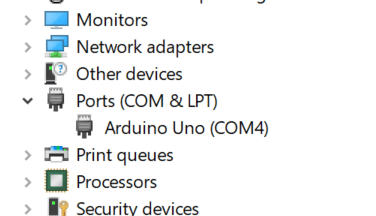
When I plugged the board into my PC it was automatically recognised as Arduino Uno as see above. Thus, when I set up Platformio I select Arduino Uno. This produced the following platformio.ini for me:

[env:uno]
platform = atmelavr
board = uno
framework = arduino

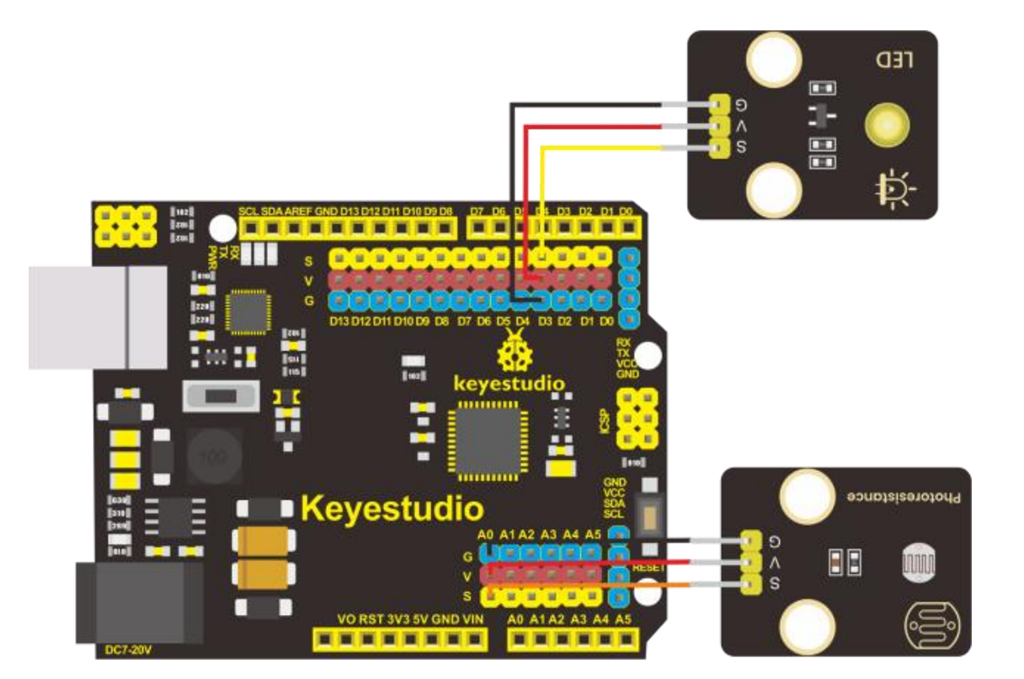
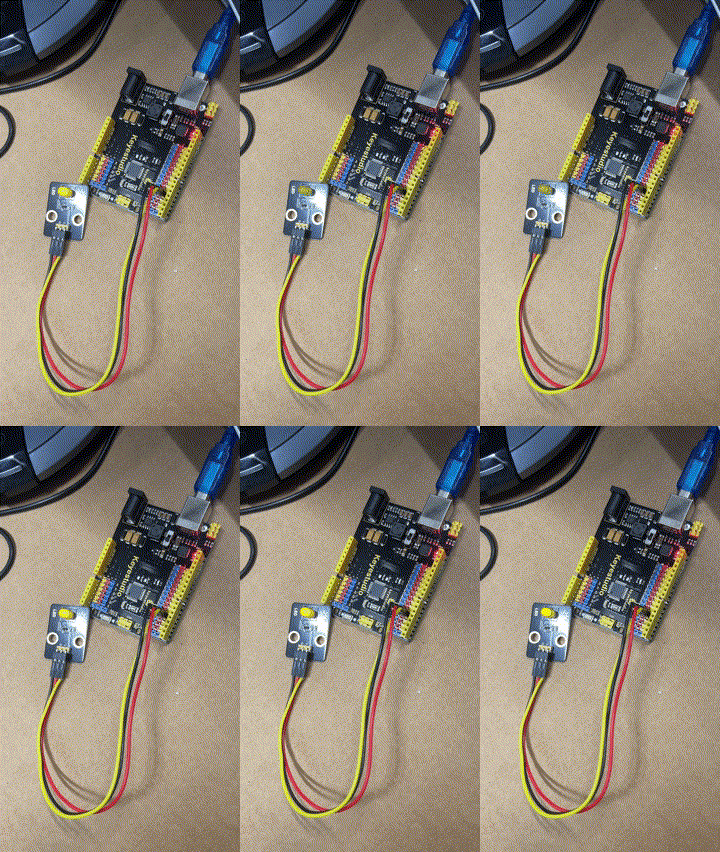
I then wired up the LED board per the instructions in the manual like so:

and uploaded the following code to the board:

https://github.com/directorcia/Azure/blob/master/Iot/Keyestudio%20KS0172/Lesson_1.1/main.cpp

The only change I needed to make to the code that came with the kit was to add:

#include <arduino.h>

to the top.

and I am very happy to report that it all worked as expected upon uploading the code to the boardand seen above.

Now onto the next project in the kit.