Garage distance sensor V2

image

My initial prototype started back here:

and is now at the point where I am designing version 2.

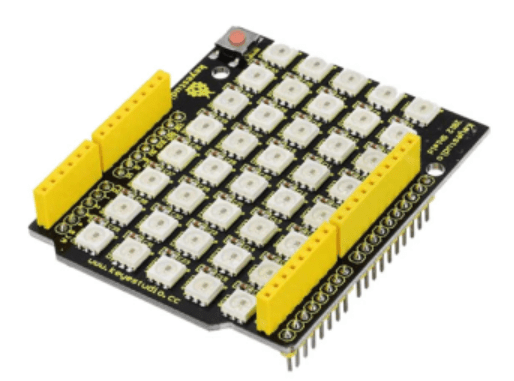
The biggest change for  version 2 will be the replacement of the 5 individual LEDs and the board they live on with a Keyestudio 40 RGB LED WS2812 Pixel Matrix Shield for Arduino:

The main reasons for this are:

– less soldering is required

– the LEDs are brighter

– there will be a 5 x 8 matrix of LEDS allowing more options

– the shield plugs directly into the controller board

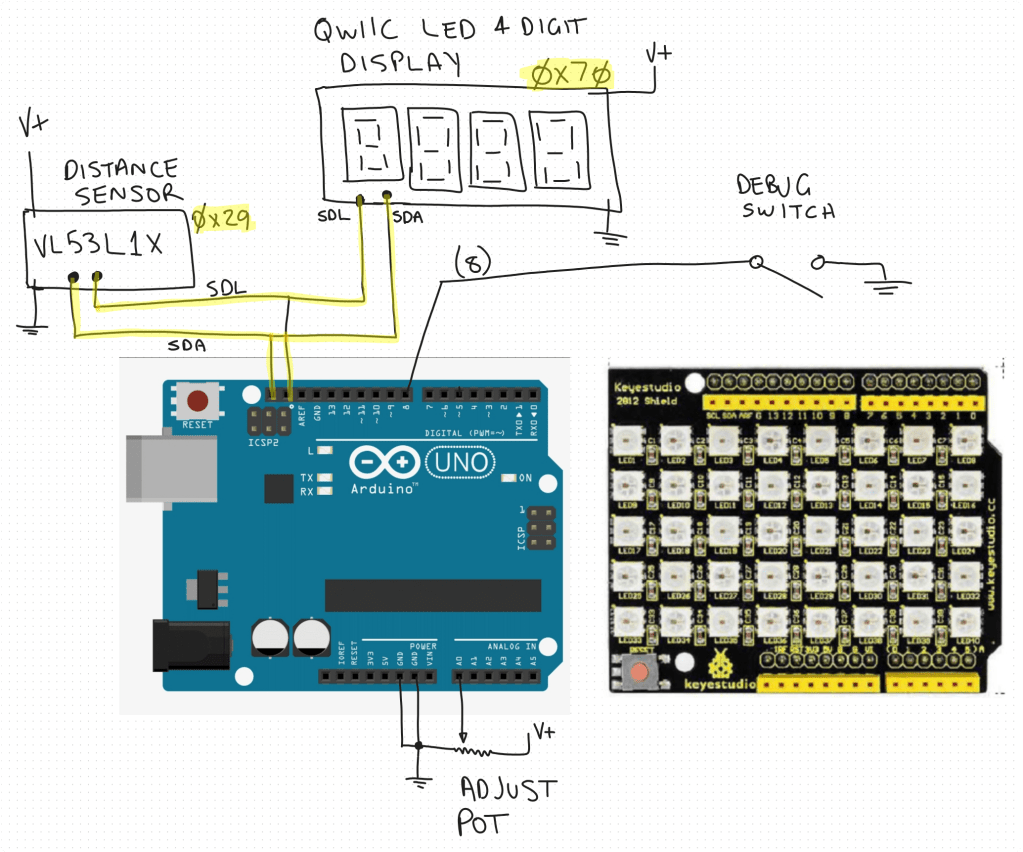
So the circuit diagram will now look like:

The code will, at least initially remain functionally the same but may get enhanced once I have it working.

I have ordered an additional distance sensor and QWIIC LED 4 Digit display but the LED shield is ready to go as you can see in this video:

Video link = https://www.youtube.com/watch?v=49V33TKXt3c

The test code shown in video is here:

https://github.com/directorcia/Azure/blob/master/Iot/Arduino%20Uno%20R3/Garage%20distance/pixel-matrix-test.cpp

I think this LED shield will be a big improvement for the project, so stay tuned for more updates soon.

Keyestudio Sensor Shield/Expansion Board V5 for Arduino


Screenshot 2025-04-29 192828

One of the issues I found when powering the servos for the robot arm was that I found I couldn’t power them from the Arduino board, I needed an external power supply. This fact made wiring the servos up challenging as the control signal still had to come from the Arduino but the power elsewhere. Thus, lots of messy wires.

All that has been solved with the addition of a Keyestudio Sensor Shield/Expansion board as seen above.


Screenshot 2025-04-29 193342

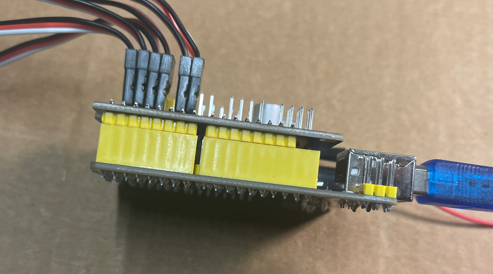
Basically, the shield simply plugs into the pins in the Arduino controller (extending them) while providing:

– An alternate power supply

– Easy connections for all the servos

Screenshot 2025-04-29 193632

A nice compact solution to a few challenges with the robot arm. All I needed to do was connect up the shield onto the Arduino and then connect the servo motors directly to their ports and change nothing else. No code or other wiring was done except to also connect an external power supply to the shield board as seen in the lower right above.

I have to say, that if you need to control devices that require more power than the standard Arduino board can provide then this type of shield is exactly what you want!

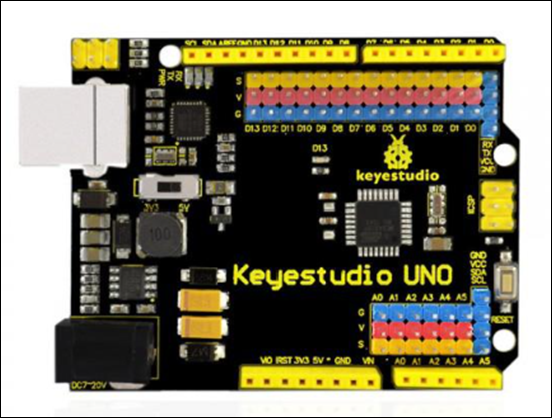
Thumbs up to Keyestudio for both the controller:

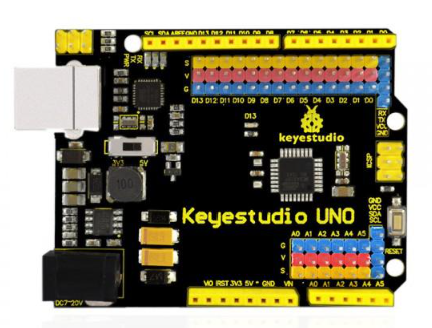
KEYESTUDIO UNO R3 Development Board For Arduino Official Upgrated Version With Pin Header Interface
and the shield

Keyestudio Sensor Shield/Expansion Board V5 for Arduino

A diagram of the project looks like:

Screenshot 2025-04-29 194500

Getting the robot arm to actually work

After taking a good while to get the robot arm assembled, the next challenge was hooking it up and doing some initial testing.

To control the arm I had invested in a

KEYESTUDIO UNO R3 Development Board For Arduino Official Upgrated Version With Pin Header Interface

image

This is the same board that is used on the Sun follower kit I recently built. I like this board because it has all the connections for each port already mounted on the board. It also has the GND and VCC for each port as well making it easy to plug standard connectors into it. Less soldering, in my case , means less problems or stuff ups by me!

The first issue I discovered was that many of the leads to the servos were too short when the servo moves the arm through its full motion. In one case I threw the controller board off the table. Thus I needed to invest in:

Servo extension cable 600mm

and

Servo Extension Cable (1m)

to allow full movement of the arm.

The next challenge I found was when I moved on from testing each servo individually to testing the arm as single unit, some of the servos didn’t seem to work! Another oversight by me upon further investigation. The controller board has enough power to run a single servo but not a bank of servos all together from the VCC rails on the controller board.

I therefore connected the VCC of the all the servos directly to my bench top power supply to give it the juice needed. Interestingly, during testing I have seen the arm draw well over 1 amp in total from the power supply as various servos operate. Clearly, no way the controller board could provide that by itself.

With all the servo motors now working, I started to try and get the arm to move to a location and pick up an item. After a while, servo 0 (gripper) stopped working?? I checked all the connections and it still wasn’t working. It wasn’t until I actually touched the servo and found that it was super hot that I realised I must have burnt it out. Damm.

I replaced the burnt out servo with another I had. I also attempted to fix the burnt out servo by opening it up to see if I could free things up inside, but that didn’t go well and I ended up with the internals of the servo motor all over the floor.

I also learnt that when power is removed from the servos, for example when re-flashing the controller board, the servos don’t hold the arm in place. This means that when power is removed from the servos the arm collapses under its own weight. This can cause some unexpected impacts with the environment when power is restored. I’ll need to think about how to solve this down the track but for now I simply support the arm when I flash the controller with updated code.

Finally, with a replacement servo for the gripper and motor extension cables I had the arm operational to a point where I could start getting it to do something interesting.

I’ll cover off the code development in an upcoming article and hopefully also provide some videos of the arm in operation.

Keyestudio Red and Green Module

A few articles back, while working on the Keyestudio Sun Follow kit, the LED module provided failed. Strangely, it was just the LED. In the end, I just soldered another LED into the board to get it working.

After some searching around it appears that you can buy direct from Keyestudios. Searching their site I found:

Screenshot 2025-02-17 125307

Red and Green LED module

So I bought two and I’m happy to say the arrived as expected. Nice.

Their site has a lot of really cool stuff and I’m going to check it out and maybe buy more based on the very positive experience I’ve had with their Sun Follower kit.

Keyestudio KS0172–Humidity Sensor

I’ve had some previous experience with a temperature sensor on a few other boards:

Adafruit Huzzah temperature sensor

So this project seemed staright forward. The circuit diagram is:

Screenshot 2025-02-04 183750

and the code you will find here:

https://github.com/directorcia/Azure/blob/master/Iot/Keyestudio%20KS0172/Lesson_7/main.cpp

When I tried to use a generic DHT sensor library from the Platformio registry for the project wouldn’t work. I therefore needed to work out how to use thr provide library with Platformio. Turns out that is much easier than I thought!

  1. Inside your PlatformIO project, navigate to the lib/ directory.
  2. Create a new folder, e.g., MyLibrary/.
  3. Inside MyLibrary/, add your library files:
    lib/
    ├── MyLibrary/
    │ ├── src/
    │ │ ├── MyLibrary.h
    │ │ ├── MyLibrary.cpp
    │ ├── library.json (optional)
  4. In your src/main.cpp, include the library:
    #include <MyLibrary.h>
  5. PlatformIO will automatically detect and include the library.

This worked a treat and allowed my code to compile. Major learning there.

Keyestudio KS0172 – LCD display

Screenshot 2025-01-29 134844

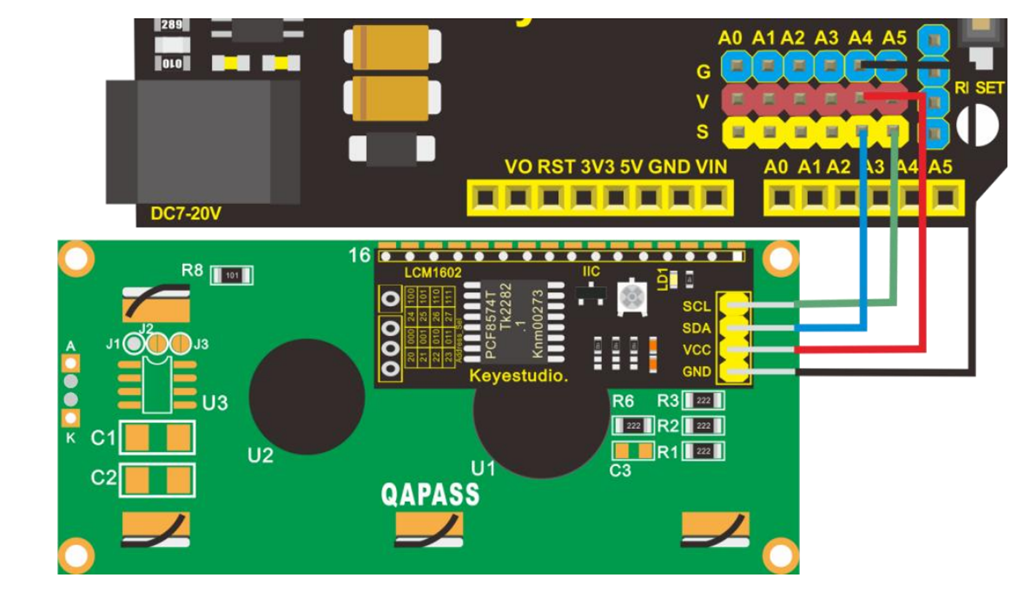
Next on the list of projects with the Keyestudio KS0172 board is connecting an LCD display as shown above.

The code for this is here:

https://github.com/directorcia/Azure/blob/master/Iot/Keyestudio%20KS0172/Lesson_5/main.cpp

and the only trick was to add the LiquidCrystal_I2C library, which was easy enough to do in Platformio.

Screenshot 2025-01-29 135357

and the result is shown above.

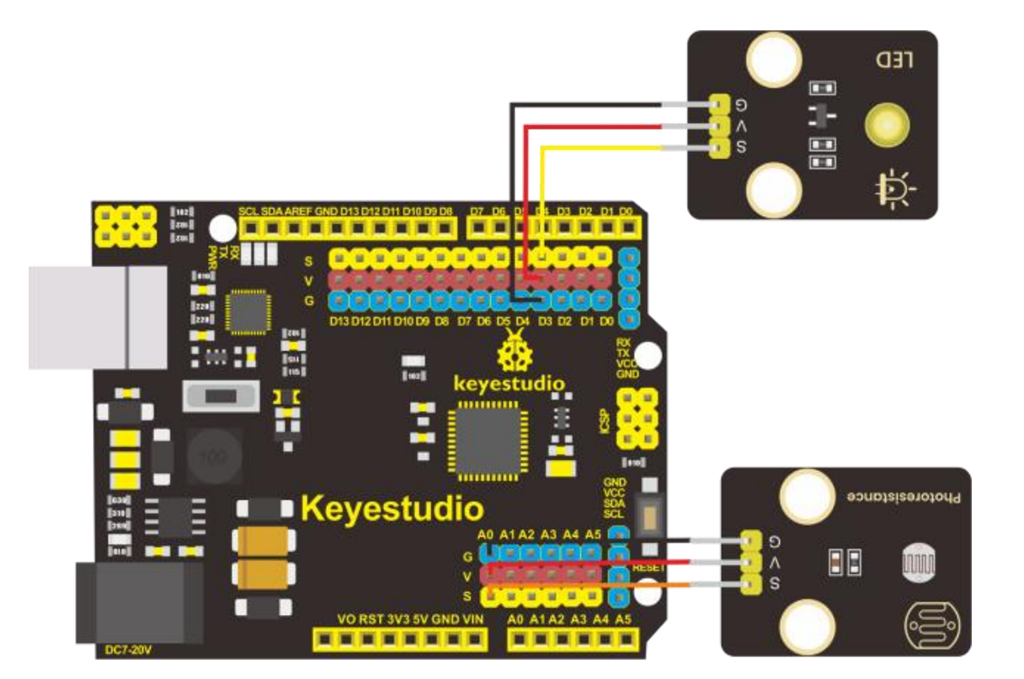
Next was to configure a light sensor. The code for that is here:

https://github.com/directorcia/Azure/blob/master/Iot/Keyestudio%20KS0172/Lesson_6/main.cpp

Screenshot 2025-01-29 141327

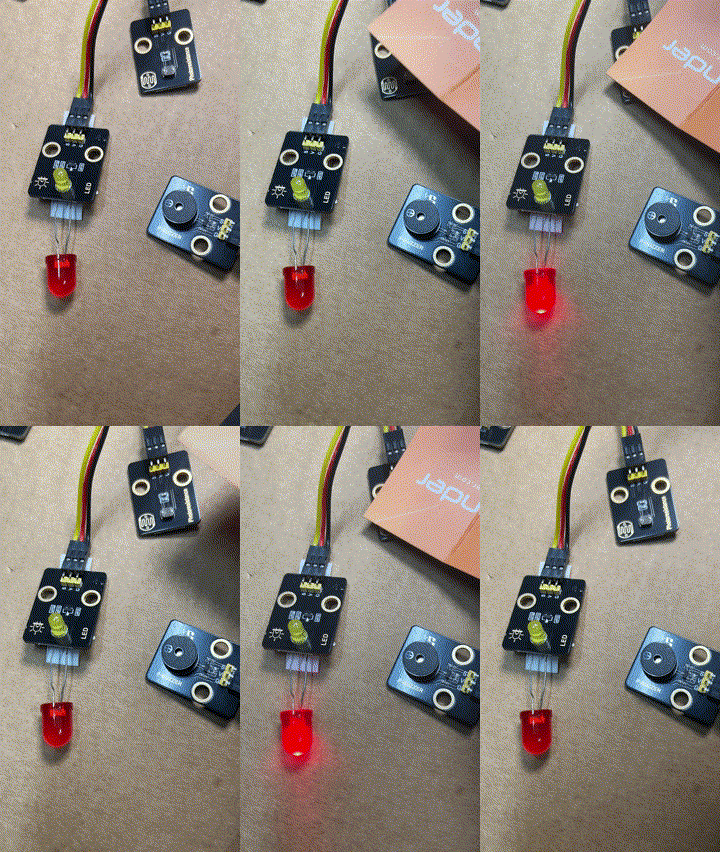
During this process the LED on the add on board failed! Strange. I checked the port, the voltage and whole lot of other stuff, but as far as I can tell the LED itself failed! I therefore used the buzzer as substitute until I decided to ‘bodgy’ another LED I had laying around as a temporary substitute. Why? Well, this LED board is pretty handy for troubleshooting I’ve found.

lesson6

The result is as shown above, both sound and light when the light sensor falls below a certain level.

I can’t find a replacement for the LED board on its own. Seems it only comes with full kits. I’ll need to look at buying a similar LED at some stage and maybe swapping the faulty on out on the board. It will be rather fiddly but worth the effort going forward I reckon.

Keyestudio KS0172–Button

Screenshot 2025-01-28 125142

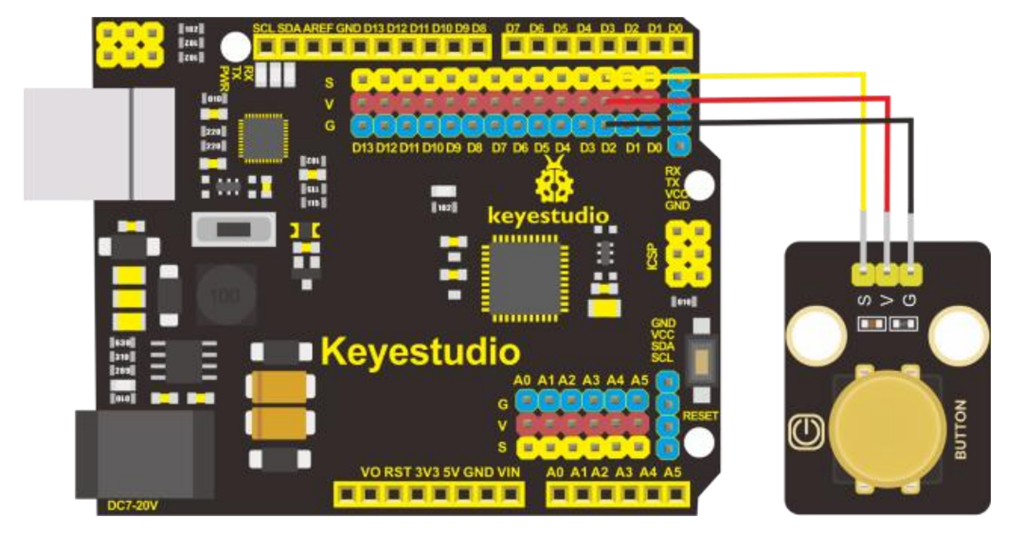
The next project with the Keyestudio KS0172 board is to connect a button as shown above and observe the effect in the terminal window. The code for this is here:

https://github.com/directorcia/Azure/blob/master/Iot/Keyestudio%20KS0172/Lesson_3.1/main.cpp

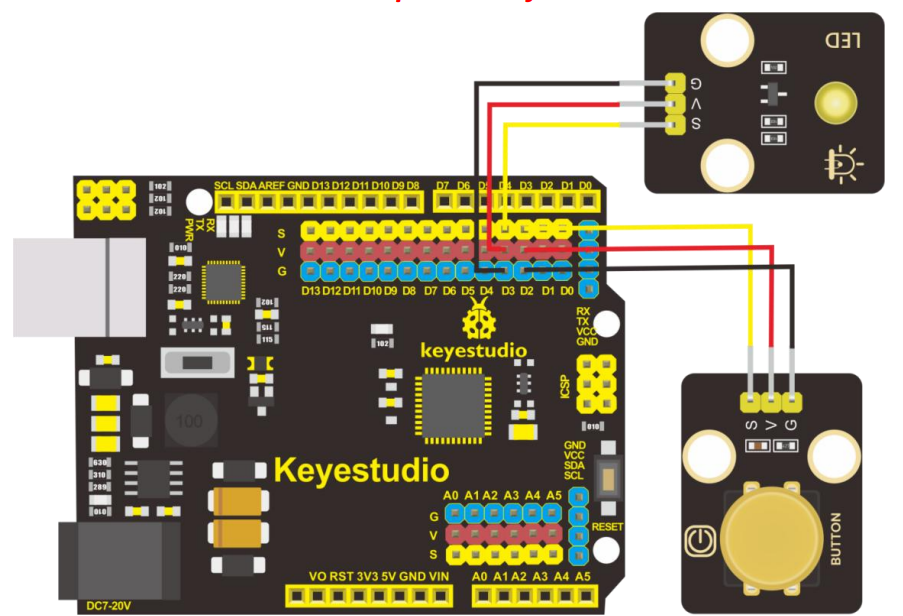
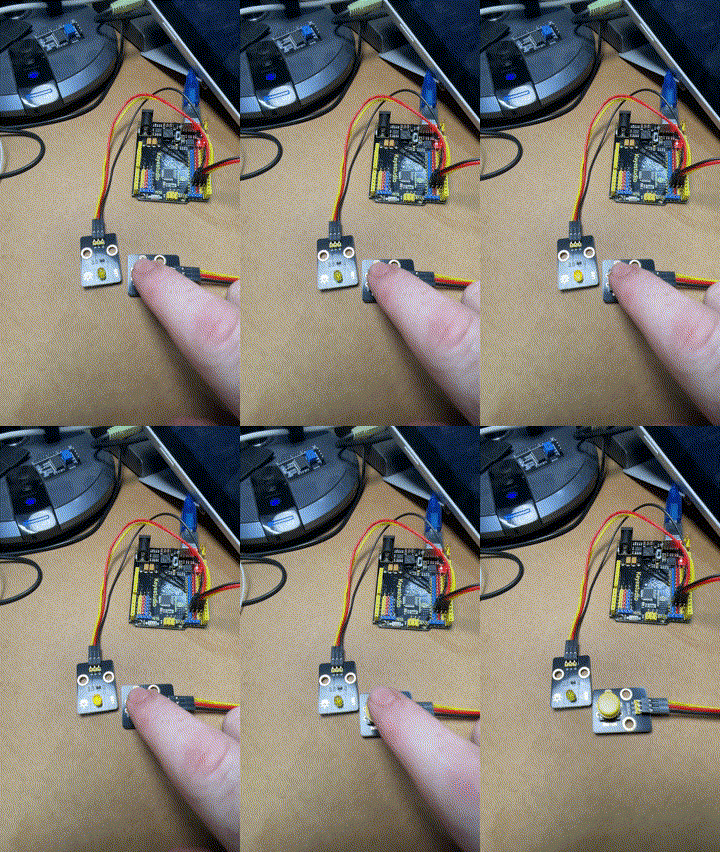
Next, is to have the button control the LED like so:

Screenshot 2025-01-28 125612

and the code for this is here:

https://github.com/directorcia/Azure/blob/master/Iot/Keyestudio%20KS0172/Lesson_3.2/main.cpp

and the result looks like:

lesson3-2

The next two projects use a buzzer to make sound like so:

Screenshot 2025-01-28 130331

the code for these two lessons is here:

https://github.com/directorcia/Azure/blob/master/Iot/Keyestudio%20KS0172/Lesson_4.1/main.cpp

and here

https://github.com/directorcia/Azure/blob/master/Iot/Keyestudio%20KS0172/Lesson_4.2/main.cpp

My own attempt with the help of AI is here:

https://github.com/directorcia/Azure/blob/master/Iot/Keyestudio%20KS0172/Lesson_4.3/main.cpp

although it doesn’t really sounds like ‘Smoke on the water” to me, but that is clearly a limit of the equipment not the programmer (ha)!.

Keyestudio KS0172 – Flashing LED

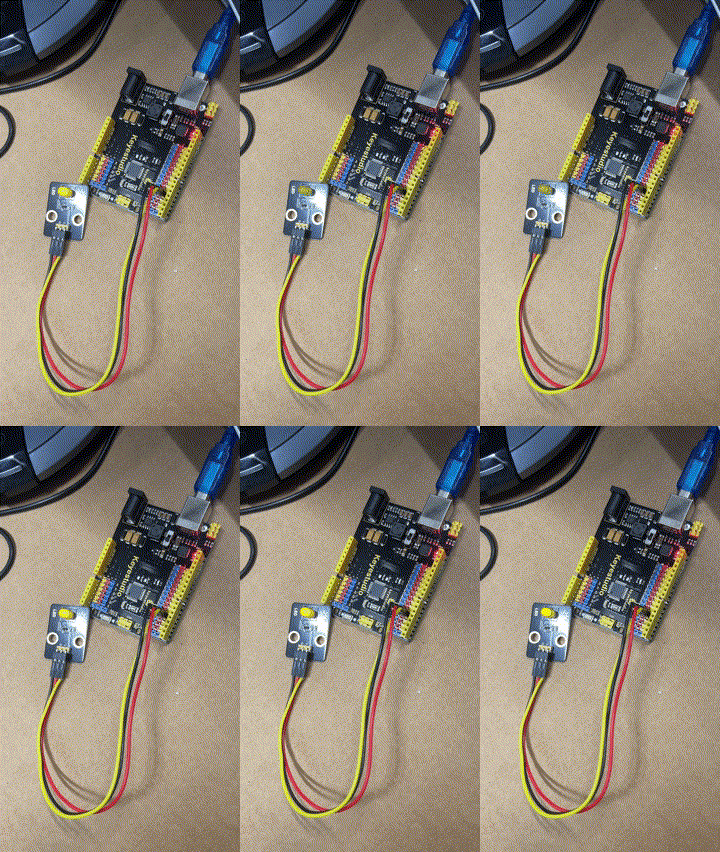
Now that I have the Keyestudio KS0172 board working time for some customisations of the flashing LED.

lesson1-2

First, make it flash faster. That is simply done by delay statement in the code here:

https://github.com/directorcia/Azure/blob/master/Iot/Keyestudio%20KS0172/Lesson_1.2/main.cpp

The lower the number the faster it flashes.

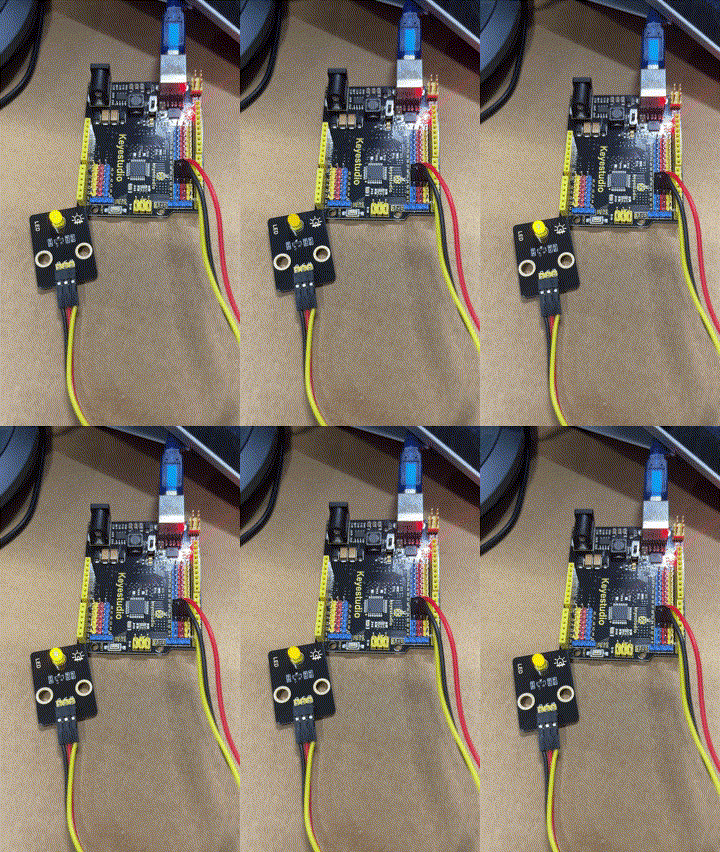
lesson1-3

Next, get the LED to fade in and out. The code for this is here:

https://github.com/directorcia/Azure/blob/master/Iot/Keyestudio%20KS0172/Lesson_2.2/main.cpp

This uses a new function I was not aware of:

The analogWrite function is used in Arduino programming to output a PWM (Pulse Width Modulation) signal to a specified pin. Here’s a detailed explanation:

Purpose

analogWrite is used to control the brightness of an LED or the speed of a motor by varying the duty cycle of the PWM signal.

Syntax

analogWrite(pin, value);

Parameters
  • pin: The pin number to which the PWM signal is sent. This must be a pin that supports PWM (usually marked with a ~ on Arduino boards).

  • value: The duty cycle of the PWM signal. It ranges from 0 to 255:
    • 0 means 0% duty cycle (always off).

    • 255 means 100% duty cycle (always on).

    • Values in between correspond to varying levels of on/off time.

This code creates a smooth fade-in and fade-out effect for the LED.