Arduino Uno R4 Wifi Matrix display

20250518_051525895_iOS

The next controller I’m going to play with is the Arduino Uno R4 Wifi. I really like the ease and compatibility of the Arduinos I have used so far but the lack of WiFi I know will be a major limitation. So it make sense to explore a Wifi Uno.

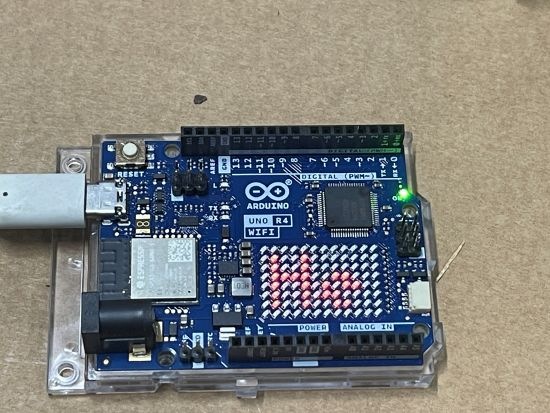
One of the additional ‘nice’ features of the Arduino Uno R4 Wifi is that it has a LED matrix included on the board. Thus, the starting point is to try and get something to display on there.

First I tried displaying a simple emjoi. The code for this is here:

https://github.com/directorcia/Azure/blob/master/Iot/Arduino%20Uno%20R4%20Wifi/Emoji%20Display/main.cpp

and there are range of emojis to display.

I then uploaded the demo code here:

https://github.com/directorcia/Azure/blob/master/Iot/Arduino%20Uno%20R4%20Wifi/Text%20Display/main.cpp

to display Hello World on the matrix, which all worked as expected as shown on the image above.

The next step after getting something to display on the matrix will be to get the Wifi working.


Garage distance sensor

20250316_040957232_iOS

My latest project is creating a garage distance sesnor. The idea is that as you drive yoru car into the garage it will tell the distnace to the wall, so you can get the alignment just right. It does this in two ways, firstly via an LED display of the distance in mm from the and secondly from a Christmas tree style set of lights to give you a visual idea of whether you are in the zone.

Screenshot 2025-03-17 212404

The rough circuit diagram is shown above.

For this project I’m using at:

Adafruit VL53L1X Time of Flight Distance Sensor – ~30 to 4000mm – STEMMA QT / Qwiic

SparkFun Qwiic Alphanumeric Display – Pink

Breadboard Compatible Potentiometer (10k Ohm)

Arduino Uno R3

some resistors, LEDs and a switch.

The code is here:

https://github.com/directorcia/Azure/blob/master/Iot/Arduino%20Uno%20R3/Garage%20distance/main.cpp

and now that I have it working, at least in beta, I’ll detail a bit more about the development process so far and what I’d like to ultimately achieve in upcoming posts, so stay tuned.

Connect the grounds

I’ve been struggling to get an LCD display working. My previous attempt was:

No output to display

So I traded that in for this:

Gravity:I2C LCD1602 Arduino LCD Display module

because it has everything included in the module to make life simpler! Problem was, that even with this simple component connected I still couldn’t get anything to display. What am I missing I thought?

I just worked out why I couldn’t get any of the displays running! Basically, the solution was I needed to ground the controller chip to the same ground as the external power supply I was using to power the display. Simple eh?

This is what I did to get the Gravity DFRobot display working.

This module has the I2C built in a 4pins:

image

Basically just power and SCL and SDA.

I connected everything up. The module I have is a LCD1602 V1.1.

I added the following library to my project:

DFRobot_RGBLCD1602

thus, in my code I added:

#include “DFRobot_RGBLCD1602.h”

according to the example file, because my module is v1.1 the RGBAddr is 0x6B. Thus, to set up the module I do:

DFRobot_RGBLCD1602 lcd(/*RGBAddr*/0x6B ,/*lcdCols*/16,/*lcdRows*/2);

which initialises an object at address 0x6B with 16 columns and 2 rows.

I then initialise the module via:

lcd.init();

and then send it a message:

lcd.print(“Hello World!”);

that is basically all the code does. It compiles and uploads top both the Huzzah ESP8266 and the ESP32-S2 WROOM but I get nothing on the display, UNTIL I connected the GND from the controller (i.e Huzzah ESP8266 and the ESP32-S2 WROOM) to the same GND as the external battery pack I was using to power the display. The controller chips get their power from the USB cable at this stage.

Once that was done I finally saw:

image

There is nothing like the feeling off finally getting something working!

So the key learning here was link the GND between the external power supply and the controller chip.

No output to display

After connecting up a

Standard HD44780 LCD

to power and being able to adjust the brightness, the next step was to get i to display some text by connecting the display to an ESP32-S2 Thing Plus.

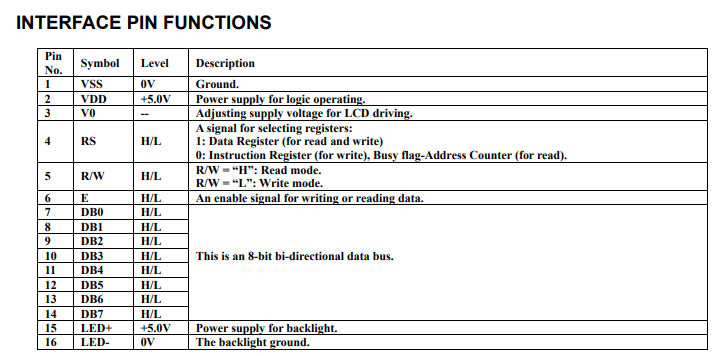
To do that I needed to connect to these pins on the display:

LCD Pin name RS EN DB4 DB5 DB6 DB7
LCD Pin 4 6 11 12 13 14

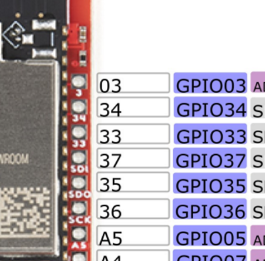
I planned to connect these LCD pins to the range available on the ESP32-S2 Thing Plus 3,34,33,37,35,36

image

Thus:

const int rs=3; // LCD RS pin

const int en=34; // LCD Enable pin

const int d4=33; // LCD data bit 4 pin

const int d5=37; // LCD data bit 5 pin

const int d6=35; // LCD data bit 6 pin

const int d7=36; // LCD data bit 7 pin

and to initialise:

LiquidCrystal lcd(rs, en, d4, d5, d6, d7);

The size of the display is defined buy:

lcd.begin(16,2);

and then to display text:

lcd.print(“Hello world!”)

My code compiles ok, but I get not text on the LCD display?

– I triple checked my wiring and even tried other ports (no luck)

– I defined each pin via pinmode(rs,OUTPUT); for example (noluck)

Seems like the best solution is go for this:

I2C LCD Backpack for 1602 to 2004 LC

which basically removed the need for individual ports in favour of using SDA and SCL to do the communications. In fact, I probably should have bought this to start with:

Gravity: I2C LCD1602 Arduino LCD Display Module (Blue)

which has the backpack module included!

In the long run this is a better bet as it saves and stack of pins on the ESP32-S2 Thing Plus being consumed.

I did notice that all the GPIO pins on the ESP32-S2 Thing Plus are 3.3V and perhaps the LCD display requires 5V? I couldn’t find any definitive on that.

Standard HD44780 LCD

image

Scan from 2024-01-13 03_16_22 PM

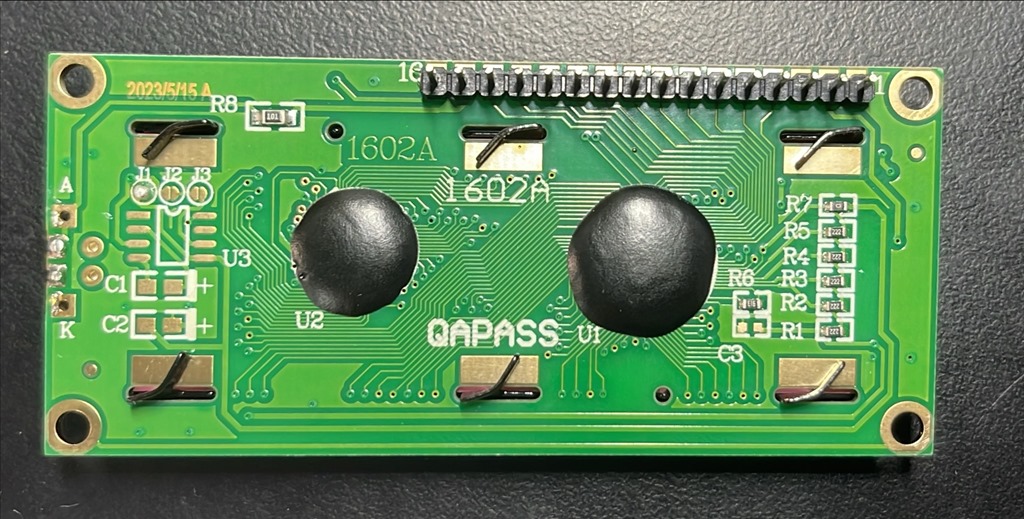
I ordered a standard HD44780 LCD:

https://core-electronics.com.au/assembled-standard-lcd-16×2-extras-white-on-blue.html

HD44780 datasheet with the detailed commands for control

a datasheet that has dimensions and pin-locations

image

So I started to follow:

https://learn.adafruit.com/character-lcds

Scan from 2024-01-13 03_35_02 PM

Step one was to wire up the display just to power. So I connected 3.3V pin from the Esp32-S2 Wroom to pin 15 on the display. Importantly, you’ll note that the ESP32-S2 power is 3.3V which is enough to power the display but only just! I also connected the ground pin from the ESP32-S2 to Pin 16 on the display. This is just the power to the back light of the display.

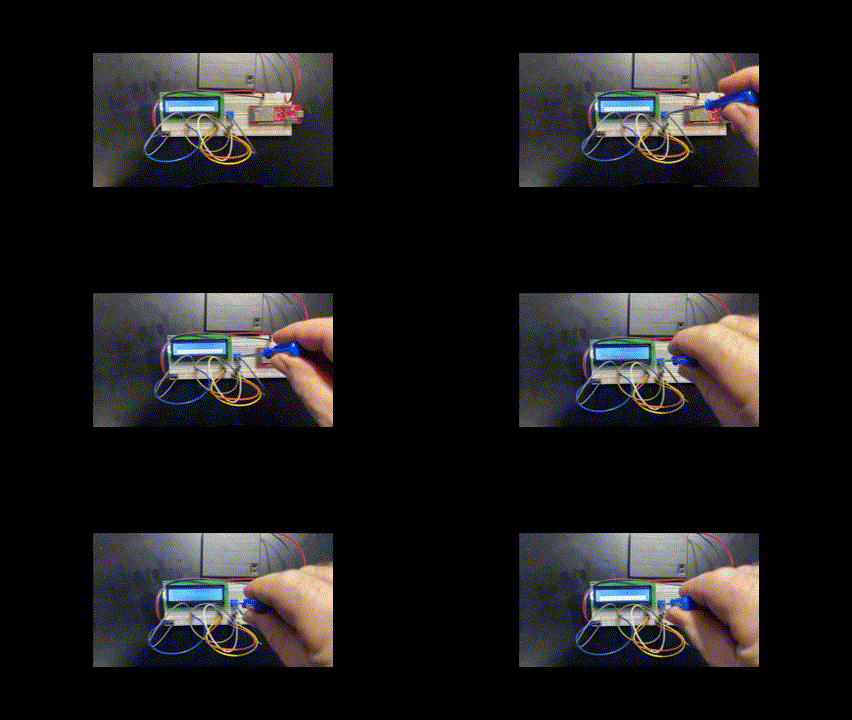
The next step was to insert a POT (variable resistor to control the brightness of the actual display items) but when I did that turning the POT made no difference.

pot-turn

I deduced that the issue was that 3.3V input from the ESP32-S2 wasn’t high enough. Thus, I connected up my external battery pack, which outputs 4 x 1.5V = 6V and as you can see from the above when I twist the POT (i.e. a variable resistor) I can now see the lines of rectangle display items actually appear.

Thus, the display is all wired up for power, backlight and character display, now I just need to wire it for data and do some code.

image

The wiring diagram is shown above:

Pin 1 = GND (character display)
Pin 2 = +6V (character display)
Pin 3 = Output from variable resistor (i.e. POT for character brightness)
Pin 15 = +6V (backlight)
Pin 16 = GND (backlight)