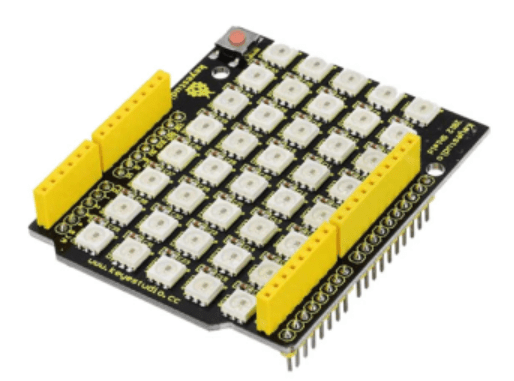
A few articles back, while working on the Keyestudio Sun Follow kit, the LED module provided failed. Strangely, it was just the LED. In the end, I just soldered another LED into the board to get it working.
After some searching around it appears that you can buy direct from Keyestudios. Searching their site I found:
So I bought two and I’m happy to say the arrived as expected. Nice.
Their site has a lot of really cool stuff and I’m going to check it out and maybe buy more based on the very positive experience I’ve had with their Sun Follower kit.
so it can run stand alone rather than plugged into a USB port to provide power, however it does work! Yippee!
I think this kit is a great starter option and I would have been much better off commencing my IoT journey here rather than going hard core with just a single processor. The way the kit takes your through individual components and concepts, all building to the final sun follower was fantastic. The instructions were easy to follow, provide great information making it super simple to move through all the steps.
This was my first time actually using an Arduino development board and I can now understand why it is such a popular option. There is no soldering, all you need to do is plug and play. The connections are colour coded and easy to access and understand. Reflecting on how easy this kit an dteh Arduino controller is make me regret going down the route I took and the extra hassle, such as soldering pins, to get my initial projects to even work. Geeze, I did it the hard way.
The challenge is that unless you know someone skilled in IoT you won’t know where to start. However, starting with something like this is really the way to go I would suggest. It allows to grasp the concepts and see results quickly which no only reinforces learning but makes things far less frustrating due to something like a bad soldering joint. I just wish someone had recommended I start with a project like this rather than they way I did.
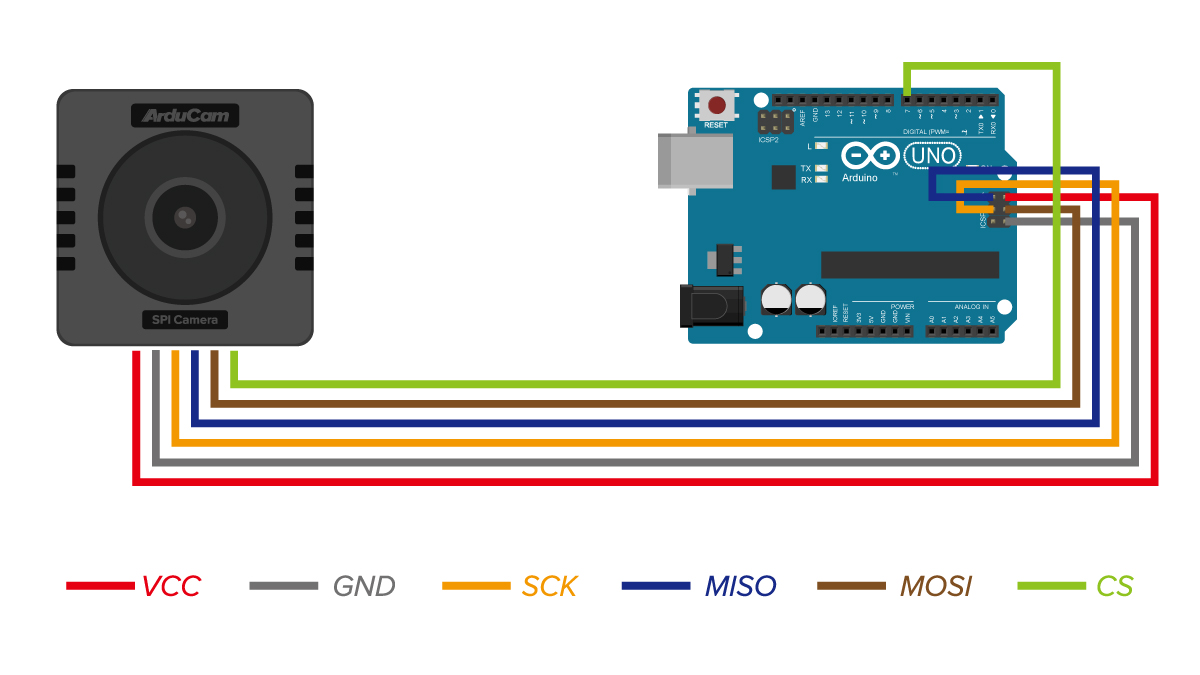
I’m now a big fan of the Arduino development board and will be looking ot utilise it in a few upcoming projects I have in mind. I think the Arduino is also going to let me resurrect my stalled Arducam Mega camera project. However, if you are looking to get into IoT then look no further than the Keyestudio DIY Solar Tracking Kit I suggest.
I’ve been planning a project which requires longer distance sensors. The Adafruit VL53L1X seems like it will do the job nicely. However, I was puzzled at what the two inbuilt connectors are on the board given there are also pin options?
Turns out these are Sparkfun qwiic or STEMMA QT connectors.
One STEMMA QT connector typically provides I2C communication (SCL, SDA) and power (VCC and GND), allowing the sensor to communicate with your microcontroller.
For the STEMMA QT cables, typically follow the Qwiic convention:
Black for GND
Red for V+
Blue for SDA
Yellow for SCL
Note the colors are slightly different for SDA/SCL but the pin order is the same
The second STEMMA QT connector is a duplicate of the first, giving you flexibility for different wiring setups or for easier daisy-chaining if you’re connecting multiple devices.
All of this means that I should be able to reduce the amount of soldering I need to do to get the next project operational.
When I tried to use a generic DHT sensor library from the Platformio registry for the project wouldn’t work. I therefore needed to work out how to use thr provide library with Platformio. Turns out that is much easier than I thought!
Inside your PlatformIO project, navigate to the lib/ directory.
During this process the LED on the add on board failed! Strange. I checked the port, the voltage and whole lot of other stuff, but as far as I can tell the LED itself failed! I therefore used the buzzer as substitute until I decided to ‘bodgy’ another LED I had laying around as a temporary substitute. Why? Well, this LED board is pretty handy for troubleshooting I’ve found.
The result is as shown above, both sound and light when the light sensor falls below a certain level.
I can’t find a replacement for the LED board on its own. Seems it only comes with full kits. I’ll need to look at buying a similar LED at some stage and maybe swapping the faulty on out on the board. It will be rather fiddly but worth the effort going forward I reckon.
The next project with the Keyestudio KS0172 board is to connect a button as shown above and observe the effect in the terminal window. The code for this is here:
The analogWrite function is used in Arduino programming to output a PWM (Pulse Width Modulation) signal to a specified pin. Here’s a detailed explanation:
Purpose
analogWrite is used to control the brightness of an LED or the speed of a motor by varying the duty cycle of the PWM signal.
Syntax
analogWrite(pin, value);
Parameters
pin: The pin number to which the PWM signal is sent. This must be a pin that supports PWM (usually marked with a ~ on Arduino boards).
value: The duty cycle of the PWM signal. It ranges from 0 to 255:
0 means 0% duty cycle (always off).
255 means 100% duty cycle (always on).
Values in between correspond to varying levels of on/off time.
This code creates a smooth fade-in and fade-out effect for the LED.
Which I thought would be a good opportunity to jump back into things after all teh struggles I’ve had with the Arducam Mega 3MP. I need a few wins to lift my motivation, thus the purchase.
The brains of the kit is a Keyestudio KS0172:
The core processor of this board is ATMEGA328P-AU and ATMEGA16U2 is used as a UART-to-USB conversion chip.
It has 14 digital input/output pins (of which 6 can be used as PWM outputs), 6 analog inputs, a 16MHz crystal oscillator, a USB connection, a powerjack, 1 ICSP header, and a reset button. All you need to do is connect it to a computer via a USB cable and power it with an external power supply of DC 7-12V
Which seems much easier to interface.
Turns out this kit is actually a series of projects with the board, which is exactly what I wanted. Start simple and then extend.
First step was to get the board working with Platformio environment.
When I plugged the board into my PC it was automatically recognised as Arduino Uno as see above. Thus, when I set up Platformio I select Arduino Uno. This produced the following platformio.ini for me:
[env:uno] platform = atmelavr board = uno framework = arduino
I then wired up the LED board per the instructions in the manual like so: