Tamiya 1/35 German King Tiger Tank (Ardennes Front)

Screenshot 2025-12-29 092710

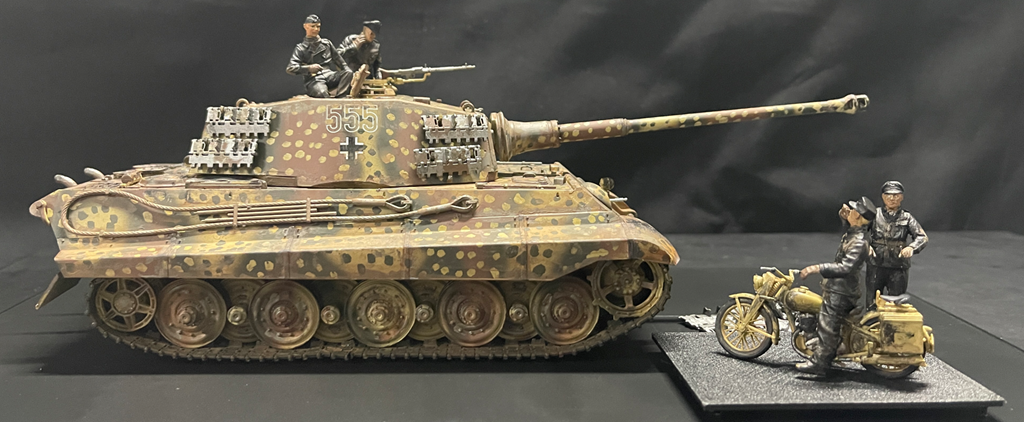
Tamiya 1/35 German King Tiger Tank (Ardennes Front) Scaled Plastic Model Kit

Paints

Recommended by Tamiya

TS-1 Red Brown

TS-2 Dark Green

TS-3 Dark Yellow

TS-46 Light Sand

X-10 Gloss Gun Metal

X-11 Gloss Chrome Silver

X-18 Semi-Gloss Black

XF-1 Flat Black

XF-10 Flat Brown

XF-15 Flat Flesh

XF-16 Flat Aluminium

XF-27 Flat Black Green

XF-5 Flat Green

XF-52 Flat Earth

XF-56 Flat Metallic Grey

XF-60 Flat Dark Yellow

XF-61 Flat Dark Green

XF-63 Flat German Grey

XF-64 Flat Red Brown

XF-65 Flat Field Grey

Connecting a joystick controller to an ACEBOTT ESP32 Smart Car

blog

After being able to control the Acebott ESP32 Smart car via a web server my next aim was to control it using am Xbox/Playstation style joystick controller.

Initially I thought hat I could use an older Xbox style controller. Turns out these use 2.4Ghz wireless and a proprietary connection. Then I thought I could use a newer style Xbox controller that is Bluetooth, but it turns out they use Bluetooth 5 and use proprietary encryption. I did see a few of these working on the Internet but for the life of me I couldn’t get it to work.

I therefore asked AI which controller would be the easiest to get working and was told to get:

8BitDo Ultimate 2C Bluetooth Controller for Switch/Switch 2, Wireless Controller with 6-Axis Motion Control, Rumble Vibration, Refined D-Pad and Bumpers, and Hall Effect Joysticks (Blue)

This launched me into a world a hurt and failure (thanks AI). In short, this 8BitDo controller appears to also only be Bluetooth 5 and the Acebott ESP32 only supported Bluetooth 4.2 LE (Low Energy).

Making the same mistake twice (what’s the definition of stupidity again?) I asked AI to recommend a different ESP32 board that would work with the 8BitDo and was told that a “ESP32-C3 DevKit” would be the most reliable. I then went and bought an ESP32-C3 Mini Development Board. Even after being ‘100% sure’ that it would work, the AI could not make it work either.

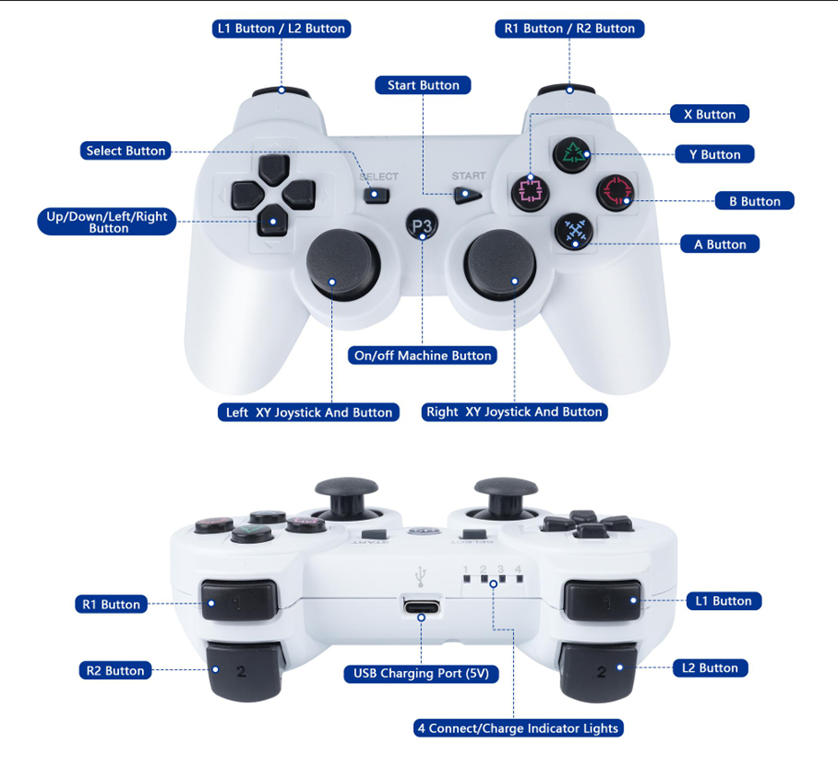
I then came across the ACEBOTT Bluetooth Controller Expansion for QD001, which is designed for the Acebott Smart Car.

image

With this I finally could get the controller talking to the ESP32 on the Smart Car. However, to pair the controller and the ESP32 I needed to specific the MAC address of the controller, which is conveniently on the bottom of the controller. But to get the ESP32 to pair back to the controller I needed to embed the MAC address of the ESP32 Bluetooth connection into the controller. To do this it recommended using a Sixasix Pair tool. For the life of me, I couldn’t get this to work but with my Controller at least paired to the ESP32 I could send commands which is all I really wanted.

I got AI to rewrite the code to allow the PS3 style controller to control the movement of the SmartCar. I have uploaded the code here:

https://github.com/directorcia/Azure/blob/master/Iot/Acebott/Smartcar/QD010/car-ps3.cpp

I also needed to add some speed trimming of the motors because the car was veering off in one direction. The documentation for the above code is here:

https://github.com/directorcia/Azure/blob/master/Iot/Acebott/Smartcar/QD010/car-ps3-overview.md

This whole process proved much harder that I expected and getting a Bluetooth working initially as extremely frustrating given teh different versions and controllers, but now the ‘generic’ PS3 style controller works well!

ACEBOTT ESP32 Smart Car with web control

image

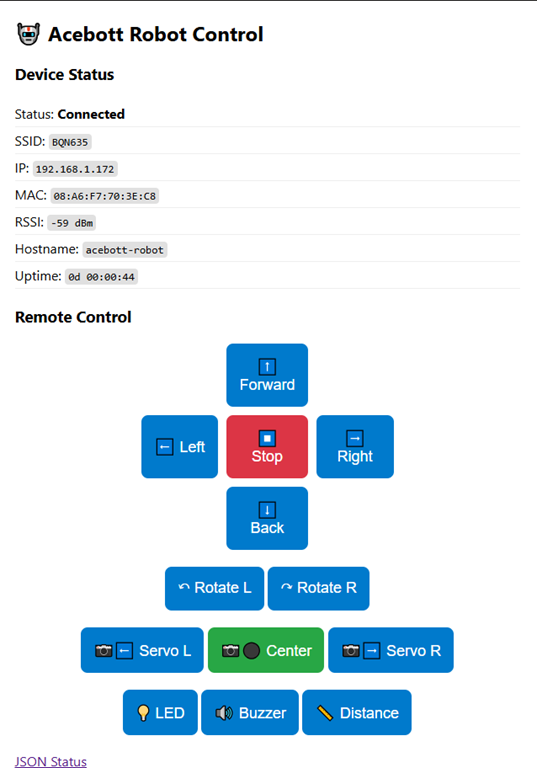
Now that I had my robot car working with IR I upgraded the code to also allow control via a web server hosted on the ESP32.

You’ll find the code for the controller here:

https://github.com/directorcia/Azure/blob/master/Iot/Acebott/Smartcar/with-web-serve.cpp

and documentation here:

https://github.com/directorcia/Azure/blob/master/Iot/Acebott/Smartcar/with-web-serve.md

More controller updates coming.

ACEBOTT ESP32 Smart Car with IR Control

Screenshot 2025-08-28 080437

I got my ACEBOTT ESP32 Smart Car Starter Kit with Mecanum Wheel all wired and so the next challenge was to get it to move. Luckily, the kit comes with an Infra Red Remote control. I therefore wrote this code:

https://github.com/directorcia/Azure/blob/master/Iot/Acebott/Smartcar/irbuttonmap.cpp

To show me what all the buttons on the controller mapped to on the ESP32.

With that complete, I now wrote this code:

https://github.com/directorcia/Azure/blob/master/Iot/Acebott/Smartcar/irmovecontrol.cpp

to get the Smart Car to move by using the IR control. I documented the code here:

https://github.com/directorcia/Azure/blob/master/Iot/Acebott/Smartcar/irmovecontrol.md

The next step will be to run a small web server on the ESP32 and connect to that via local WIFI to move the car.

ACEBOTT ESP32 Smart Car Starter Kit with Mecanum Wheel

Screenshot 2025-08-28 080437

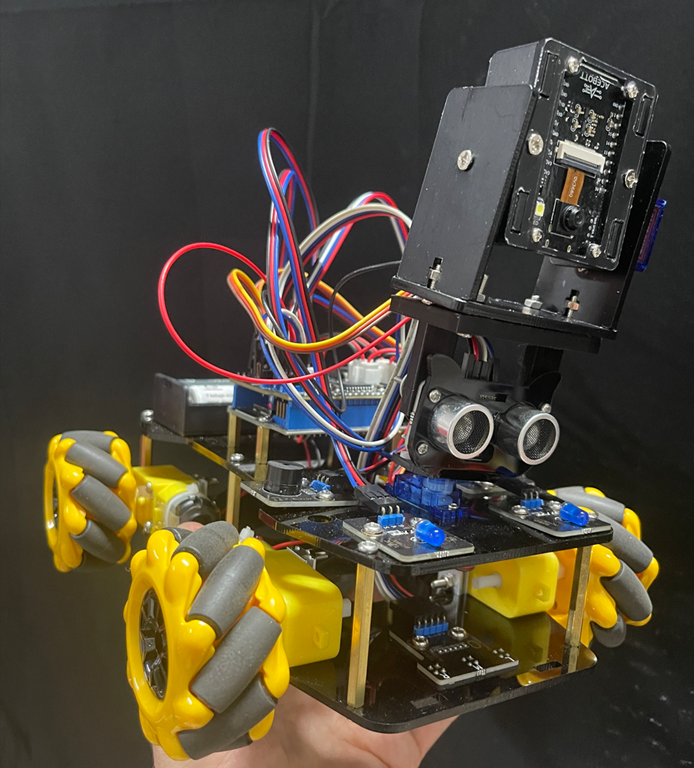
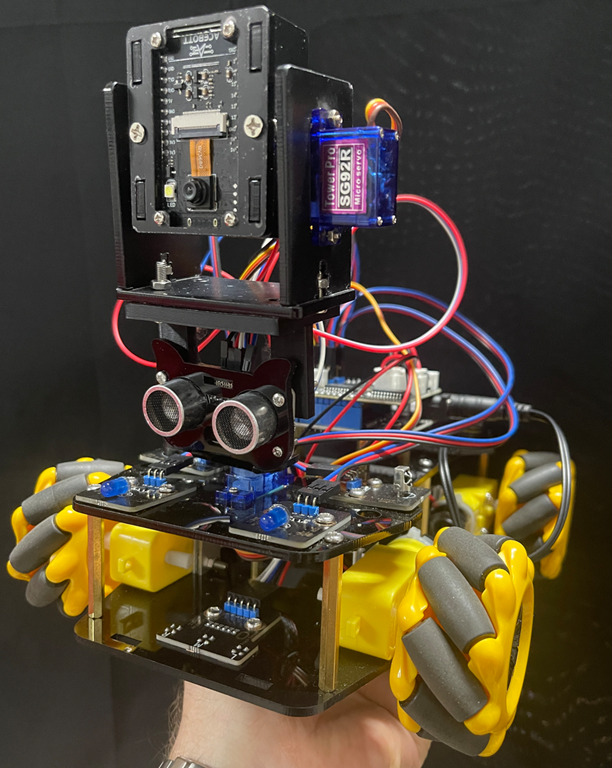
In my on going quest to get a camera working on a robot car and failing with an Arducam, I cam across an existing kit that has an add on extra of a camera. It is the:

ACEBOTT ESP32 Smart Car Starter Kit with Mecanum Wheel

with

ACEBOTT ESP32 Camera Expansion pack for Smart Car

which is going to make achieving my goal much, much easier.

To get the Smart car working you’ll need to nuy some batteries:

1 x CR2025 for the Infra Red Controller

2 x 18650 to the motors and controller board

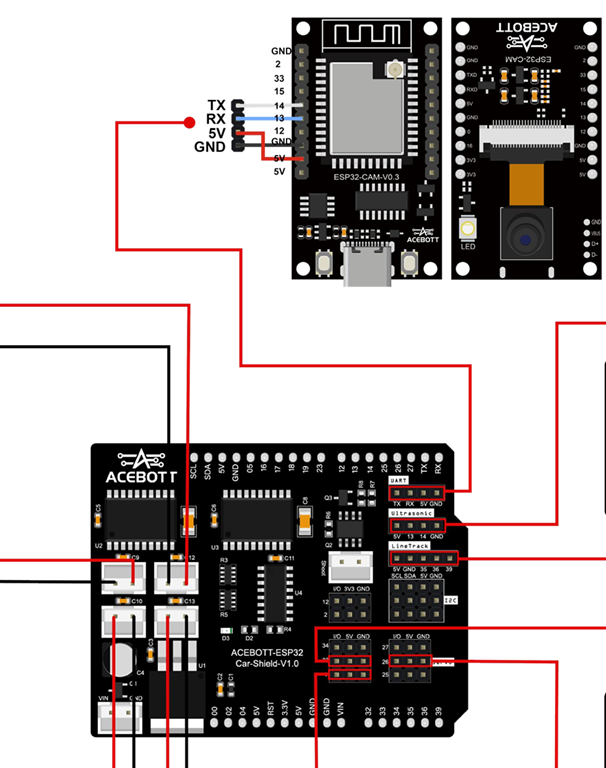
Assembling the car is pretty straight forward and the kit give you a few spare items for those that you invariably drop on the floor and lose, which is nice. The main challenge I had was with the wiriing. It is always a good idea of take a photo of the components , both sides, BEFORE you assemble them so you can read the pin settings. Case in point, here is the Ultrasonic senor after I had to disassemble it to get the pin settings.

Screenshot 2025-08-28 081429

Hopefully, that saves someone else having to do same.

Here are some more I took of the motor shield board because reading the numbers for the connectors was challenging.

Screenshot 2025-08-28 081600

Screenshot 2025-08-28 081753

With everything finally assembled and powered up I wanted to wire some code to test all the sensors were working correctly. I used this for my tests:

https://github.com/directorcia/Azure/blob/master/Iot/Acebott/Smartcar/diag.cpp

It will flash the LEDs, move the servo for the ultrasonic sensor, test the IR receiver, play tunes on the buzzer and test all the wheels, forwards and backwards for you.

All teh driver files and the instructions can be downloaded here. This will give you everything you need for all the Smartcar kits and add ons.

My next step will be to code the Smartcar so that it moves in response to commands sent to it via the Infra Red controller. Stay tunes.

Mecanum Motion 2 – Arduino Uno R4 Wifi

Video link = https://www.youtube.com/watch?v=DYcEgvdhoOE

A while back I got the chassis with the mecanum wheels being controlled by an adafruit.io dashboard. I have revamped the controller to now be an Arduino Uno R4 WiFi controller with an Adafruit MotorShield V3, once again controller by an adafruit.io dashboard.

The code for this is here:

https://github.com/directorcia/Azure/blob/master/Iot/Arduino%20Uno%20R4%20Wifi/Adafruit-IO/chassis-control.cpp

and the documentation for the code is now at:

https://github.com/directorcia/Azure/wiki/Arduino-Uno-R4-Wifi-Chassis-Control-Script

which saves me having to explain it here.

Arduino Uno R4 Wifi Wheel test

Video URL = https://www.youtube.com/watch?v=Ed9reoDO2EA

Now that I have my Arduino Uno R4 Wifi connected to the Internet and Adafruit.io, the next challenge is to get the wheels turning so to speak.

To do this I need a motor driver and wanted one that would easily connect to the Arduino Uno R4 Wifi without too much soldering. I therefore chose:

adafruit_products_powerjump.jpg

Adafruit Motor/Stepper/Servo Shield for Arduino v2 Kit – v2.3

the instructions for this board are here:

Adafruit Motor Shield V2

and the software library is here:

Adafuit_Motor_Shield_V2_Library

however. it turns out that I should have also bought:

Shield stacking headers for Arduino (R3 Compatible)

but I’ll come back to that.

Screenshot 2025-07-27 084259

With the headers soldered into place, I could then insert the Adafuit Motor Shield directly onto the Arduino Uno R4 Wifi as shown above.

I then uploaded the following code to the Arduino Uno R4 Wifi:

https://github.com/directorcia/Azure/blob/master/Iot/Arduino%20Uno%20R4%20Wifi/Adafruit%20Motor%20Shield%20V3/test-motors.cpp

to test all the motors. The results of this are shown in the video at the top.

Using the ‘vibe’ coding and with thanks to Github Copilot, getting the results I wanted was really easy. It even installed the Adafuit_Motorshield drivers for me as well.

Now I know the shield works along with the all the motors. The next was to be to get the DFRobot 1602 LCD display working on teh Arduino Uno R4 Wifi. It was then I realised that I should have used the:

Shield stacking headers for Arduino (R3 Compatible)

as I now didn’t have an easy way to connect the display. Damm! I’ll need to figure something else out to get the display working with the board. However, I am very pleased that the Adafruit Motor/Stepper/Servo Shield for Arduino v2 Kit – v2.3 works well and all the motors on my chassis are all operational again. I am now back to where I was with the S32 controller over a year ago.

If you haven’t worked out yet, I’m trying to get back to this point:

Mecanum motion

but with a more compact controller and motor driver.

Arduino Uno R4 Wifi Adafruit.io connection

Video URL = https://www.youtube.com/watch?v=VSRVwGGtVZQ

With my Arduino Uno R4 Wifi now connected to the Internet, the next step is to get it connected and receiving commands from my Adafruit.io dashboard.

The code for this is here:

https://github.com/directorcia/Azure/blob/master/Iot/Arduino%20Uno%20R4%20Wifi/Adafruit-IO/main.cpp

and as you can see from the video is now working. Thus, when I push a number on the Adafruit.io dashboard it is communicated down to the Arduino Uno R4 and displayed on the matrix.

The interesting thing is that I ma now ‘vibe’ coding solutions with Github Copilot. This means I am not writing the code by hand any more. I tell Copilot what I want it to so and allow it to generate the code for me. This saves me SO MUCH time as I am not an experienced C developer and all I want is to get my project working as fast as possible.

However, this ‘vibe’ coding approach still presents challenges. When I started out with thsi project the code Copilot developed for me used a HTTP connect to Adafruit.io dashboard which ended up being far too slow. I didn’t notice that fact unit a little ways into this. At that pont I had Copilot redo the code and only use MQTT, whcih now works athe speed expected.

‘Vibe’ coding is such a time saver for me with these projects and help me sort out issues faster that I could without it. However, the lesson here is that you need to understand what you are trying to achieve and help the AI understand as well.