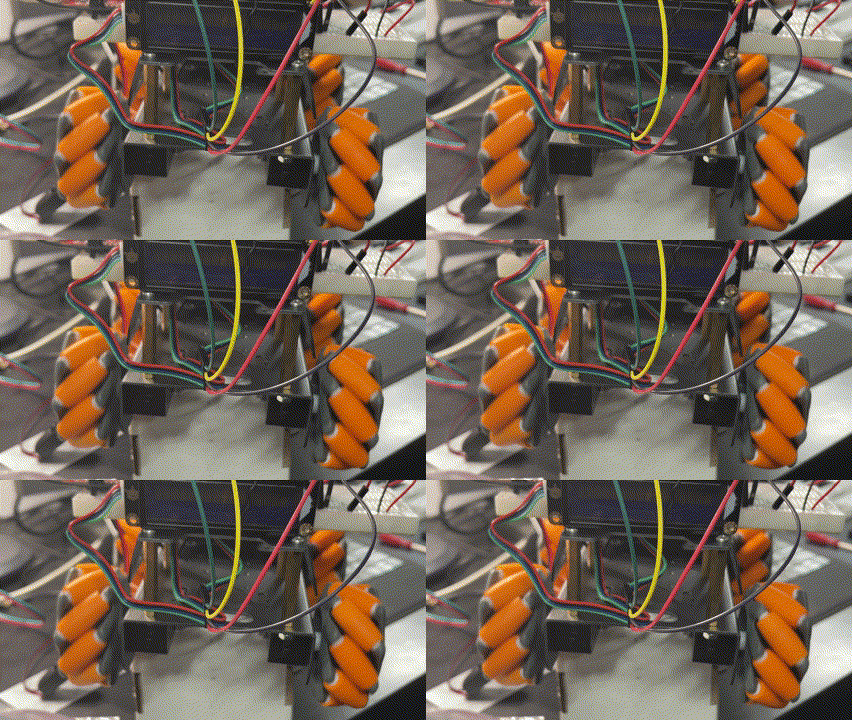
The wheels are turning

mc-wheels

Hopefully you can see from the above video that I have now got all the wheels turning on the frame in the same direction.

With the motor basics done, next I’ll get the rig talking to WiFi and outputting information to the LCD display.

Following that, the next step is to determine how to move in different directions with these Mecanum wheels.

New chassis

image

I’ve invested in a new chassis for my robot creations. This is the one I opted for:

Mecanum Wheel Chassis Car Kit with TT Motor, Aluminum Alloy Frame, Smart Car Kit for DIY Education Robot Car Kit

from Amazon. It is great quality, strong and well made. Has lots of connection options and the right size for what I want. It is also robust enough to survive the inevitable ‘incidents’ it will no doubt have along the way. In short, I think it is great value for money and very professionally made.

As you can see from the above picture, I have managed to put it together, even though it didn’t come with assembly instructions. Those I found here:

https://www.hiwonder.com/products/mecanum-wheel-chassis-car

and specifically on this YouTube video – https://youtu.be/WMQ-PyM-PNE

The motor connections are JST 2-pin female connectors so I have also ordered these:

JST PH 2-Pin Cable – Male Header 200mm

to allow easy connection to the motor driver I’ve already played with here:

https://blog.ciaops.com/2023/07/12/iot-motors/

Once I get all that I can start putting together the controllers and then start writing the code to make it actually move about.

Stay tuned.

Displaying distance on LCD screen

iot-dist

I was able to take the

Adafruit VL53L0X Time of Flight Distance Sensor

and combine it with all my recent LCD learnings to produce something that outputs a distance measurement as shown above.

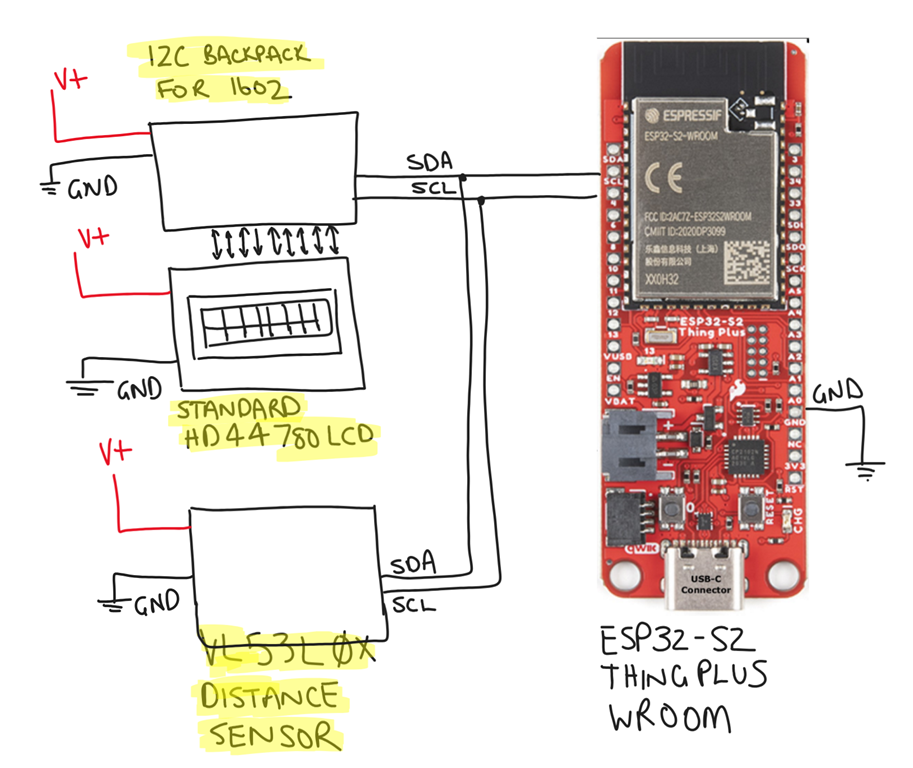
Here is the circuit outline:

image

Note that it is important to ground the ESP32-S2 Thing Plus WROOM to the same ground as the other components.

The code for this project is at:

https://github.com/directorcia/Azure/blob/master/Iot/ESP32-S2/VL53L0X/LCD-Test.cpp

which is pretty straight forward and basically a combination of the sample files for the distance sensor and the LCD display.

Easy when you know

I’ve been attempting to get an LCD display connected to the ESP32-S2 WROOM controller but wasn’t having any luck:

No output to display

Luckily, I worked out that I needed to:

Connect the grounds

to make it work. For that I’d used a:

Gravity:I2C LCD1602 Arduino LCD Display module

which has everything built into the board.

After finding the error of my ways I wanted to circle back and get the original

Standard HD44780 LCD

display working with the

I2C LCD Backpack for 1602 to 2004 LC

Once I had wired the backpack to the LCD display (basically just a process of aligning pins on the breadboard), I connected up power and SCL and SDA to the backpack. I connected to the SDA and SCL on the ESP32-S2 Thing Plus as well as ensuring the grounds of the ESP32-S2 Thing Plus and the external power for the display were connected!

For the code I added the LiquidCrystal_I2C library and then the header:

#include <LiquidCrystal_I2C.h>

next I initialised an object:

LiquidCrystal_I2C lcd(0x27,16,2);

with an module address at 0x27 (the default) and 16 columns by 2 rows.

In setup I initialised the module by:

lcd.init();

turned on the backlight:

lcd.backlight();

and finally output text to the LCD display:

lcd.print(“Hello, world!”);

Once I compiled the code and uploaded to the ESP32-S2 Thing Plus I saw:

image

which was very satisfying.

The learning from all this has been to ALWAYS ensure that all the grounds are connected together. However, I’ve also learned that life is much easier with a completely integrated display like the:

Gravity:I2C LCD1602 Arduino LCD Display module

rather than trying to configure just the LCD directly or even be interfacing with a dedicated I2C backpack. It is far easier if all that stuff is built into the LCD module and all the control comes from SDA and SCL.

Lessons learned. Bring on the next challenge.

Connect the grounds

I’ve been struggling to get an LCD display working. My previous attempt was:

No output to display

So I traded that in for this:

Gravity:I2C LCD1602 Arduino LCD Display module

because it has everything included in the module to make life simpler! Problem was, that even with this simple component connected I still couldn’t get anything to display. What am I missing I thought?

I just worked out why I couldn’t get any of the displays running! Basically, the solution was I needed to ground the controller chip to the same ground as the external power supply I was using to power the display. Simple eh?

This is what I did to get the Gravity DFRobot display working.

This module has the I2C built in a 4pins:

image

Basically just power and SCL and SDA.

I connected everything up. The module I have is a LCD1602 V1.1.

I added the following library to my project:

DFRobot_RGBLCD1602

thus, in my code I added:

#include “DFRobot_RGBLCD1602.h”

according to the example file, because my module is v1.1 the RGBAddr is 0x6B. Thus, to set up the module I do:

DFRobot_RGBLCD1602 lcd(/*RGBAddr*/0x6B ,/*lcdCols*/16,/*lcdRows*/2);

which initialises an object at address 0x6B with 16 columns and 2 rows.

I then initialise the module via:

lcd.init();

and then send it a message:

lcd.print(“Hello World!”);

that is basically all the code does. It compiles and uploads top both the Huzzah ESP8266 and the ESP32-S2 WROOM but I get nothing on the display, UNTIL I connected the GND from the controller (i.e Huzzah ESP8266 and the ESP32-S2 WROOM) to the same GND as the external battery pack I was using to power the display. The controller chips get their power from the USB cable at this stage.

Once that was done I finally saw:

image

There is nothing like the feeling off finally getting something working!

So the key learning here was link the GND between the external power supply and the controller chip.

No output to display

After connecting up a

Standard HD44780 LCD

to power and being able to adjust the brightness, the next step was to get i to display some text by connecting the display to an ESP32-S2 Thing Plus.

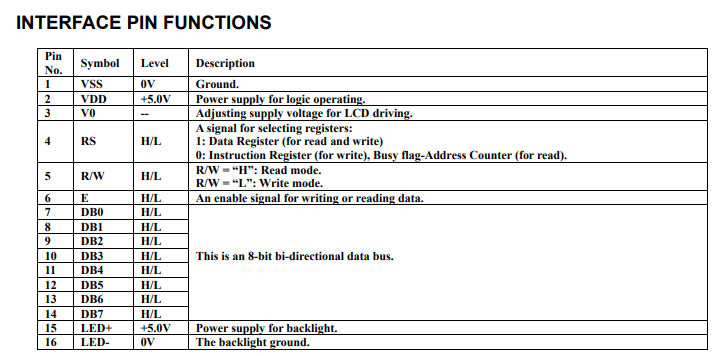
To do that I needed to connect to these pins on the display:

LCD Pin name RS EN DB4 DB5 DB6 DB7
LCD Pin 4 6 11 12 13 14

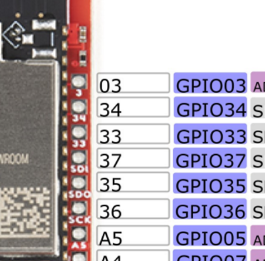
I planned to connect these LCD pins to the range available on the ESP32-S2 Thing Plus 3,34,33,37,35,36

image

Thus:

const int rs=3; // LCD RS pin

const int en=34; // LCD Enable pin

const int d4=33; // LCD data bit 4 pin

const int d5=37; // LCD data bit 5 pin

const int d6=35; // LCD data bit 6 pin

const int d7=36; // LCD data bit 7 pin

and to initialise:

LiquidCrystal lcd(rs, en, d4, d5, d6, d7);

The size of the display is defined buy:

lcd.begin(16,2);

and then to display text:

lcd.print(“Hello world!”)

My code compiles ok, but I get not text on the LCD display?

– I triple checked my wiring and even tried other ports (no luck)

– I defined each pin via pinmode(rs,OUTPUT); for example (noluck)

Seems like the best solution is go for this:

I2C LCD Backpack for 1602 to 2004 LC

which basically removed the need for individual ports in favour of using SDA and SCL to do the communications. In fact, I probably should have bought this to start with:

Gravity: I2C LCD1602 Arduino LCD Display Module (Blue)

which has the backpack module included!

In the long run this is a better bet as it saves and stack of pins on the ESP32-S2 Thing Plus being consumed.

I did notice that all the GPIO pins on the ESP32-S2 Thing Plus are 3.3V and perhaps the LCD display requires 5V? I couldn’t find any definitive on that.

Standard HD44780 LCD

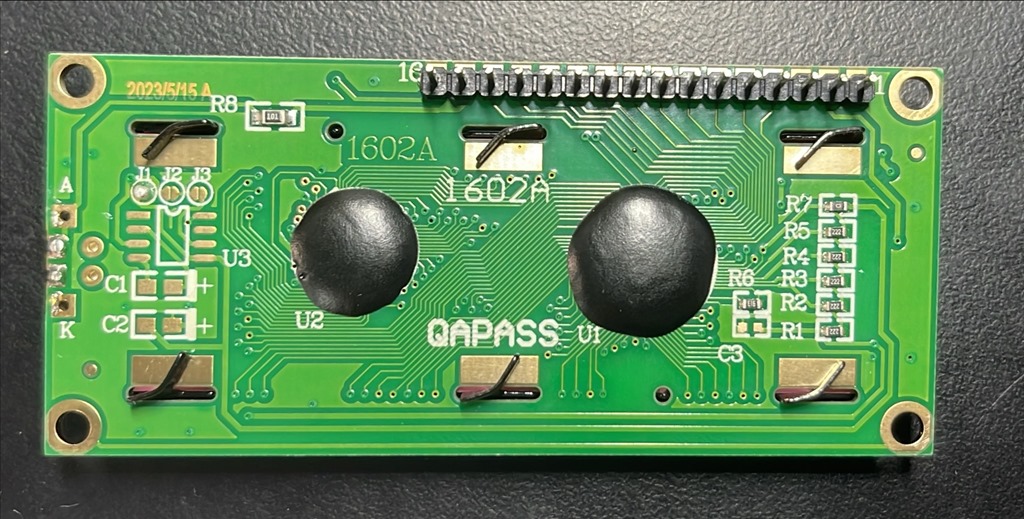
image

Scan from 2024-01-13 03_16_22 PM

I ordered a standard HD44780 LCD:

https://core-electronics.com.au/assembled-standard-lcd-16×2-extras-white-on-blue.html

HD44780 datasheet with the detailed commands for control

a datasheet that has dimensions and pin-locations

image

So I started to follow:

https://learn.adafruit.com/character-lcds

Scan from 2024-01-13 03_35_02 PM

Step one was to wire up the display just to power. So I connected 3.3V pin from the Esp32-S2 Wroom to pin 15 on the display. Importantly, you’ll note that the ESP32-S2 power is 3.3V which is enough to power the display but only just! I also connected the ground pin from the ESP32-S2 to Pin 16 on the display. This is just the power to the back light of the display.

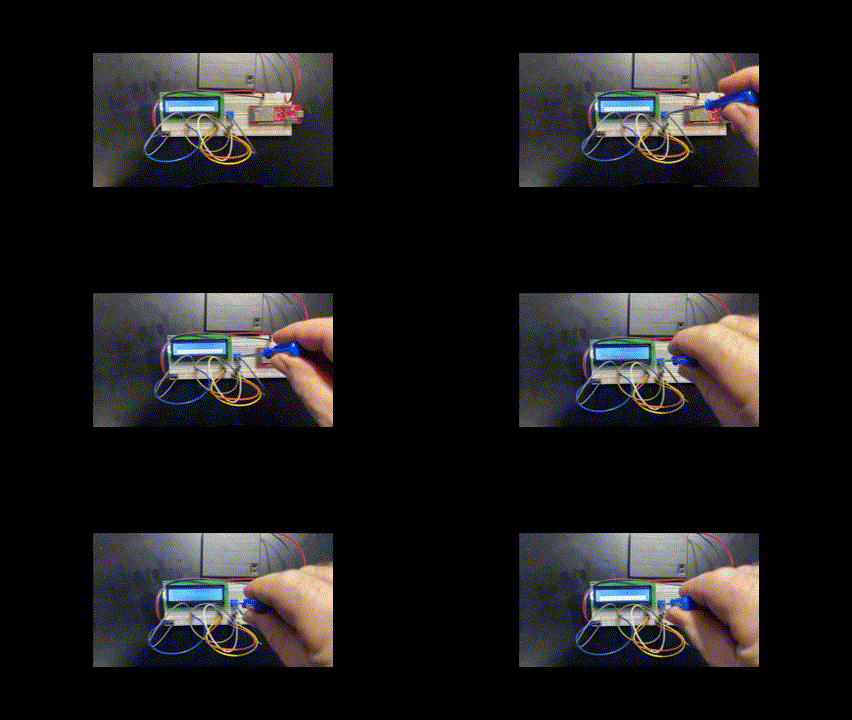
The next step was to insert a POT (variable resistor to control the brightness of the actual display items) but when I did that turning the POT made no difference.

pot-turn

I deduced that the issue was that 3.3V input from the ESP32-S2 wasn’t high enough. Thus, I connected up my external battery pack, which outputs 4 x 1.5V = 6V and as you can see from the above when I twist the POT (i.e. a variable resistor) I can now see the lines of rectangle display items actually appear.

Thus, the display is all wired up for power, backlight and character display, now I just need to wire it for data and do some code.

image

The wiring diagram is shown above:

Pin 1 = GND (character display)
Pin 2 = +6V (character display)
Pin 3 = Output from variable resistor (i.e. POT for character brightness)
Pin 15 = +6V (backlight)
Pin 16 = GND (backlight)