Arduino Uno R4 Wifi Internet connection

Screenshot 2025-07-26 071040

After getting the matrix working on the Arduino Uno R4 Wifi, naturally the next step was to get it working and connected to the Internet.

You’ll find the code here:

https://github.com/directorcia/Azure/blob/master/Iot/Arduino%20Uno%20R4%20Wifi/Wifi%20Connect/chk-mrk-connect.cpp

The secret is to include the WiFiS3.h, which the wifi library for the R4. Aside from that, the other thing that I did was move the settings (i.e. network, password, etc) into a io_config.h file to keep them out of the main code.

The end result is that the R4 now successfully connects to my Wifi and then to the internet. Upon success it wil display a check mark on the LED matrix on the device.

Arducam Mega 3MP failed attempt

I returned to my quest of getting the Arducam Mega 3MP working anf have had no luck at all. I have created the following diagnosis program that might help someone else here:

https://github.com/directorcia/Azure/blob/master/Iot/Arducam/3MP/diag.cpp

My latest attempt was with an Arduino R4 WiFi and all I keep getting is connection failures and incorrect reads. I have tried various wiring changes and testing but still no luck at all.

mega

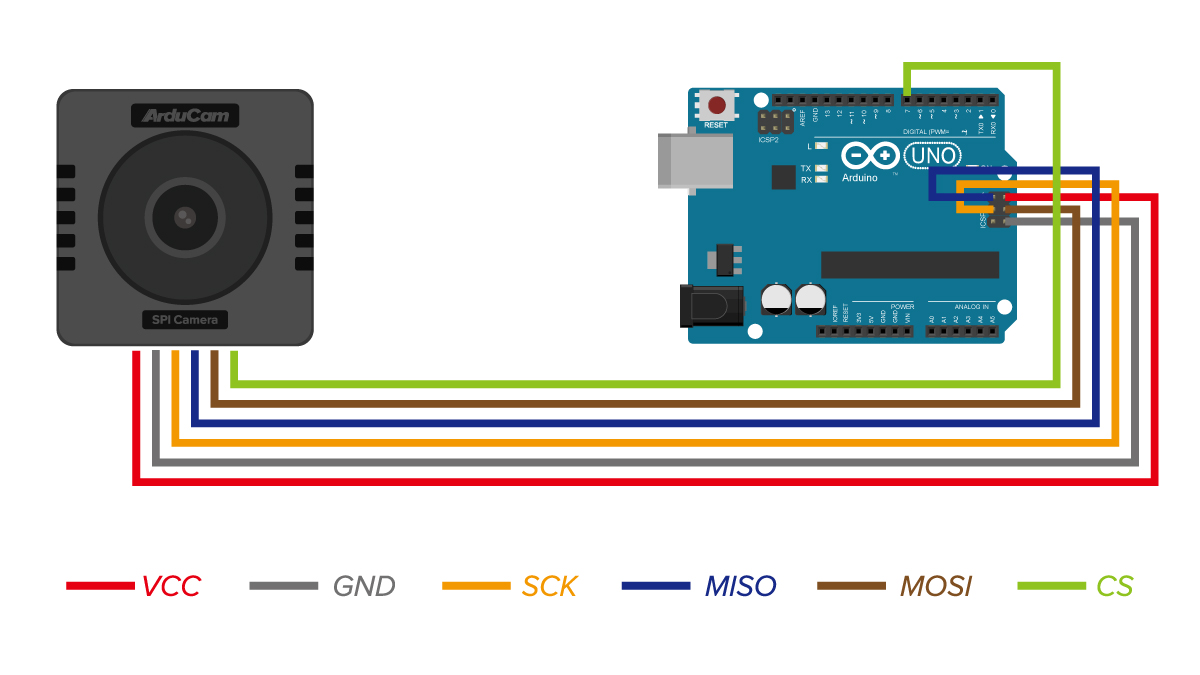
I used the above wiring but to no avail. The code uses pin 10 for CS, which also doesn’t seem to work.

The result indicate it is detected by any reads and writes come back wrong. I have tried all sorts of timing changes to no avail. Thus, I’m going to shelve this for a while and move on with other things.

It really shouldn’t be this hard and I can only think that perhaps the camera has somehow been damaged in all my testing. Perhaps a new one and fresh start is in order?

Arduino Uno R4 Wifi Matrix display

20250518_051525895_iOS

The next controller I’m going to play with is the Arduino Uno R4 Wifi. I really like the ease and compatibility of the Arduinos I have used so far but the lack of WiFi I know will be a major limitation. So it make sense to explore a Wifi Uno.

One of the additional ‘nice’ features of the Arduino Uno R4 Wifi is that it has a LED matrix included on the board. Thus, the starting point is to try and get something to display on there.

First I tried displaying a simple emjoi. The code for this is here:

https://github.com/directorcia/Azure/blob/master/Iot/Arduino%20Uno%20R4%20Wifi/Emoji%20Display/main.cpp

and there are range of emojis to display.

I then uploaded the demo code here:

https://github.com/directorcia/Azure/blob/master/Iot/Arduino%20Uno%20R4%20Wifi/Text%20Display/main.cpp

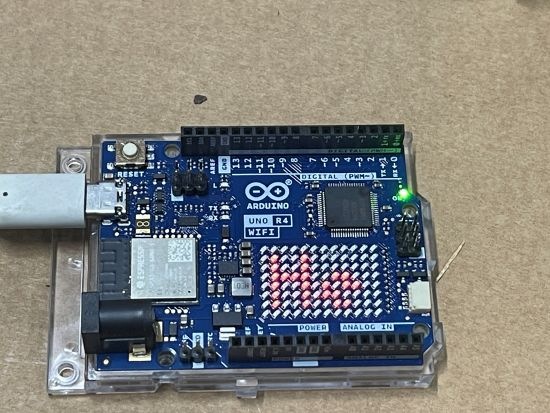
to display Hello World on the matrix, which all worked as expected as shown on the image above.

The next step after getting something to display on the matrix will be to get the Wifi working.


Garage distance sensor V2

image

My initial prototype started back here:

and is now at the point where I am designing version 2.

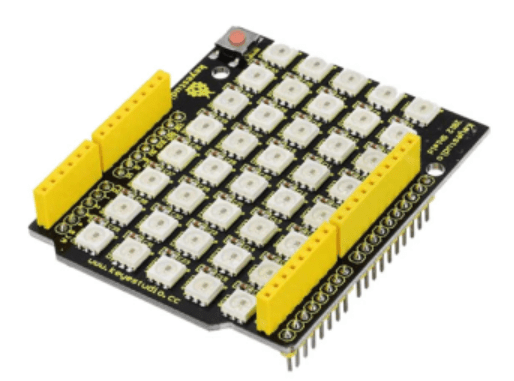
The biggest change for  version 2 will be the replacement of the 5 individual LEDs and the board they live on with a Keyestudio 40 RGB LED WS2812 Pixel Matrix Shield for Arduino:

The main reasons for this are:

– less soldering is required

– the LEDs are brighter

– there will be a 5 x 8 matrix of LEDS allowing more options

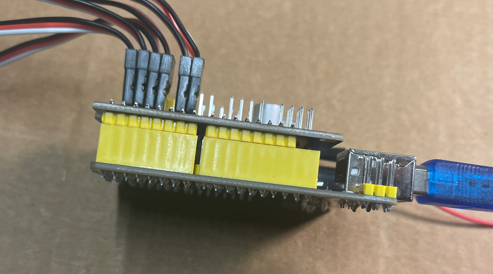
– the shield plugs directly into the controller board

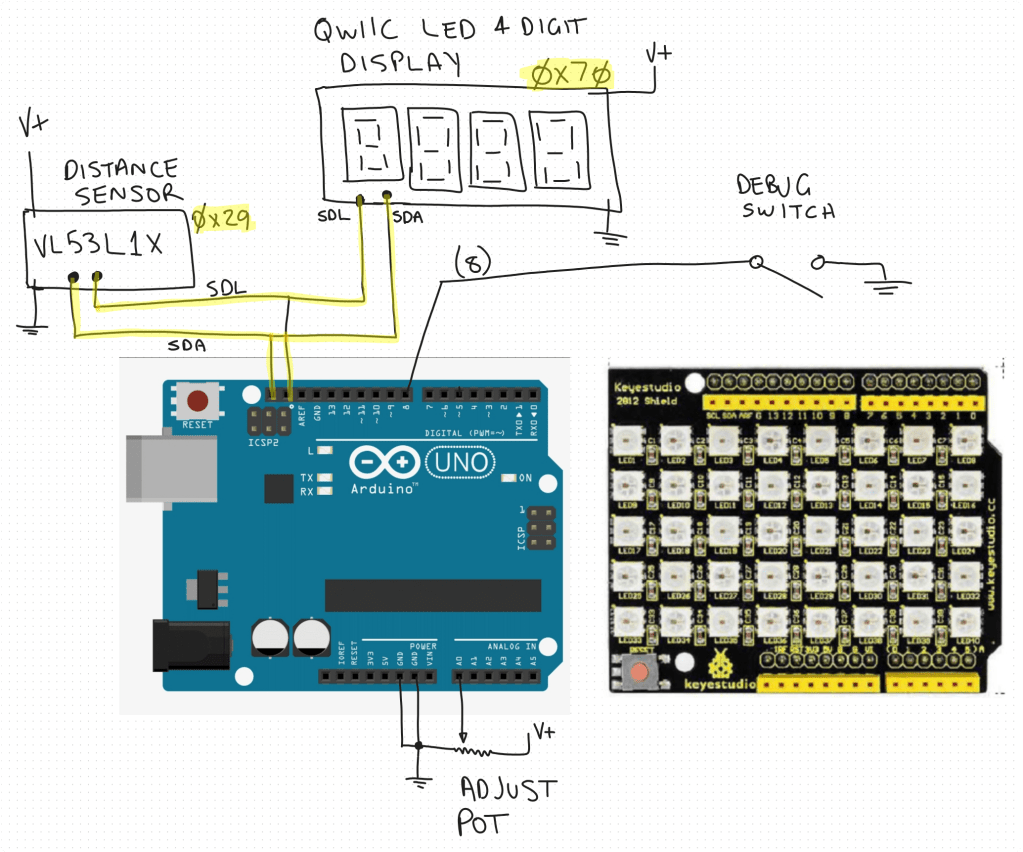
So the circuit diagram will now look like:

The code will, at least initially remain functionally the same but may get enhanced once I have it working.

I have ordered an additional distance sensor and QWIIC LED 4 Digit display but the LED shield is ready to go as you can see in this video:

Video link = https://www.youtube.com/watch?v=49V33TKXt3c

The test code shown in video is here:

https://github.com/directorcia/Azure/blob/master/Iot/Arduino%20Uno%20R3/Garage%20distance/pixel-matrix-test.cpp

I think this LED shield will be a big improvement for the project, so stay tuned for more updates soon.

Robot Arm with Multi Motor Movement

I’ve improved the movement of my robot arm by implementing multi motor movement. This means moving large distances will be more efficient since the arm can take a more direct route. You can see this in the video I created above. You’ll find my code for this routine here:

https://github.com/directorcia/Azure/blob/master/Iot/Arduino%20Uno%20R3/Robot%20Arm/routine2.cpp

This has lead me to go down the rabbit hole of kinematics.

Kinematics is the science of motion without considering forces. For robot arms, it answers questions like:

  • Where should each joint move to place the end-effector at a specific position?

  • What angle should each servo rotate to reach a target point?

There are two primary types:

  • Forward Kinematics – You provide joint angles, and it calculates the end-effector’s position.

  • Inverse Kinematics (IK) – You provide a desired end-effector position, and it calculates the joint angles needed to get there.

I’m going to try and implement kinematics for my arm going forward, so stay tuned for updates.

Keyestudio Sensor Shield/Expansion Board V5 for Arduino


Screenshot 2025-04-29 192828

One of the issues I found when powering the servos for the robot arm was that I found I couldn’t power them from the Arduino board, I needed an external power supply. This fact made wiring the servos up challenging as the control signal still had to come from the Arduino but the power elsewhere. Thus, lots of messy wires.

All that has been solved with the addition of a Keyestudio Sensor Shield/Expansion board as seen above.


Screenshot 2025-04-29 193342

Basically, the shield simply plugs into the pins in the Arduino controller (extending them) while providing:

– An alternate power supply

– Easy connections for all the servos

Screenshot 2025-04-29 193632

A nice compact solution to a few challenges with the robot arm. All I needed to do was connect up the shield onto the Arduino and then connect the servo motors directly to their ports and change nothing else. No code or other wiring was done except to also connect an external power supply to the shield board as seen in the lower right above.

I have to say, that if you need to control devices that require more power than the standard Arduino board can provide then this type of shield is exactly what you want!

Thumbs up to Keyestudio for both the controller:

KEYESTUDIO UNO R3 Development Board For Arduino Official Upgrated Version With Pin Header Interface

and the shield

Keyestudio Sensor Shield/Expansion Board V5 for Arduino

A diagram of the project looks like:

Screenshot 2025-04-29 194500

Nanoblock Tokyo Skyline Building Kit

20250426_040620737_iOS

Nanoblock Tokyo Skyline Building Kit, White – https://www.amazon.com.au/Nanoblock-Tokyo-Skyline-Building-White/dp/B07CDQQXWG/

1310 pieces

A kit with a lot of different components and colours. Takes longer to assemble than you think simply because you need to find a lot of unique pieces. However, enjoyed the longer assembly process and overall details of the end result. If you don’t mind so many unique pieces then this is great longer term build of intermediate difficulty.

Garage sensor–Version 1 summary

image

Video link = https://www.youtube.com/watch?v=MBYtc1O-l94

I’ve rounded off version 1 of the Garage sensor and am about to start work on version 2. There is a short video summary of what he sensor does in the video above.

I’m not happy with the daughter board that runs the 5 LEDs. It is cumbersome, challenging and time consuming to build. I plan to replace this with something pre-built. I’ll also opt for a cheaper Arduino board. The process will also require me to rework the 3D printed board all the components are mounted on.

Stay tuned for Version 2 coming soon!