


I recently managed to Send images from Arducam to Azure, which was a major win. Only challenge with that is it isn’t easy to see those images inside Azure. Thus, I wanted an easy way to do this and figured that displaying on a web page was the go.
Turns out, this isn’t to hard using Azure. Thus, I started by modifying the code for the controller so it would always upload an image using the same name and do so every 60 seconds. You can find the code for the controller here:
https://github.com/directorcia/Azure/blob/master/Iot/Arducam/3MP/storage-web.cpp
and documentation here:
https://github.com/directorcia/Azure/blob/master/Iot/Arducam/3MP/storage-web.md
Next, I created an index.html file to display the image from Azure Blob storage. You can find a copy of that here:
https://github.com/directorcia/Azure/blob/master/Iot/Arducam/3MP/web-index.html
you need to rename it to index.html and put the name of your Blob storage URL on line 40.
Next, you’ll need to enable a static website on your Blob storage account.
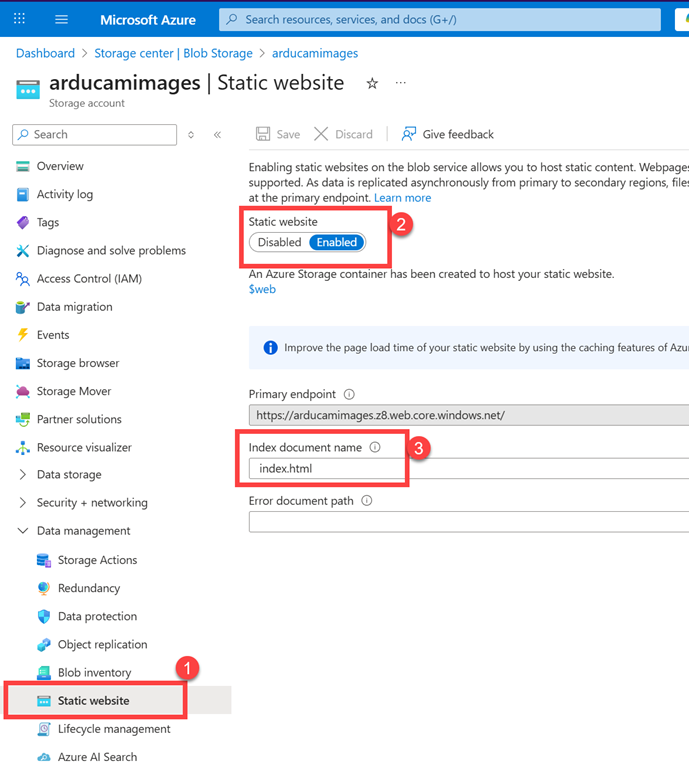
- Go to Azure Portal (portal.azure.com)
- Navigate to your storage account: arducamimages
- In the left menu, find “Static website” (under “Data management” or “Settings”)
- Click “Enabled”
- Set Index document name: index.html
- Note the Primary endpoint URL (e.g., https://arducamimages.z88.web.core.windows.net/)
- Click “Save”
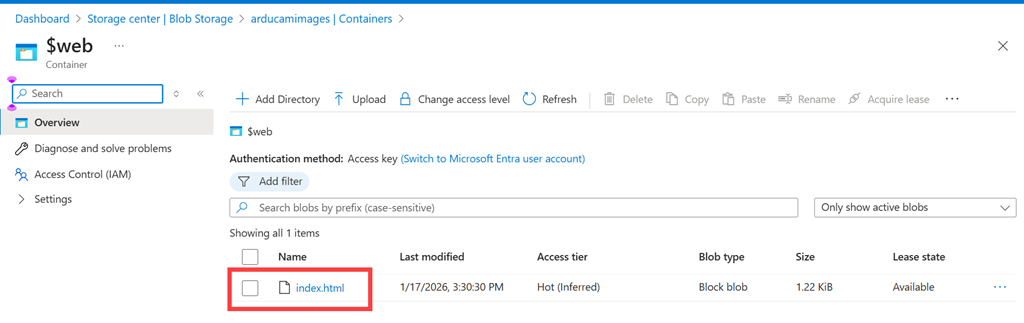
Then you’ll need to upload your index.html to the $web container in your Blob storage account.
- In your storage account, click “Containers” (under “Data storage”)
- Click on the $web container (created automatically when you enabled static website)
- Click “Upload”
- Select your index.html file
- Check “Overwrite if files already exist”
- Click “Upload”
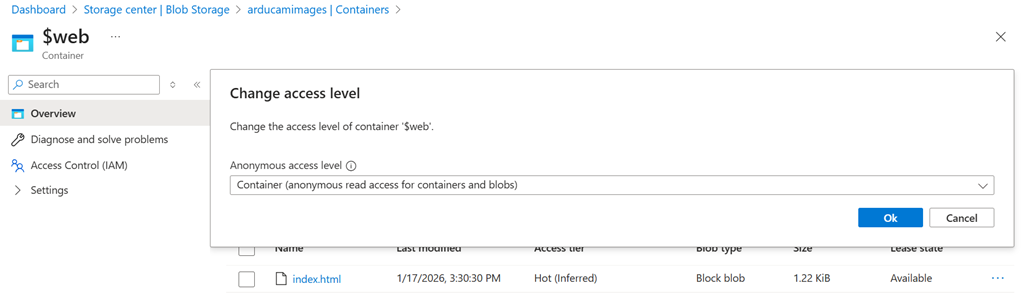
Now you’ll need to set public access for $web container.
- While in the $web container, click “Change access level”
- Set “Public access level” to “Blob (anonymous read access for blobs only)”
- Click “OK”
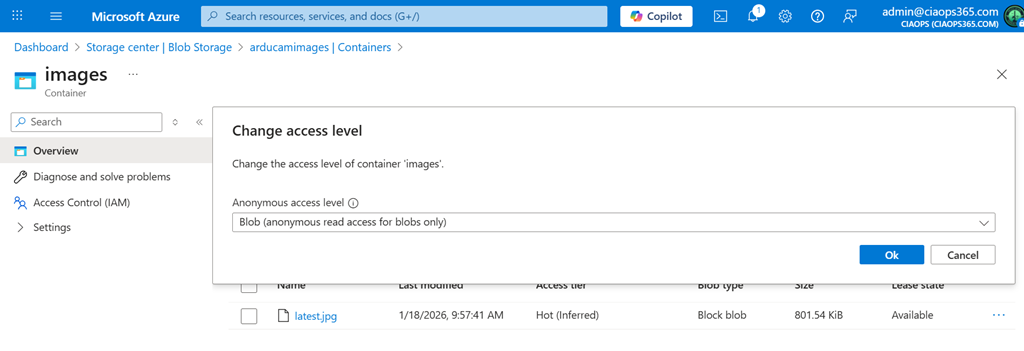
Next, set public access for images container
- Go back to “Containers”
- Click on the “images” container (where your latest.jpg is stored)
- Click “Change access level”
- Set “Public access level” to “Blob (anonymous read access for blobs only)”
- Click “OK”
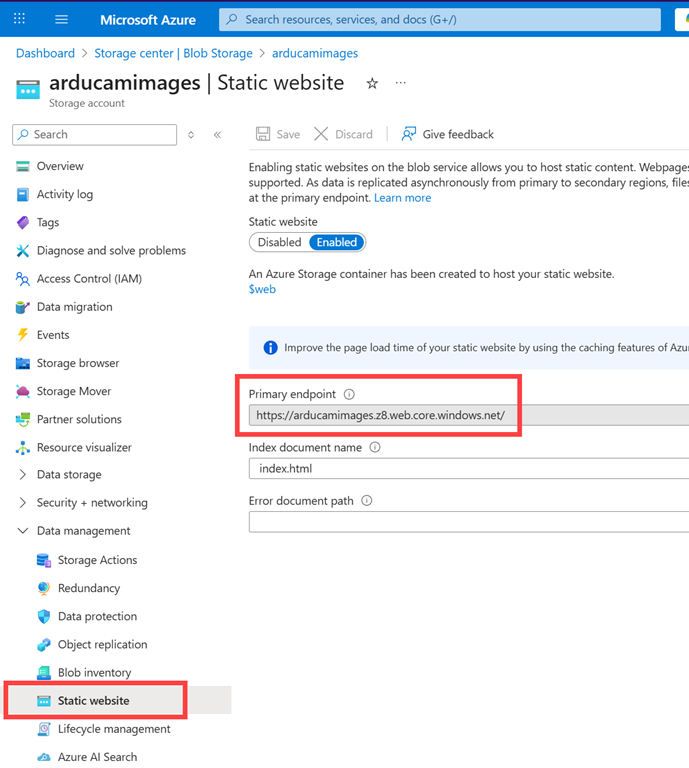
You should be able to view the website using the Primary endpoint, that was back in the Static website settings as shown above. In my case I also need to add /index.html to end of the URL to get it to display.
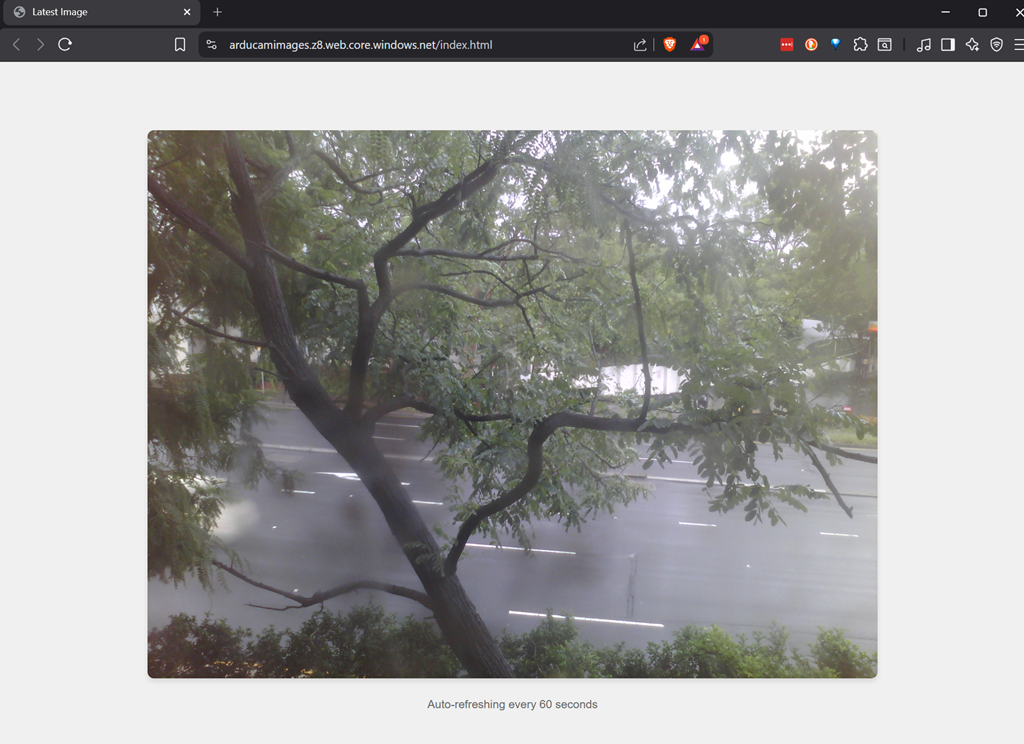
You can see my result above. The page should refresh every 60 seconds automatically with a new image. You should also be able to now view this image from anywhere by simply browsing to your URL.
My next plan is to try and integrate Azure AI vision, given the image is already now in Azure, and for the page to report the weather i.e. sunny, wet, etc. yes, I know you can see that in the image but that makes it an easy way to very that Ai reading the image correctly. Let’s see how hard that is to do next.
 CIAOPS Labs