


Now that I have my Arducam working, the next step is to be able to upload the images from the camera to Azure Blob storage. To do this, you’ll need to set up an Azure subscription and follow these steps to actually create an Azure Storage Account:
https://github.com/directorcia/Azure/blob/master/Iot/Arducam/3MP/azure-storage.md
It is also recommended that you place all you sensitive information (WiFi password, Azure information, etc) in an io_config.h file to separate it from the main code.
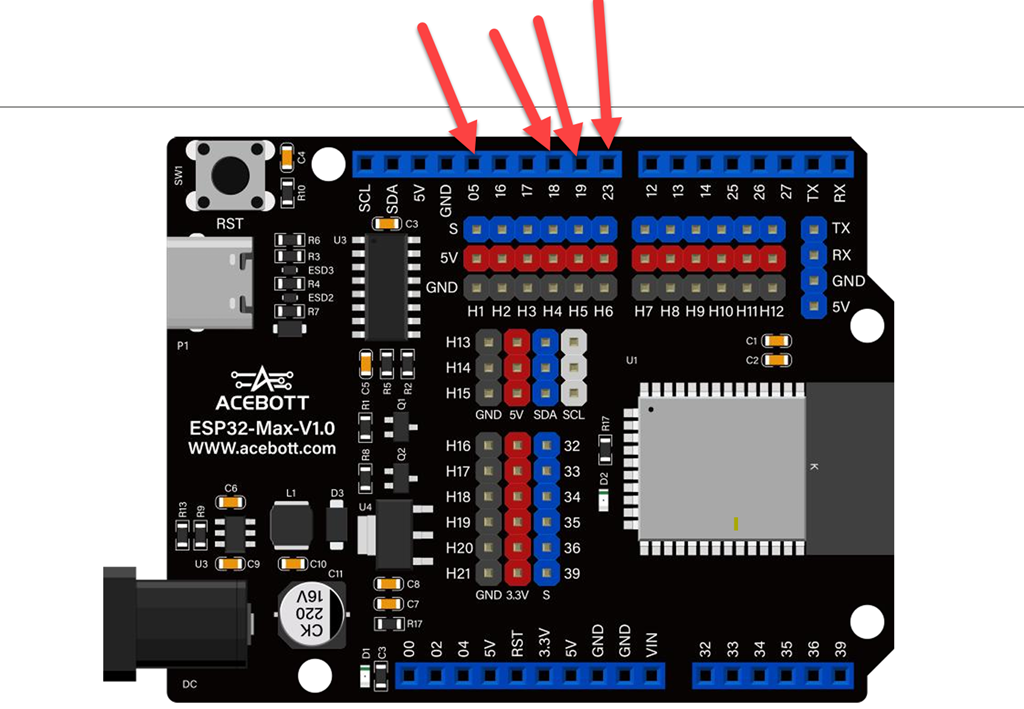
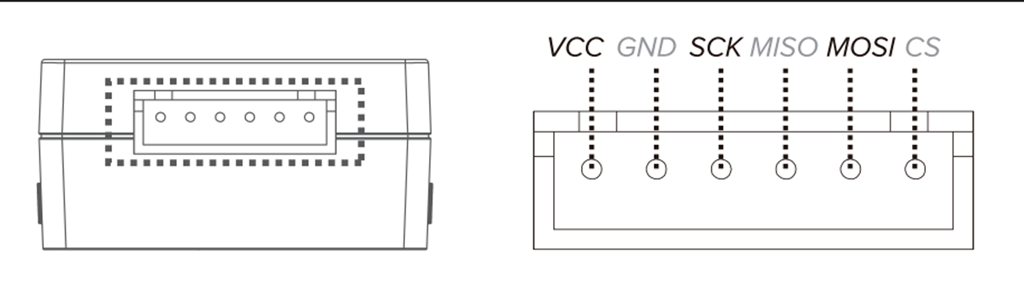
With the Azure Blob storage configured next you’ll need to hook up your Arducam to your controller. This time I’ve gone for a Acebott ESP32-Max-V1.0 because it has inbuilt Wifi. Thus, I have wired the following ports:
VSPI (recommended):
- MOSI (GPIO 23): Top right area, blue header row
- MISO (GPIO 19): Top right area, blue header row
- SCK (GPIO 18): Top right area, blue header row
- CS (GPIO 5): Top left area, blue header row (you can use any available GPIO for CS) orange
Acebott ESP32-Max-V1.0 pinout
Arducam Pinout
I then uploaded teh following code to the Acebott board:
https://github.com/directorcia/Azure/blob/master/Iot/Arducam/3MP/capture-image-azure.cpp
and the documentation for this is here:
https://github.com/directorcia/Azure/blob/master/Iot/Arducam/3MP/capture-image-azure.md
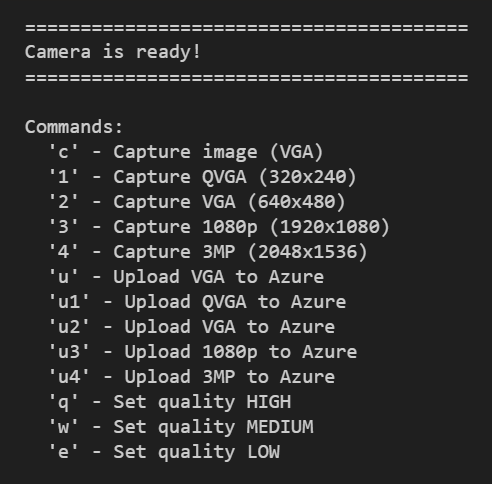
but in essence after the board has booted the serial interface will show:
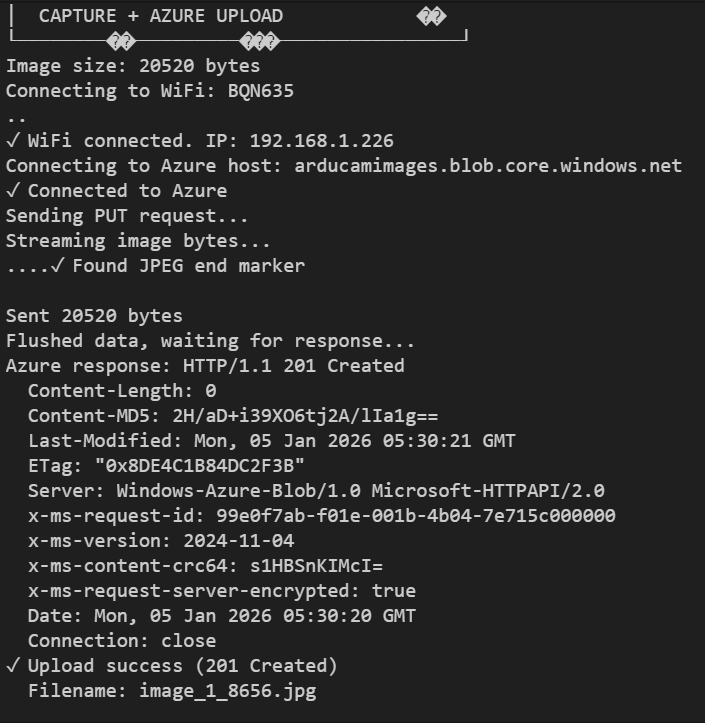
If you select one of the upload options you should see something like:
then if you look inside the Azure Blob storage container you should see the file like so:
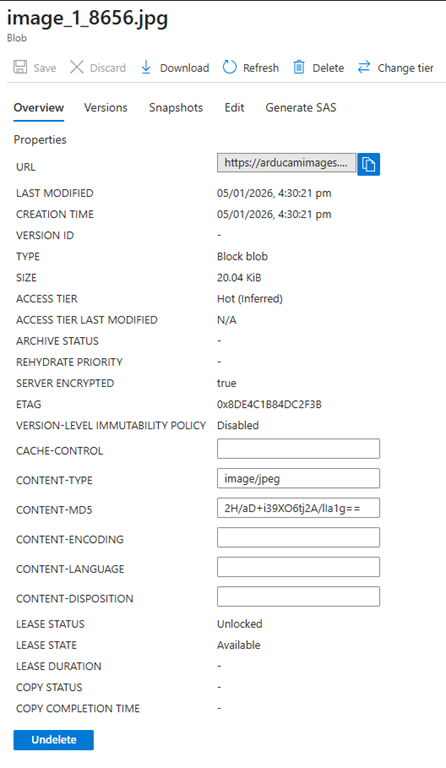
This should make it easy to store many images from the camera without having to use the serial port to view and download them
 CIAOPS Labs
One thought on “Send images from Arducam to Azure”