Keyestudio Red and Green Module

A few articles back, while working on the Keyestudio Sun Follow kit, the LED module provided failed. Strangely, it was just the LED. In the end, I just soldered another LED into the board to get it working.

After some searching around it appears that you can buy direct from Keyestudios. Searching their site I found:

Screenshot 2025-02-17 125307

Red and Green LED module

So I bought two and I’m happy to say the arrived as expected. Nice.

Their site has a lot of really cool stuff and I’m going to check it out and maybe buy more based on the very positive experience I’ve had with their Sun Follower kit.

Keyestudio Sun Follower kit

Since the last post on the KS0172 I have completed a number of additional projects:

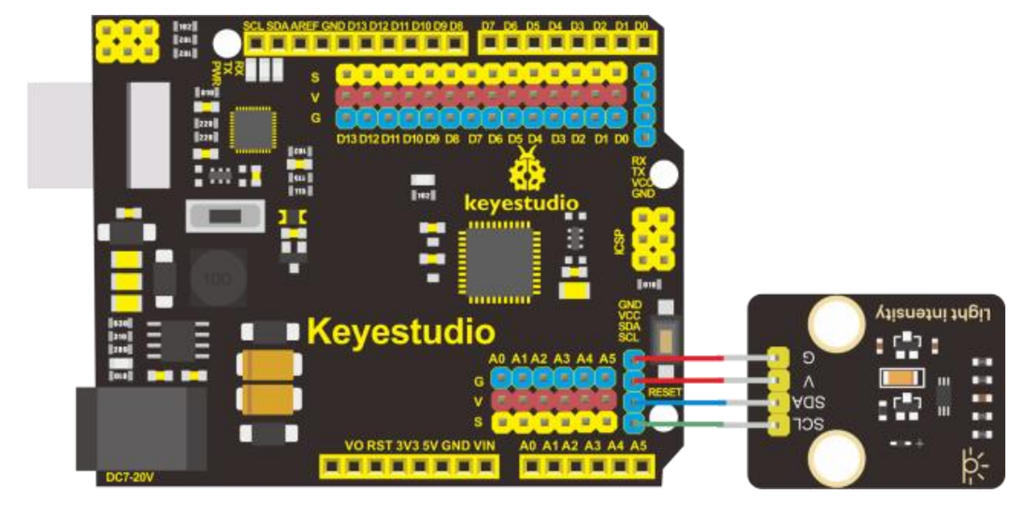
Light Intensity

Screenshot 2025-02-15 142946

Code = https://github.com/directorcia/Azure/blob/master/Iot/Keyestudio%20KS0172/Lesson_8/main.cpp

Servo motor

Screenshot 2025-02-15 143106

Code =

https://github.com/directorcia/Azure/tree/master/Iot/Keyestudio%20KS0172/Lesson_9.1

and

https://github.com/directorcia/Azure/blob/master/Iot/Keyestudio%20KS0172/Lesson_9.2/main.cpp

This has all been leading up to building this:

Screenshot 2025-02-15 142439

which I have also now completed. The code is here:

https://github.com/directorcia/Azure/blob/master/Iot/Keyestudio%20KS0172/Lesson%2011/main.cpp

I still need to get a

Polymer Lithium Ion Battery, 18650 Cell (3.7V 2600mAh)

so it can run stand alone rather than plugged into a USB port to provide power, however it does work! Yippee!

I think this kit is a great starter option and I would have been much better off commencing my IoT journey here rather than going hard core with just a single processor. The way the kit takes your through individual components and concepts, all building to the final sun follower was fantastic. The instructions were easy to follow, provide great information making it super simple to move through all the steps.

This was my first time actually using an Arduino development board and I can now understand why it is such a popular option. There is no soldering, all you need to do is plug and play. The connections are colour coded and easy to access and understand. Reflecting on how easy this kit an dteh Arduino controller is make me regret going down the route I took and the extra hassle, such as soldering pins, to get my initial projects to even work. Geeze, I did it the hard way.

The challenge is that unless you know someone skilled in IoT you won’t know where to start. However, starting with something like this is really the way to go I would suggest. It allows to grasp the concepts and see results quickly which no only reinforces learning but makes things far less frustrating due to something like a bad soldering joint. I just wish someone had recommended I start with a project like this rather than they way I did.

I’m now a big fan of the Arduino development board and will be looking ot utilise it in a few upcoming projects I have in mind. I think the Arduino is also going to let me resurrect my stalled Arducam Mega camera project. However, if you are looking to get into IoT then look no further than the Keyestudio DIY Solar Tracking Kit I suggest.

Why 2 connectors?

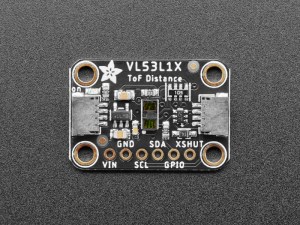
I’ve been planning a project which requires longer distance sensors. The Adafruit VL53L1X seems like it will do the job nicely. However, I was puzzled at what the two inbuilt connectors are on the board given there are also pin options?

Turns out these are Sparkfun qwiic or STEMMA QT connectors.

One STEMMA QT connector typically provides I2C communication (SCL, SDA) and power (VCC and GND), allowing the sensor to communicate with your microcontroller.

Top view of JST SH 4-pin to Premium Male Headers Cable next to US quarter for scale.

For the STEMMA QT cables, typically follow the Qwiic convention:

  1. Black for GND
  2. Red for V+
  3. Blue for SDA
  4. Yellow for SCL

Note the colors are slightly different for SDA/SCL but the pin order is the same

The second STEMMA QT connector is a duplicate of the first, giving you flexibility for different wiring setups or for easier daisy-chaining if you’re connecting multiple devices.

All of this means that I should be able to reduce the amount of soldering I need to do to get the next project operational.

Keyestudio KS0172–Humidity Sensor

I’ve had some previous experience with a temperature sensor on a few other boards:

Adafruit Huzzah temperature sensor

So this project seemed staright forward. The circuit diagram is:

Screenshot 2025-02-04 183750

and the code you will find here:

https://github.com/directorcia/Azure/blob/master/Iot/Keyestudio%20KS0172/Lesson_7/main.cpp

When I tried to use a generic DHT sensor library from the Platformio registry for the project wouldn’t work. I therefore needed to work out how to use thr provide library with Platformio. Turns out that is much easier than I thought!

  1. Inside your PlatformIO project, navigate to the lib/ directory.
  2. Create a new folder, e.g., MyLibrary/.
  3. Inside MyLibrary/, add your library files:
    lib/
    ├── MyLibrary/
    │ ├── src/
    │ │ ├── MyLibrary.h
    │ │ ├── MyLibrary.cpp
    │ ├── library.json (optional)
  4. In your src/main.cpp, include the library:
    #include <MyLibrary.h>
  5. PlatformIO will automatically detect and include the library.

This worked a treat and allowed my code to compile. Major learning there.